


Vivint App
✓ Verified AppVivint is a smart home and security management app that lets users monitor security cameras, lock and unlock doors, control smart lighting and thermostats, receive real-time alerts, and manage their entire Vivint Smart Home system from anywhere.
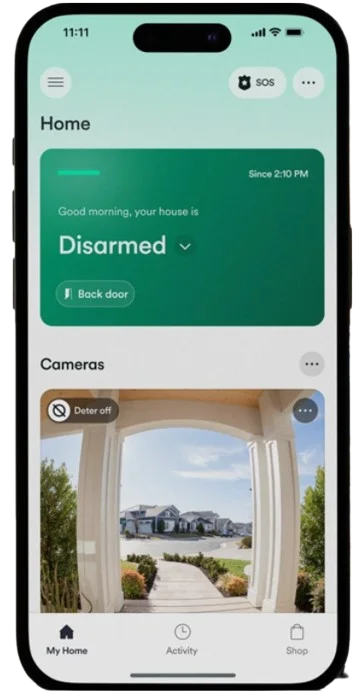
What is Vivint App?
Vivint app is the mobile interface for Vivint’s professionally installed smart home system. It’s built for homeowners who want complete control of their Vivint alarm system and smart devices in one place. Through the app, users can arm/disarm the security system, view live camera feeds and recordings, receive instant alerts (e.g., motion detected, door opened, alarm triggered), and speak through cameras/doorbells via two-way audio. The app also manages smart home features – adjust your thermostat, lock/unlock doors, turn lights on/off, and set schedules (“routines”) like auto-arming at night or activating “Away” mode.
This app is intended for customers (homeowners or small businesses) who have purchased a Vivint system with 24/7 monitoring. It is not a standalone alarm app – a Vivint Smart Hub (control panel) and subscription plan are required. The app offers high-end smart home convenience: for example, you can unlock the front door for a guest from work, see who’s at your door in HD, or have Vivint’s monitoring center dispatched to your home during an emergency.
In short, the app brings security and automation into the palm of your hand, giving peace of mind and flexibility whether you’re at home, at the office, or on vacation.
Quick Information Table
| Quick Facts | Details |
| Developer: | Vivint Smart Home, Inc. (Provo, UT) |
| Category: | Home Security / Smart Home (Lifestyle) |
| Platforms: | iOS (iPhone, iPad), Android |
| Initial Release: | mid-2010s (approx.) |
| Pricing: | Free app download; requires Vivint subscription (plans $24.99–$49.99/mo) |
| Encryption/Security: | Smart Hub and devices use industry-standard encryption |
| Active Users: | 2M+ customers (US, 2026) |
| Official Links: | Vivint.com · Support Center |
| Last Updated: | April 2025 (Android app) |
Key Features
- Centralized Home Control: Arm/disarm the security system and control all smart home devices from one dashboard. This includes door/window sensors, smoke alarms, locks, lights, garage door, thermostat, etc. (Any Z-Wave/Zigbee devices added to the Vivint hub are also controllable.)
- Live Video & Two-Way Talk: Watch real-time feeds from platform’s security and doorbell cameras, day or night. Use two-way audio to speak through the doorbell or indoor cameras – e.g., greet visitors or warn away intruders remotely.
- Event Alerts & Notifications: Receive instant app notifications for alarms, motion detection, doorbell rings, “left open” doors, smoke/CO alarms, etc. Custom push/SMS alerts can be set (e.g., when someone unlocks the front door).
- Smart Routines & Scheduling: Automate your home by creating custom actions (“scenes” or routines). For example, schedule your thermostat and lights to turn off and the doors to lock each night automatically, or have the system disarm when your phone’s GPS detects you arriving home.
- Multi-User Management: Set up individual user accounts with permissions. Share app access with family members or roommates using PIN codes and notification preferences. You can limit certain users (e.g., kids) from changing settings.
- Energy Management: Control smart thermostat and lights to save energy. The app supports setting temperature schedules or adjusting HVAC on the fly.
- Video Recording & Cloud Storage: View 30-day DVR clips of security camera recordings. Vivint cameras use cloud storage for events (30-day retention) and optional local DVR (10-day continuous). “Smart Clips” lets you download/share footage easily.
- Smart Deter & Detection: Vivint’s Outdoor Camera Pro has a “Smart Deter” feature that can sound an alarm to deter intruders. The app helps you review any deterring events captured.
- Voice Assistant & Integrations: Vivint works with Google Assistant and Amazon Alexa (it partnered with Google in 2018). Use voice commands to arm the system or check camera status. (Full Alexa/Google integration depends on devices and subscription.)
- Firmware Updates & Support: The app handles over-the-air updates for compatible devices to ensure you have the latest features and security patches. Technical support and system diagnostics are also accessible via the app.
Pricing & Plans
Vivint does not have a free tier – the app is free, but it requires Vivint equipment and a monitored security plan. The platform’s model bundles hardware with professional installation. Equipment costs are high-end: a starter kit typically runs $1,000–$3,000 (financed options available), and there’s no DIY setup (technicians install everything). Monthly monitoring fees are mandatory (generally $24.99 to $49.99+, depending on the plan and cameras). For example, one report lists platform’s monitoring around $24.99–$49.99/mo with an extra $5/mo per camera. The plans include cellular backup and 24/7 professional monitoring (police/fire dispatch).
By contrast, many competitors offer lower-cost or DIY options. The table below compares Vivint to major alternatives:
| Feature / System | Vivint (Pro Install) | ADT | SimpliSafe | Ring Alarm | Google Nest |
| Installation | Professional only (by techs) | Pro install or DIY (ADT Blue line) | DIY (no professional install) | DIY | DIY |
| Equipment Cost | High-end hardware (often financed) | Moderate (ADT devices) | Low-cost kits (self-bought) | Affordable kits | Varies (Nest devices, cameras) |
| Monitoring Fee | $24.99–$49.99/mo (24/7 monitoring) | ~$49.99/mo (ADT Complete) | $0 (self) or $22.99+/mo (pro) | $19.99/mo (Ring Protect Pro) | $6–$12/mo (Nest Aware tiered) |
| Contract Required | Yes (typically 3–5 years) | Yes, if financed (ADT Complete); no for month-to-month ADT Blue | No (month-to-month) | No (month-to-month) | No (no contract for Nest Aware) |
| Self-Monitoring | No (monitoring mandatory) | No (phone dispatch via ADT only) | Yes (optional, via app) | Partial (mobile alerts, no call-out) | N/A (no central alarm system) |
| Home Automation | Full integration (locks, lights, thermostat) | Z-Wave support (some automations) | Limited (focus on security sensors) | Basic (Alexa-compatible) | Good (Google ecosystem devices) |
| Video Storage | 30-day cloud clips (free) | 30-day cloud (ADT Video) | 7-day free, 30-day on plan | 60/180-day video (depending on plan) | 3–60 days (Nest Aware plan) |
| Encryption | Yes (Smart Hub encrypted) | Yes (ADT uses AES encryption) | Yes (AES encryption) | Yes (AES 128-bit) | Yes (TLS/AES for footage) |
| Best For | Homeowners wanting a pro-grade, smart system | Homeowners (Brand legacy, hybrid install) | Renters/DIY users on a budget | DIY/E-commerce shoppers (Amazon users) | Google Home enthusiasts |
Encryption note: Vivint’s system uses encrypted communication (Smart Hub and locks use cryptographic protections). Competitors likewise use industry-standard encryption, though data-sharing practices vary by company.
Pros & Cons
Pros:
- Comprehensive security + smart home integration in one app.
- Top-rated security cameras (1080p/4K, Night/Vision, Smart Deter) and doorbells.
- Customizable Z-Wave automations (add other smart locks, lights).
- Professional installation means plug-and-play setup and expert support.
Cons:
- Very expensive equipment and monitoring. Cameras and panels cost more than DIY kits.
- Long-term contract required for those financing equipment (up to 5 years).
- No DIY install or self-monitoring option (unlike SimpliSafe or Ring).
- Some users report app glitches or slow video streaming (solution: update the app or check connectivity).
- Limited appeal for renters or tech novices (installation and contracts may not fit their needs).
Privacy & Security
Vivint emphasizes device and account security. Its Smart Hub and devices use encryption to protect data, and it recommends strong passwords and two-factor authentication. Video and sensor data are encrypted in transit and stored securely on Vivint’s cloud servers. The app’s Google Play entry notes what data it collects (location, user content, usage data) and indicates it “Data isn’t encrypted” – this likely refers to user-provided data (the app’s communications to the servers are encrypted, but some user data fields are not end-to-end encrypted on-device).
Vivint’s privacy policy states that personal info (name, address, usage logs, camera clips, etc.) is collected and used to provide service. The video recordings are retained for 30 days by default; after that, events are purged unless downloaded. It does not sell video or personal data to third parties. Known controversies in Vivint’s history have involved sales practices (FTC fines in 2021) rather than technical security breaches. Overall, no major cybersecurity incidents are public, and experts note the platform’s encryption is on par with industry standards. As with any IoT system, users should secure their home Wi-Fi, enable 2FA on their account, and keep the app updated to guard against vulnerabilities.
How to Set Up the Vivint App
- Download the App: Install Vivint App from the Apple App Store or Google Play Store.
- Create/Log In to Your Account: Launch the app and create a account using your email/phone and a secure password. (If you already purchased a Vivint system, use your existing credentials.)
- System Connection: Grant the app the required permissions (location, notifications). The app will search for your Vivint Smart Hub over the internet (or via local Wi-Fi) and link to your security system.
- Pair Devices: New panels/cameras will auto-link. To add devices manually, go to “Devices” in the menu and tap Add. Follow the prompts to include cameras, locks, sensors, etc. (Your installer should have done this during setup.)
- Configure Notifications: Enable push notifications for alarms, camera motion, doorbell rings, etc., in Settings > Notifications.
- Set Up Automations: In the app’s Routines or Smart Actions section, create custom rules (e.g., “Lock all doors at 10 PM” or “Lower thermostat when system is armed”).
- Invite Users: Under Users or Account > Authorized Users, add family members or roommates by setting up their profiles and access codes (they can then download the app and log in).
- Integrate with Voice Assistants (optional): Link Vivint to Alexa or Google Home in those platforms to control it via voice. (See support for linking instructions.)
Your Vivint Smart Home Pro will normally guide you through this setup at installation. Once configured, test the system: try arming/disarming from the app, and check the camera live view. The app’s monitoring center will automatically connect if alarms trigger, but you can also contact support through the app’s help section.
Troubleshooting & Tips
- App Crashes or Won’t Launch: Ensure your mobile OS is updated and you have the latest Vivint app version. Force-close and restart the app, or reinstall it.
- Login Issues: If you forget your password, use the “Forgot Password” link. Check that Vivint hasn’t sent an email verification you need to approve.
- Cameras Offline: Confirm your home Wi-Fi is working (strong signal at camera location). In the app, go to Devices > Cameras, select the camera, and tap Reconnect. If needed, reboot the camera or call support to reroute it.
- Slow Video/Buffering: High-resolution streaming requires bandwidth. Try reducing the video quality in Settings or closing other bandwidth-heavy apps.
- Notifications Not Received: On your phone, verify the Vivint app is allowed to send notifications and has Location permission. In the app’s Settings > Notifications, ensure each event type is toggled on.
- Doorbell/Lock Not Working: Check battery levels on doorbell sensors/locks. For smart locks or the garage, confirm they remain wired to power and the hub is in range.
- Forgot to Arm System: Use the app’s lock screen widget or voice commands (if set up) for quick arming.
- Firmware Updates: If a device seems unresponsive, go to Settings > System Updates in the app to install any available firmware updates.
Many issues can be resolved by rebooting your router and panel (they have backup cellular). If all else fails, contact Customer Service directly via the in-app help or by phone.
Who Should Use Vivint App?
- Homeowners who want state-of-the-art security and smart home control, and are willing to pay for top-tier equipment and services. It is ideal for busy families or tech-savvy users who appreciate features like 2-way camera talk, smart deterring, and integration with lots of devices (locks, lights, thermostat).
- Users who prefer professional installation. If you’re not comfortable DIYing sensors or worry about setup, Vivint’s in-home installation by certified technicians is a benefit.
- People who value 24/7 monitoring and customer support. It provides round-the-clock monitoring centers and priority dispatch of police/fire. (If you have medical alerts or safety sensors, Vivint’s monitoring can alert first responders.)
- Small businesses or property owners that need a fully managed security system may also use it, given its scale and reliability.
Not ideal for: Renters or those on a tight budget – Vivint requires long-term contracts and prohibits DIY installation. For those users, SimpliSafe or Ring Alarm (DIY systems) are often better choices.
Alternatives & Comparisons
Vivint competes with both legacy alarm companies and DIY smart security brands. Key alternatives include ADT, SimpliSafe, Ring Alarm, and Google Nest (and similar). Below are quick comparisons:
- ADT: ADT is a century-old brand with nationwide monitoring. Unlike Vivint, ADT offers a DIY “Blue” line with no contract, but its high-end systems also require pro install and contracts. ADT’s monitoring and equipment are reliable, but its apps and cameras generally rank slightly below Vivint’s in innovation. Vivint beats ADT on home automation and modern cameras, while ADT wins on contract flexibility (especially via ADT Blue) and legacy security grade.
- SimpliSafe: SimpliSafe is a top-rated DIY security kit. It’s cheaper and no-contract (monitoring ~$22.99/mo), and very easy to install. However, SimpliSafe’s devices are basic (entry sensors, cameras), and it lacks full smart home integration. Experts say SimpliSafe is great for renters or budget users, but Vivint is better if you want the “premium” experience.
- Ring Alarm (Alarm.com ecosystem): Ring’s Alarm (formerly Scout) is an affordable DIY system with optional pro monitoring ($19.99/mo for 24/7). It excels in doorbell and camera tech (Amazon-owned), but it has fewer sensor options and relies on battery backup. Ring’s mobile app is popular but less customizable than Vivint’s for automations. Ring might be better for Amazon-heavy smart homes; Vivint is superior for a fully integrated security suite.
- Google Nest (formerly Nest Secure): Google’s Nest ecosystem (cameras, doorbells, Nest Hub) can form a security system (Nest Secure alarm was discontinued, but Nest and Google Home devices can fill some roles). Nest’s apps (and Google Assistant) offer convenience, but Nest lacks professional monitoring or some security hardware. Vivint offers a complete monitored package; Nest offers more DIY gadgetry.
Frequently Asked Questions
Q. What devices does the Vivint app support?
All Vivint security devices work with the app: door/window sensors, motion detectors, smart locks, garage door controllers, thermostats, lights, smoke/CO detectors, and cameras/doorbells. Essentially, any device connected to the Smart Hub is controllable via the app. (It also supports most Z-Wave/ZigBee devices added to the hub.)
Q. Is the Vivint app free?
Yes, the app itself is free to download. However, a Vivint security system and monitoring subscription are required to use it. The app note explicitly says “Vivint Smart Home System and service subscription required”.
Q. Which platforms is the Vivint app compatible with?
Vivint Smart Home runs on iOS (iPhone/iPad) and Android devices. (Apple Watch is not supported.) The App Store lists compatibility with iPhones/iPads and Google Play shows Android compatibility. System requirements generally are modern iOS/Android versions (e.g. iOS 13+ or Android 9+).
Q. Can I control the system if I lose internet?
If your Wi-Fi is down, the Vivint panel will switch to its cellular backup and stay armed. The app will require a network to send commands. If your phone is on the same local network (via Wi-Fi), basic disarm/arm might still work, but remote control usually needs internet. In summary: You need internet (or cellular at the hub) for full remote app control.
Q. How long does the system store camera video?
Standard cameras store motion-triggered clips on Vivint’s cloud for up to 30 days. (Continuous recording is limited to 10 days on a local DVR device.) You can download any clip before it expires. If you need longer storage, the Playback DVR option can record continuously for up to 10 days, but beyond 30 days the cloud clips purge automatically.
Q. Can multiple users use the same system?
Yes. It supports multiple user accounts. You can invite family members to the system through the app; each gets a unique username/PIN, and you can set user permissions (e.g., restrict kids from disarming or changing alerts). All users see the same cameras and device status in their app.
Q. Does Vivint work with Alexa or Google Home?
Yes, it is compatible with both Amazon Alexa and Google Assistant. You can arm/disarm the system or control lights/locks with voice. Note: Voice control setup is done through the Alexa or Google Home app, linking to your Vivint account.
Q. Is my data secure?
It uses encryption on its Smart Hub and devices and recommends 2FA to protect your account. Videos are encrypted in transit to Vivint’s cloud. However, the app declares that not all user-entered data is end-to-end encrypted, so treat personal info cautiously. The privacy policy covers usage/data collection in detail.
Q. Can I self-monitor my alarm without paying?
No – Vivint requires an active monitoring plan for the system to be functional. If you cancel monitoring, the system (and app) will effectively be disabled. It doesn’t offer an unpaid self-monitoring option.
Q. Does Vivint offer a trial or demo?
It sometimes offers a 30-day money-back guarantee on its contracts, but no true free trial. For demo purposes, you can use the app in “Guest” mode to explore the interface (no real devices are connected). Otherwise, you must commit to a paid plan to use live features.
Q. What is Vivint’s “Smart Drive”?
Smart Drive is an optional DVR appliance for cameras. It plugs into your Smart Hub and records 24/7 video from up to 12 cameras locally (up to 10 days of continuous footage). You use the app to access Smart Drive recordings, but the standard plan already includes 30-day cloud clip storage.
Q. Can I arm/disarm Vivint from outside the app?
Yes – besides the Vivint app, you can also send quick commands from some smartwatches or via voice (Alexa/Google). The security panel also has a keypad, and the Sky panel lets you arm/disarm with a key fob on-site.
Q. What if I have an older panel (Go!Control)?
Vivint has a legacy “Vivint Classic” app for older Go!Control panels. If you search “Vivint” on your app store, you should download Vivint Smart Home for new systems; only use the Classic app if directed by Vivint for legacy systems. The features above apply to the current Smart Home app.
Q. How do I contact Vivint support?
You can reach their support 24/7 by phone (in the app under “Help” or by calling support line). The app’s “Help Center” also provides FAQs and live chat. For quick fixes, try their online Support site.
Q. Why is my Vivint app not working?
Common causes include network issues, outdated software, or app glitches. Ensure your internet/Wi-Fi is stable and fast (The platform recommends ≥2 Mbps per camera). Close and reopen the app; if that fails, log out and log back in. Clearing the app cache (Android) or “offloading” the app (iOS) can help. Make sure you’ve updated the Vivint app and your device’s OS to the latest version. If problems persist, try deleting and reinstalling the app or contact support.
Q. How to delete activity (events) on the Vivint app?
The app does not allow deleting past events or camera activity logs. There’s no user-accessible “delete” or trash bin feature in the app. (Video clips must be removed via the system: see camera removal.)
Q. How to delete videos on the Vivint app?
You can’t directly delete recorded videos in the app. Vivint explicitly does not provide a delete function for clips in the app. The only way to stop future recordings or remove a camera is to disable or remove the camera device itself.
Q. How to find deleted videos on the Vivint app?
Because deleted clips are permanently removed (no recycle bin or undo), you cannot retrieve them within the app. The platform has no built-in “trash” or archive for deleted footage. Once a clip is gone (or if the camera is removed), it’s irretrievable in-app.
Q. How to turn off a Vivint camera without the app?
You can disable a camera in two main ways outside the mobile app: (1) Physically cut power – unplug the camera or remove its battery/power source. This immediately stops recording. (2) Use the panel (SkyControl/Smart Hub) – on your in-home panel, navigate to camera settings and enable Privacy Mode or disable the camera. For example, on a panel, go into the “Cameras” (or Settings) menu and toggle off the camera or switch on Privacy Mode. In summary, unplugging or using the control panel are the only ways to truly power off the camera without the app.
Q. How to change doorbell sound on Vivint app?
In the Smart Home app, open Cameras at the bottom, tap the settings icon (usually a gear) at the top right, and select your Doorbell Camera Pro. Scroll down to Chimes (or Doorbell Chime) and choose a new sound from the list. (The platform periodically adds special chime sets for holidays, but the process is the same: open Vivint app → Cameras → Settings (gear) → your doorbell camera → Chimes → pick a tune.)
Q. How to add a thermostat to the Vivint app?
Thermostats (e.g., Nest or Element) are added through the system’s Z-Wave network via the Smart Hub (panel) rather than the app. Typically, a installer or the homeowner uses the panel menu: Settings → Devices → Add Device/Thermostat, then triggers the thermostat to join (often by powering it on in “add” mode). Once paired to the system, the thermostat will appear in the app. (The user-level app does not have a simple “Add Thermostat” button; it’s handled through the panel’s device menu.)
Q. How to update the Vivint app?
On your smartphone or tablet, go to the App Store (iOS) or Google Play Store (Android), search for “Vivint Smart Home” and tap Update. Ensure your device’s operating system is also up-to-date. You can also enable automatic updates for the app. Keeping both the app and OS current prevents many issues.
Q. How to use the Vivint app without a subscription?
Unfortunately, you can’t fully use the app without an active monitoring plan. As one user notes, without a subscription, you lose all remote access: “The only thing you can do while not paying is access through the panel. No app access, no remote access”. In practice, if you cancel Vivint service, your app will no longer connect to the system or cameras.
Q. How to log out of the Vivint app?
In the app, tap the menu icon (≡) to open the main menu. Look for Log Out or Sign Out at the bottom or in your profile section. Tap it to log out of your account. To fix issues, support often suggests simply logging out of the app and logging back in.
Q. How to change the notification sound on the Vivint app?
The Vivint app uses your device’s default notification sound and does not provide in-app notification sound options. On Android, you can change the app’s alert tone via Settings → Apps → Vivint → Notifications → (channel settings) and choose a different sound. On iPhone/iOS, custom notification sounds aren’t supported per app – it will use the standard iOS alert sound. The app itself has no built-in toggle for notification tones.
Q. How to pay the bill on the app?
The mobile app itself does not handle billing. To pay your Vivint subscription, use the Account Center on Vivint’s website. There you can log in to your account and click “Make a Payment”. Alternatively, the platform partners with third-party bill payers (e.g., Doxo) where you can pay by credit card or bank. There is no payment function inside the app.
Q. How to set up the Vivint app?
Download the app (Android or iOS). During or after installation, your Vivint installer will send a “remote access invite” to your email. Open that email and create a password to link your app to your system (as part of your account). Then open the app and log in with the email/password. The app should then connect to your Smart Hub automatically. (In short: install the app, open the email invite from Vivint to set your password, then log into the app.)
Q. Why does my Vivint app keep closing?
This usually happens due to app stability issues or low resources. Causes can include an overloaded cache/data, an outdated app version, or conflicts with your device. Try: force-stop and reopen the app; clear the app’s cache (in Android settings) or offload/reinstall the app (iPhone). Ensure the app and your phone’s OS are updated. Rebooting your phone can also clear glitches. If it still crashes, uninstall and reinstall the app.
Q. How to reboot the Vivint panel from the app?
You cannot reboot the panel remotely via the mobile app. Rebooting must be done on the panel itself (Smart Hub or SkyControl). On the Smart Hub panel, for example, go to Settings (or menu) → Smart Hub → Reboot and confirm. This will restart the panel. There is no “Reboot Panel” button in the mobile app.
Q. How do I add a second home to my Vivint app?
Vivint’s system is per-site. If you have two separate systems (e.g., a second home or business), you may need a separate login or contact Vivint. There is no self-serve “Add a Home” feature in the consumer app. Some multi-family users create a single account with multiple “locations” (set up by the platform on the backend). In practice, contact support to have them link multiple locations to one account. Then, in the app, you could switch between sites (they would appear under your account).
Q. How to remove the thermostat from the Vivint app?
Removing a thermostat must be done via the panel (not directly in the app). On your Smart Hub/SkyControl, go into Advanced Settings → Z-Wave → Remove Device. Mark the thermostat as a “failed device,” and the panel will remove it from the system. After removal from the panel, it will disappear from the app. (The app itself has no “delete thermostat” button.)
Q. How do I download the Vivint app?
Open your device’s app store: Google Play Store (Android) or Apple App Store (iOS). Search for “Vivint Smart Home” and download/install the app. (It’s free.) Then open it and log in.
Q. Where is the panic button on the Vivint app?
In the app, the emergency “Panic” button is accessible on the home/security screen. Look for a shield icon or an emergency (panic) icon. Typically, you tap the shield at the center of the screen, and there is a panic/emergency option. In older versions, you might tap the menu (≡) and see “Panic Button” or “Panic” listed. On Vivint’s panel, a panic function exists, but in the app, the quickest way is via the main screen’s emergency icon. (If you have the new app UI, tap and hold the security shield on the home screen – dragging to one side triggers emergency.)
Q. How to download a video from the Vivint app?
In the app, go to Cameras and tap All Clips. Find the clip you want and swipe it to the left. Tap the Share icon. On iOS, choose Save Video – this saves the clip to your Photos. On Android, select Video player – the clip will download to your Videos folder. This is official method: “Navigate to the Cameras section → All clips → slide the clip left and tap Share. On iOS, tap ‘Save Video’ (goes to Photos); on Android, select Video player to download the file”.
Q. Why is the Vivint app so slow?
App lag is usually due to weak connectivity or device strain. The cameras stream through the panel, so ensure your home Wi-Fi is strong. Vivint recommends at least 2 Mbps upload per camera. If your internet or phone is slow, video and app actions will lag. Also, an outdated or overloaded app can be sluggish – clearing the cache, updating the app, or rebooting your phone can help.
Q. How to use the Vivint app?
The app gives you full remote control of your Vivint system. You can arm/disarm the alarm, view live and recorded video from cameras, lock/unlock doors, adjust the thermostat, turn on lights, and run custom automations – all from one place. It also sends alerts and notifications (e.g., motion detected, door open). For example, Vivint describes it as a centralized app to control “security system, thermostat, locks, cameras, and lights” in one place and to view live/recorded camera footage. Essentially, open the app, and you’ll see your system status; tap on devices (cameras, locks, etc.) to control them, and use the shield icon to arm/disarm.
Q. How to delete notifications on the Vivint app?
The Vivint app doesn’t have a built-in notification inbox you can purge. Notifications are delivered via your phone’s notification center. To clear them, swipe them away on your lock screen or notification shade. There’s no option inside the app to “delete” old alerts – they simply expire or are cleared by your phone.
Q. Why is my Vivint app grey?
If the app’s screen appears grey or blank, it may be stuck loading or awaiting input. (Some users reported that tapping the gray area of a login prompt can dismiss it.) First, check your internet. Try closing and reopening the app. Update the app if an update is pending. If it’s still grey (for example, if the app on Apple Watch shows a grey “login” card), some users suggest tapping the grey “X” at the top left to dismiss it. Otherwise, reinstall the app. In general, a completely grey app likely means a glitch, so updating or reinstalling usually fixes it.
Q. How to link myQ to the Vivint app?
In the app, open the main menu (hamburger ≡), select Works with Vivint, and then choose myQ. Follow the on-screen instructions to sign in to your myQ (Chamberlain) account and pair your garage hub with the platform.
Q. How to test the Vivint alarm from the app?
You cannot fully test/trigger the alarm through the app. To put the system into Test Mode (which lets you test sensors and sirens without contacting authorities), use the Vivint panel: Disarm the system, then go to Security → System Test on the Smart Hub/SkyControl panel and run the test. The app itself does not have a “Test Alarm” button; testing must be done via the panel’s security settings (see support on entering Test Mode).
Q. How to turn off vehicle detection on the Vivint app?
If you have Outdoor Camera Pro with vehicle detection, open that camera’s settings in the app: go to Cameras, select the Outdoor Camera, then find Recording/Detection Settings. There you should see toggles for what triggers recording (e.g., motion, people, vehicles). Turn off the “Vehicle” detection toggle. This will stop the camera from specifically flagging vehicles. (Exact menu names can vary by app version, but it’s under the camera’s recording or detection options.)
Q. How to login to Vivint app?
First, ensure you have a account (usually set up during installation). Open the app and, on the login screen, enter your account’s email (or username) and password. This is the same account associated with your Vivint system. If you don’t have credentials, contact your installer or call support to get your remote access account set up. After logging in, the app will connect to your system’s Smart Hub.
Q. Where is the deleted bin on the Vivint app?
The app has no “deleted bin.” Once you delete (or remove) a video clip, it’s gone. There is no trash/recycle folder. The only “deleted” bin mentioned in recovery guides is a misconception – in reality, the platform does not keep deleted clips in-app.
Q. How to add a user to the Vivint app?
In the app, tap the menu (≡) and choose Users, then Add User. Enter the new user’s name and a 4-digit PIN for them. After creating the user, toggle “Allow Mobile Access” on so they can use the app. Assign permissions (including admin rights if desired) before finishing. The new user can then log into the app using their PIN and control only what you’ve allowed.