

Instawork App
✓ Verified AppInstawork is a flexible work and staffing app that connects hourly workers with local shifts across hospitality, warehouse, retail, events, food service, and other industries. Users can browse available jobs, choose shifts that match their schedule, and manage work and payments directly from the app.
What is Instawork App?
Instawork app is an on-demand staffing marketplace app for hourly workers and local businesses. It lets users find flexible short-term jobs (also called “gigs”) in industries like hospitality, retail, warehousing, events and food service. Workers can browse local shift listings, book jobs instantly (no lengthy interview), and get paid on a weekly or even daily basis. Businesses use it to quickly fill extra shifts with pre-vetted workers.
Instawork app is ideal for gig economy workers – e.g., servers, bartenders, cooks, warehouse workers, event staff, drivers – who want flexible schedules and immediate income opportunities. You can pick shifts that fit your availability and skills, and even see the pay rate before you accept a shift. It’s popularity comes from its convenience and speed: it has a large network (over 9 million workers) and operates in dozens of U.S. cities. Users gain control over their schedules and earnings, making it a popular tool for side hustles, seasonal work, or supplementing full-time income.
Verified App Badge: Yes – Official app
Trust Signals: ★ 4.7/5 rating (95K reviews on iOS); 1M+ Google Play downloads; Trusted by thousands of businesses and 9M+ workers.
Quick Information Table
| Developer | Instawork Inc. (Garuda Labs, Inc) |
| Category | Business (Job Search / Staffing) |
| Platforms | Android, iOS (Apple), Web browser |
| Current Version | Latest (updated Apr 18, 2025 on Android) |
| Initial Release | 2016 (Instawork founded in 2015/16) |
| Pricing | Free for job-seekers (no subscription) |
| Availability | 60+ cities in the US & Canada |
| Languages | English, Spanish |
| Security | Encrypted data in transit; background-checked workers and on-shift insurance |
| Official Website | instawork.com |
| Help Center | help.instawork.com |
| Last Reviewed | 2026-06-11 (current) |
Key Features
- Shift Search & Booking: It’s core feature is finding shifts that match your schedule and skills. In the Instawork app’s “Shifts” tab, you can browse live job postings in categories (hospitality, warehouse, retail, events, etc.) and filter by location, date, time and pay rate. Each shift listing shows pay details and requirements. Tapping a shift gives full info (location, duties, dress code, tips policy, etc.). You can then book/apply for the shift directly in-app. Many entry-level shifts auto-approve, while skilled roles (like bartender or line cook) may require a quick profile check or screening. The process is usually instant or takes a few hours to finalize.
- Flexible Scheduling: You control when and where you work. Only choose the shifts you want – there are no minimum hours. The Instawork app automatically notifies you of new shifts, and you can “mark yourself available” to see more. It also offers a “Job Bank” feature where you can browse a quick list of high-demand roles in Culinary, Hospitality, Warehouse, Retail, etc.
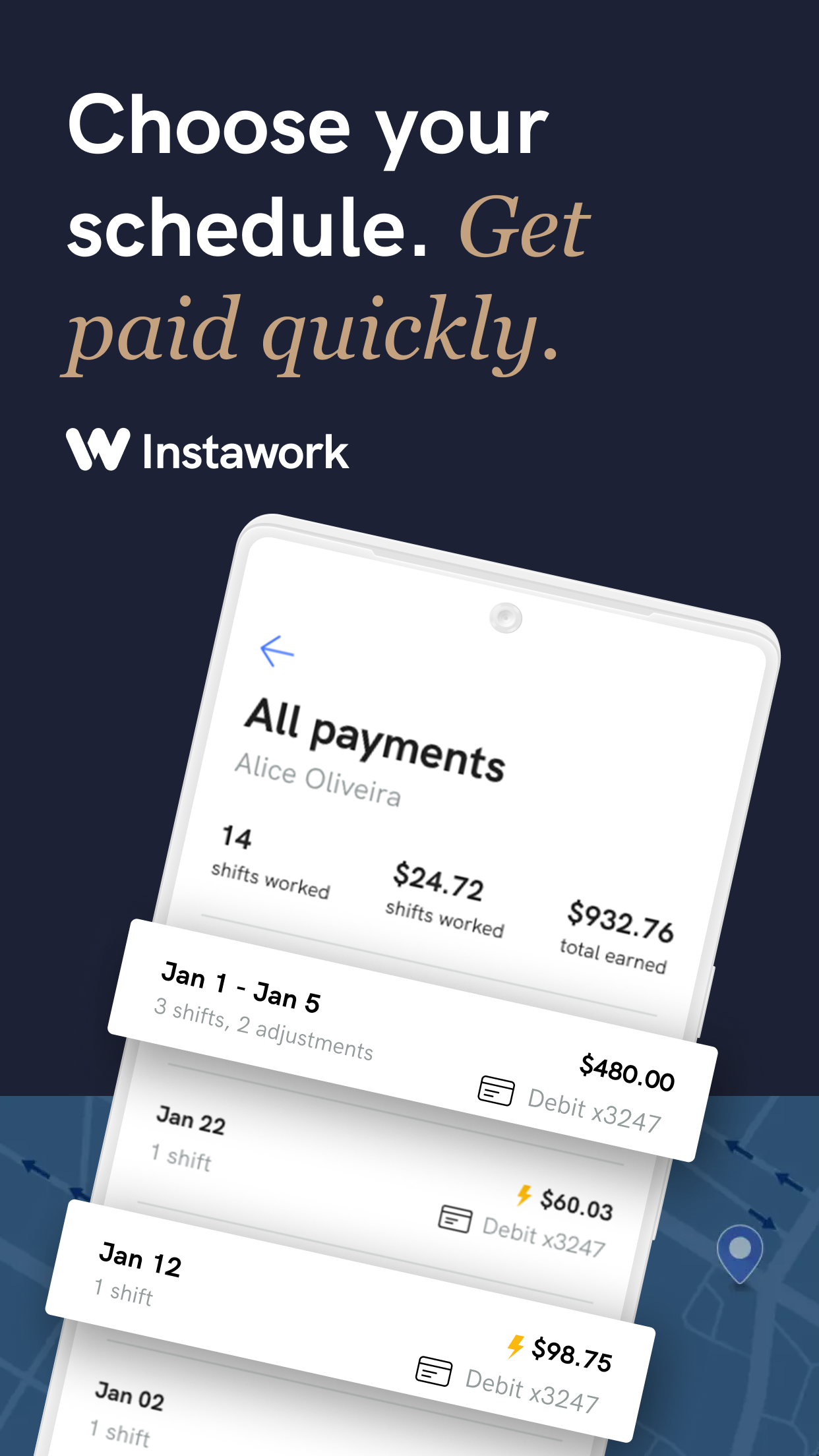
- Transparent Pay: Every shift clearly shows its hourly rate before you book. After your shift, it tracks your earnings for you. You can view your timesheet and pay history in the Instawork app. Paychecks are typically deposited weekly via direct deposit, but Instawork also offers an Instapay (daily pay) option for eligible workers (usually those in Top Pro status), allowing same-day pay for a small fee.
- Clock In/Out with GPS: On the day of the shift, you use the Instawork app to clock in and clock out. It uses your phone’s GPS to verify you are at the correct location. This ensures accurate time tracking. The app even tracks break times for hourly compliance. Geofencing helps protect against wage fraud and allows businesses to confirm you arrived at the site.
- Manage Your Schedule: The “My Shifts” tab shows all your booked shifts and upcoming schedule. You’ll see details (where to go, whom to contact, dress code, etc.), and you can get map directions. You can also set calendar reminders for shifts. If you need help, you can message the on-site manager or support from within the Instawork app.
- Profile, Ratings & Top-Pro: It builds a worker profile with your work history, skills, certifications, and ratings. Businesses rate you after each shift. You can see your overall rating and feedback. Keeping a high rating unlocks more opportunities. It has a “Top Pro” program: by working shifts and maintaining a high average rating, you earn points that elevate your status (Bronze/Silver/Gold/Platinum). Higher tiers get perks like earlier access to new shifts and up to 25% bonus pay on select jobs. (E.g., Gold status requires ≈50 points and a 4.8+ rating; then you earn bonuses on shifts.)
- Communication & Support: You can chat with coworkers working the same shift and receive announcements from the business. The Instawork app includes help resources and in-app support chat. Support is available 7 days a week for any issues. (Note: Some users report that contacting support can be slow at times.)
- Verified & Safe: It screens both sides for security. All users on Instawork have verified profiles, and businesses are vetted. It provides occupational accident insurance for on-shift injuries and handles any necessary tax forms. The worker’s hourly rate includes background checks and insurance coverage. The app data is protected – personal and payment info is encrypted in transit, and you can review its privacy policy on data use.
Supported Devices
Instawork is primarily a mobile app but also offers a web interface. Supported platforms:
- Android: Official Instawork app available on Google Play. Requires Android 6.0+ (approx).
- iPhone: Official iOS Instawork app available on the App Store. Requires iOS 15.1 or later.
- iPad: It has no separate iPad app, but the iPhone app will run on iPad (as an iPhone-sized app).
- Web (Desktop/Mac/Windows): You can log in at instawork.com or app.instawork.com to manage your account and see shift details, but shift booking is optimized on mobile.
- Wearables/Smart Devices/TV: Instawork does not have dedicated smartwatch or TV apps. The mobile app handles the functionality.
How to Download the Instawork App
- Android: Open the Google Play Store and search for “Instawork.” Select “Instawork Gigs & Jobs” by Garuda Labs, Inc (the official listing) and tap Install. Or use this link to go directly.
- iPhone: Open the Apple App Store and search for “Instawork.” Select “Instawork: Work when you want” by Instawork and tap Get. Or use this link for the App Store page.
- Web/Desktop: You don’t “download” Instawork, but you can use the website: go to instawork.com and sign up or log in. For the best experience, mobile is recommended.
- Official Sources: Always download it from the official app stores above. (Beware of copycat or phishing sites.) The official website links to the correct app store pages.
How to Set Up the Instawork App
- Open the app after installing it on your device.
- Create an account: You can sign up with your email or phone number. Follow the prompts to verify your contact (you may receive a verification code). If you already have an account (even on Instawork’s website), just log in.
- Complete your profile: Enter your name, a clear profile photo, and relevant work history. For entry-level positions (e.g., general labor), minimal info is needed. For skilled roles (like bartender, cook), the app will ask for more details: upload your resume/work history, certifications (food handler’s permit, etc.), and do a quick AI screening call.
- Personal details: Enter your date of birth, address, and Social Security number (for tax purposes) if prompted. Verify your phone number and email in your account settings.
- Bank info: Add your bank account for payroll deposit. (It supports direct deposit.)
- Select industries & skills: Choose the job categories that interest you (hospitality, warehouse, etc.) and any certifications you have. This helps Instawork match shifts to you.
- Agree to terms: Complete any required background check or legal forms as prompted (if working in the U.S., a background check or W-2 paperwork might be needed depending on the type of work).
- Find shifts: Once your profile is complete, you can immediately start browsing and booking shifts in the app. (Some roles may require profile review by Instawork or the employer before approving your application.)
How to Use the Instawork App
- Finding Shifts: Tap the Shifts (or Find Shifts) tab. Browse available shifts listed by date and category. Use the filters to narrow by date, time, location, role type, or minimum pay rate. Shift listings show pay and details. Tap a shift to see full info and then tap Book or Apply to claim it. (Some shifts auto-approve; others may require the business to accept you.)
- Managing Your Schedule: After booking, the My Shifts tab lists your upcoming shifts. Here you can view details for each shift: address, dress code, special instructions, contact person, etc. You can also get directions via the map. The Instawork app will send reminders before your shifts (enable notifications and location for these alerts).
- During a Shift (Clock-In/Out): When you arrive at a shift location, open the shift in the app and tap Clock In. The app uses your phone’s GPS to verify location. At shift end, tap Clock Out. Always follow break protocols (Instawork tracks breaks automatically) so your hours are accurate. If you have any questions, you can refer to the shift instructions or message the on-site manager directly from the app. The app also shows the names of other workers on the same shift (networking/community).
- Communication: Use the Messages/Chat feature to talk with other Pros on the shift or receive announcements from the business. If you encounter a problem, you can immediately contact support through the Instawork app (via your Profile → Help).
- After the Shift: When the shift is finished and approved by the business, your hours automatically register. In My Shifts or the Earnings section, you can view your pay breakdown for each shift and see when payment will arrive. It deposits earnings to your bank weekly by default. If you qualify for Instapay, you can request your pay right away (usually for a small fee) instead of waiting for the weekly pay cycle.
- Ratings & Profile: After each shift, you’ll be prompted to rate your experience, and employers will rate you. Your overall rating (out of 5) is visible under your profile. Keep it high to unlock better shifts. You can also update your profile at any time (add new skills or certifications) to qualify for different shift types. The app tracks your Top Pro points – for every shift worked, you earn points, and reaching higher levels (e.g., Gold or Platinum) grants access to bonuses and perks.
- Staying Active: Check the Instawork app regularly. Many shifts are posted in real-time and fill quickly. Enable push notifications so you don’t miss alerts for new shifts. (On iPhone/Android settings, allow notifications. Also disable Do-Not-Disturb if possible during job searching.) Keep your profile updated and accept or complete any required quizzes/certifications to stay eligible for more positions.
Common Uses
Instawork is widely used for flexible part-time or temporary staffing. Examples include:
- Hospitality: Local bars, restaurants, cafes, and catering companies post shifts for servers, bartenders, barbacks, hosts, line cooks, dishwashers, etc. For instance, a restaurant needing extra help on a weekend can quickly hire Instawork Pros.
- Events & Catering: Event venues and catering companies hire temporary staff for banquets, sports games, concerts, and conventions. Instawork workers might staff event registration, serve at banquets, or assist with setup/tear-down.
- Warehousing and Logistics: Distribution centers and 3PL warehouses use Instawork to find order pickers, packers, forklift operators, and general warehouse helpers. Workers pick up one-day shifts assembling orders or managing inventory.
- Retail & Merchandising: Stores or grocery outlets sometimes need extra staff for stocking shelves, bagging groceries, or merchandising before busy shopping days. Instawork also handles delivery driver roles for local businesses.
- Seasonal & Last-Minute Gigs: Users employ it to cover last-minute staffing shortages (e.g., sick calls) or seasonal spikes (holiday shopping, tourist season). Because it operates in real time, it’s useful for finding a shift at short notice.
- Supplemental Income: Many people use it to earn extra money on their days off or between jobs. For example, a student or parent might pick up shifts whenever their schedule allows. No long-term commitment is needed – you can work one shift or many.
Pricing
Instawork is completely free for workers to download and use. There are no subscription fees, hidden charges, or in-app purchases for job-seekers. You create an account, browse available shifts, and apply at no cost. (Instawork’s revenue comes from the businesses: they pay an all-inclusive hourly rate when they book a worker, which covers the worker’s pay plus background checks, taxes, and insurance.)
- Free Tier: All core features – job search, booking shifts, earning pay – are free.
- Instapay/Debit Card: It offers an optional debit card for daily pay (“Instapay”), which may have a small processing fee when you withdraw money. (This is optional and only for eligible workers; standard pay is free.)
- No Trials or Premium: There are no premium paid features for workers. It does not charge job-seekers for advanced features – everything is included once you sign up.
Privacy & Security
- Data Collection: The Instawork app collects information needed to operate the service: this includes your name, contact info, work history, ratings, payment info, and location during shifts. It may also access your device’s geolocation to verify clock-ins and push notifications for shift alerts. (The app has a Privacy Policy available on instawork.com.)
- Permissions: It will request permission to use your GPS/location while using the app (necessary for finding nearby shifts and clock-in verification). It may also request Camera access if you need to scan a code or ID, and Contacts for referrals. On Android 13+, you must explicitly allow notifications and background location for it to work correctly. Push notifications are used to alert you to new shifts and messages.
- Encryption & Safety: All data is encrypted in transit between your device and Instawork’s servers. Your account is protected by your login credentials. It also vets businesses and workers – for example, every shift payment includes background checks and Occupational Accident Insurance. For your physical safety, it offers support channels if you report any unsafe conditions.
- Privacy Controls: You can view or delete your data through your account settings. If you close your account, it keeps only the necessary information for taxes and legal reasons. It also states that you will stop receiving any notifications after deletion.
Pros & Cons
| Pros | Cons |
| Flexible scheduling – pick shifts around your availability. | Limited availability in some regions/cities. |
| A wide variety of jobs (hospitality, warehouse, events). | Popular shifts can fill quickly (high competition). |
| Transparent pay – see earnings per shift. | Pay rates vary by location; not guaranteed income. |
| Free to use – no fees for workers. | Requires passing screenings/background checks for some roles. |
| Earn bonuses through the Top Pro program (e.g., 25% on Gold shifts). | Instawork app glitches or location service issues reported. |
| Optional same-day pay (Instapay) and tipping in some roles. | Customer support can be slow to respond at times. |
Tips & Tricks
- Complete Your Profile: The more info you add (resume, skills, certifications), the more shifts you’ll qualify for. If a shift is labeled “requires approval,” adding relevant work history and certifications (food handler card, forklift license, etc.) and passing quizzes will help you get approved.
- Enable Notifications & Location: Turn on notifications so you’re alerted when new shifts are posted nearby. Also, allow the Instawork app to access your location (set to “Always” or “While Using”) so it can show relevant local shifts and let you clock in properly.
- Keep the App Updated: Use the latest version – updates often fix bugs and add features. If the app crashes or misbehaves, first try updating it from the App Store/Play Store.
- Check for Shift Transfers (Chats): It has a “Shift Transfer” chat feature (if your area has it) where workers can swap shifts. Joining these communities can help you pick up extra shifts that others drop. (Note: stay careful about any outside sharing of personal info; only use official Instawork chat.)
- Aim for Top Pro: If you plan to work regularly, try to achieve Gold or Platinum Top Pro status by working shifts and maintaining high ratings. As a Top Pro, you get bonuses on pay and earlier access to shifts (including same-day pay via Instapay).
- Set Shift Filters: Use the filter tools to narrow to high-paying or nearby jobs and to avoid roles you’re unqualified for. Sort by pay rate or distance to find the best shifts quickly.
- Stay Active: New shifts can appear anytime. Make it a habit to open the Instawork app daily or enable “Alerts” so you don’t miss opportunities. Better availability often means more shifts.
- Referral Program: If available, refer friends (some regions have a bonus program for referring other workers). Check the app or promotions for any referral links.
Common Problems & Solutions
- Instawork App won’t open or crashes: Ensure you have internet (Wi-Fi or cellular). Check for updates in the App Store/Play Store and install the latest version. Force-close and reopen the app. Make sure your device’s Location Services are enabled for Instawork (the app requires GPS to function properly). If it still fails, try reinstalling the Instawork app. Clearing app cache/data (in Android settings) can also help.
- Cannot log in: Verify you’re using the correct email/phone and password. Check your internet connection. If needed, tap “Forgot Password” on the login screen to reset via email. If you usually log in by SMS, ensure you’re using the same phone number and that you entered the code correctly.
- No shifts showing / “Shifts not loading”: Pull down to refresh the shift list. Confirm your internet is working. Make sure your location permission is on – it won’t show local shifts if it can’t detect your region. Check your filters – if too many filters are applied (e.g., a narrow date range), clear them. Finally, log out and log back in, or restart the Instawork app.
- Cannot clock in/out: You must be at the shift location. Check GPS on your phone is on and that Instawork has “Always” location permission. If prompted, disable any VPNs. Make sure your device’s battery-saving/location settings aren’t blocking the app. If it still fails, contact support or your on-site manager for help (sometimes a partner business can manually verify your presence).
- Earnings/payment issues: After completing a shift, payments may take up to 24 hours to process. If your pay isn’t showing, ensure you properly clocked in/out for the full time. Double-check that your bank account details in the Instawork app are correct. Support can trace any missing payment. Remember that tips (if applicable) may arrive later after business approval.
- Notifications not coming through: Check your phone settings – make sure notifications are enabled for Instawork and that Do Not Disturb mode is off. In Android 13+, you may need to adjust special “Shifts” notification settings within the app as mentioned in the troubleshooting steps. Restart your phone if needed.
- Instawork App running slowly: Close other background apps to free memory. Update app to the newest version. If Android, clear the app cache (in Settings → Apps → Instawork). Ensure your phone’s OS is up to date and that you have enough free storage. Using a stable Wi-Fi (instead of weak cellular) can also improve performance.
- Cannot view chat or help: If the in-app chat/help section is stuck, try logging out and back in or reinstalling. Ensure your app is updated. If the problem persists, use the website’s support or email.
- Login loop on shift summary: If you get stuck when viewing shift details, fully close the Instawork app (swipe it away). Then update the app in the store if needed and log out of your profile. Restart the app, log back in, and you should be able to see your shift.
- Need more help? In the Instawork app, go to Profile → Help. You can search FAQs or submit a support request. When contacting support, be ready to provide your phone model, OS, app version, and screenshots of any errors.
Alternatives
Below is a comparison of Instawork and other popular gig-job platforms. Depending on your needs and location, one of these may be a better fit:
| App / Platform | Description & Best Use |
| Instawork (US) | Focused on hourly/short shifts (hospitality, warehousing, events). Instant booking for same-day or short-term gigs. Best if you want flexible local shift work and faster payments. |
| Wonolo | Similar on-demand staffing app specializing in general labor and warehouse gigs. Often used for blue-collar tasks. Use if you need shift work in logistics or general labor. |
| Snagajob | Online job board for hourly workers (mostly long-term part-time or full-time roles in retail, restaurants, call centers). Better for finding advertised hourly jobs with formal applications. |
| TaskRabbit | App for on-demand tasks like moving, handyman, cleaning, and delivery. Connects you with clients needing specific tasks. Choose this for freelance home services rather than staffing jobs. |
| Bluecrew | Staffing marketplace (by Groupon) focused on W-2 warehousing and logistics jobs. Provides a steady schedule with benefits. Consider if you want a more stable warehouse job with employer benefits. |
| Jobble (Qwick) | Gig app for hospitality and event work (e.g., bartending, catering). Similar to Instawork but on a smaller scale. Use if you seek specific hospitality event gigs. |
| Shiftgig | Platform for hourly shifts in restaurants and hospitality. Offers a W-2 employment model in some areas. Alternate for hospitality gigs if Instawork has limited local availability. |
| Indeed / LinkedIn / ZipRecruiter (Job Search apps) | General job search engines covering all industries. Better for salaried or long-term roles; not focused on instant shifts. |
When to choose another app: If you need a full-time salaried job or long-term position, traditional job boards (Indeed/LinkedIn) are better. For freelance tasks (cleaning, delivery) use TaskRabbit or local gig services. For guaranteed W-2 benefits (healthcare, etc.), specialized staffing firms or apps like Bluecrew may suit you better. Instawork excels for flexible, short-term hourly shifts where you control your schedule.
Instawork App Statistics
- Users: Over 9 million workers registered (Company claimed).
- Downloads: 1 M+ on Google Play (iOS count not public; Trustpilot reports 371 reviews).
- Availability: Active in 60+ metro areas across the US and Canada (e.g., New York, LA, Chicago, Toronto).
- Supported Countries: U.S. (nationwide) and Canada (major cities).
- Developer: Instawork Inc. (Garuda Labs, SF).
- Release Year: 2016 (Instawork founded in 2015/2016).
The figures above are based on company statements and public app store data. All usage data are approximate and may have changed after 2026.
Frequently Asked Questions
What is Instawork?
Instawork is a mobile staffing marketplace app that connects local businesses with workers looking for short-term, hourly work. It focuses on gig shifts in hospitality, warehousing, events, retail, and similar industries. Users create a profile, then browse and book shifts that fit their schedule. Instawork handles payment and compliance, making it easy to earn money on your own terms.
How do I download Instawork?
On Android, open Google Play and search for “Instawork” (or use the link above). On iPhone, open the App Store and search for “Instawork: Work when you want.” Install the official app by Instawork, Inc. The app is free to download. You can also go to instawork.com on a desktop to find download links.
How do I sign up / create an Instawork account?
After installing the app, open it and tap Sign Up. Enter your email or phone number, name, and a secure password. Instawork will send you a verification code. Enter it to confirm your account. Then fill in your profile: add a photo, basic info, and your work preferences. You may need to complete identity verification or background check steps if prompted. Once your account is created, you can start browsing shifts.
Is Instawork free?
Yes. Instawork is completely free for job-seekers. You do not pay to download the app or use its job search and booking features. You earn the full hourly rate shown for each shift you complete. (Instawork makes money from the businesses: they pay an all-inclusive rate when they book a worker.)
What types of jobs are on Instawork?
Instawork offers a variety of hourly jobs. Common categories are: Hospitality (servers, bartenders, prep cooks, dishwashers), Events/Catering (event staff, prep crews), Warehouse/Logistics (pickers, packers, forklift operators), Retail (stock clerks, merchandisers, grocery baggers), and other local services (delivery drivers, general labor). Listings specify the role and industry. You’ll see both entry-level general labor positions and more specialized roles.
How do I update the Instawork app?
On Android, go to Google Play Store → My apps & games → Instawork → Update. On iPhone, open the App Store → Today tab → your Profile → scroll to Instawork → Update. Updating ensures you have the latest fixes and features. You can also enable automatic updates. If the app is acting glitchy, updating it is a good first step.
Why is Instawork not showing any jobs or not working?
Common causes: no internet, filters applied, or location off. Ensure your phone is online. In the app’s Shifts tab, pull down to refresh. Check that your location/GPS is enabled (Instawork needs location to find nearby shifts). If you’ve set strict filters (like dates or pay), try clearing them. If the problem persists, try force-closing the app and reopening, or reinstalling. Check Common Problems above for more fixes.
How do I apply for or book a shift?
In the Instawork app, go to the Shifts tab. Find a shift that interests you and tap it. Read the details (date/time, pay, requirements). If you want it, tap Book or Apply. Some shifts will book immediately; others may say “Pending” while the business approves. Make sure your profile meets any listed qualifications (for skilled roles, you may need to have added relevant experience and completed required quizzes).
How do I clock in and out?
When your shift starts, open the shift in the app and tap Clock In. You must be at the work location; Instawork will check your GPS to verify. When your shift ends, tap Clock Out. If you take a break, the app will log it automatically. Always ensure location services are on. If you’re having trouble, see Troubleshooting above.
How do I get paid?
Instawork pays you via direct deposit to the bank account you set up. By default, payments for completed shifts are processed weekly. In the app under Earnings or My Shifts, you can view how much you earned and when payment will arrive. Once the employer approves your time, it should post to your account in one week. If you qualify for Instapay, you can opt to receive your pay sooner (often on the same day) for a small fee.
What is Instapay?
Instapay is Instawork’s instant-pay feature. If you are eligible (often as a Top Pro), you can request to be paid immediately after a shift (instead of waiting for the weekly pay cycle). Instawork charges a convenience fee for Instapay. To activate it, go to your profile in the app and add a debit card. Then, after any paid shift, you can tap “Request Instapay” to transfer funds instantly. Note: In 2026, Instawork no longer requires a Top Pro status for Instapay; any user can use it if they have a card on file.
How do I become a “Top Pro”?
The Top Pro program rewards frequent, high-rated workers. You earn Top Pro points for each shift worked (10 points per shift). Each month, your points (and rating) determine your tier: Bronze, Silver, Gold, or Platinum. For example, earning 50 points (about 5 shifts) and maintaining a 4.8+ rating qualifies you for Gold. Gold and Platinum Pros get perks like earlier access to new shifts and up to a 25% bonus on select shifts. To increase your level, consistently work shifts without cancellations and maintain a high rating. Your current Top Pro status is shown on the home screen in the app.
How do I delete my Instawork account?
If you decide to stop using Instawork, you can delete your account from the app. In the Instawork app, go to Profile → Settings → Account Info. Scroll down and tap the red Delete Account button. You’ll be asked why you’re leaving and to confirm. Deleting your account will log you out, cancel any upcoming shifts, and erase your work history from the app. Any pending payments will still be processed. (You are required to keep basic records of your past work for tax purposes.)
How do I reset my password?
On the Instawork login screen, tap Forgot Password. Enter the email address tied to your account. Instawork will email you a link to reset your password. Follow that link and set a new password. If you usually log in by phone number, make sure you have access to that number to receive the reset code.
How do I update my profile info?
In the app, go to Profile → Settings → Account Info. Here you can edit your personal details, contact info, work history, availability, and skills. You can also add or update certifications, badges, or documents (like a resume or IDs) that Instawork requires for certain positions. Remember to save changes. Keeping your profile up-to-date (especially adding new skills or certifications) can help you qualify for more shifts.
How do I contact Instawork support?
The easiest way is within the app. Go to Profile → Help/Support, then describe your issue. Instawork’s support team is available 7 days a week. When contacting them, include details like your device, app version, and any screenshots. If you can’t use the app, you can email them or visit help.instawork.com and submit a request. Note: Some users report slow response via AI chat, so for urgent issues, also reach out to the on-site manager of your shift.
Why can’t I see any shifts on Instawork?
This usually happens if your location is off or if you have restrictive filters. Ensure Instawork is allowed to access your location (GPS); the app needs to know where you are to show local shifts. Check that your date range and pay filters are not excluding too many options. If you’re new, try updating your profile and adding some work experience – Instawork prioritizes showing shifts to workers who meet the qualifications. If it’s still blank, log out and back in, or check back later (new shifts post all the time).
What do I do if a shift is canceled by the employer?
If a business cancels a booked shift, Instawork will notify you. Any canceled shift will be removed from your schedule, and you won’t be paid for it. If you were en route or on your way, contact Instawork or the business manager for clarification (sometimes a reschedule is offered). To make up for lost time, promptly look for other shifts in the app. Instawork’s shift availability can vary; cancellations unfortunately do happen.
Is Instawork safe?
Instawork takes safety seriously. All employers on the platform are vetted companies, and workers have ratings and profiles. Instawork provides occupational accident insurance during shifts, so you’re covered if you get injured at work. The app conducts background checks on workers and checks (or insurance) on businesses. You can communicate with the on-site manager through the app if any issues arise. For data safety, your personal info is encrypted in transit and protected by Instawork’s privacy policies. Always follow safe work practices on the job itself.
Can I use Instawork offline?
No, Instawork requires an internet connection. You need online access to view and book shifts, update your status, clock in/out, and communicate. If you go to an area without service, you should clock in while still online or have previously opened the shift details. Data like schedules can be briefly cached, but you must be online to fully use the app and update your earnings.
How do I fix “App not working” errors?
See the “Common Problems & Solutions” section above. In summary: update the app, enable permissions (especially location and notifications), restart the app/phone, and ensure you have a stable internet connection. If a specific error appears (like a login or loading error), restarting the app or logging out and back in often resolves it. Reinstall the app as a last resort.
Why did I get suspended or rejected from a shift?
Instawork has rules for reliability. If you miss a booked shift (no-show) or repeatedly cancel late, you can be suspended. Also, applications for skilled positions require profile review. If you were rejected for a shift, it likely means the employer wasn’t comfortable with your experience or timing. To avoid issues, only book shifts you can work, show up on time, and build a strong rating. If suspended, the app’s guidelines will tell you how to appeal or when you can reapply.
How do I update or change my bank/payment method?
In the app, go to Profile → Settings → Payment Info (or “Payout Methods”). Here you can add or edit your bank account or debit card for Instapay. Make sure the account details are correct to avoid deposit delays. If you update your bank, pending payments may take an extra day to process.
Are there in-app purchases?
No, Instawork does not sell any in-app features. The app itself is free. The only optional purchase-like fee is the Instapay fee when you withdraw pay instantly. There are no subscriptions or premium levels.
Why does Instawork need my location?
Location permission is used to show you relevant shifts near you and to verify your arrival at the job site. If the location is off, the app may not show any shifts or allow clock-in. You can set it to “Always” or “While Using the App” in your phone’s settings so Instawork works correctly.
How is my personal data used?
Instawork uses your personal info (name, email, SSN, etc.) for account creation, tax forms (W-2/1099), and payroll. Work history and ratings are used to match you with jobs. Location data is used only for job-related features (finding nearby shifts, clock-in verification). Instawork’s Privacy Policy (on their website) explains data collection in detail. You have the right to view or delete your data (deleting the account deletes most data).
What if I encounter a problem during a shift?
First, contact the on-site manager using the contact info in the shift details. If it’s an urgent safety issue, leave the site and report it to Instawork support. The Instawork app has an in-app chat under Help; use it to report problems. Document any incident (dates, times, details) for support. Instawork can mediate issues such as wage disputes or working conditions.
Does Instawork do background checks?
Yes. Instawork conducts basic background and eligibility checks on its workers. Your employer’s payment includes the cost of background verification. For certain roles (like driving or security), you may need to pass a DMV or drug screen. The app will prompt you if additional checks are required for a shift.
How do I cancel a booked shift?
In My Shifts, select the upcoming shift and tap Cancel Shift (if available). You can only cancel up to the cutoff time shown (usually 24-48 hours before). Last-minute cancellations may still go through Instawork’s mediation; frequent late cancellations can affect your rating and Top Pro status. If the Cancel option is grayed out, contact Instawork support immediately – they may let you cancel it or find a replacement.
How long does it take to get approved for a shift?
For most entry-level shifts, approval is automatic upon booking. For skilled positions (like bartender, chef, or forklift operator), Instawork will review your profile (experience, certifications) – this may take from minutes up to a day. You’ll see the status change in My Positions. Once approved, that shift (and others like it) will be open to you. If you meet all criteria in your profile, approval is quick.
Is Instawork available outside the USA?
As of 2026, Instawork primarily operates in the United States (60+ cities) and has expanded into Canada. Some markets may be invite-only or in trial. If you’re outside these areas, you likely won’t see shifts. Instawork plans to grow to more cities, but for now it’s focused on North America.
What is Instawork’s job rating system?
After each shift, both worker and employer rate each other on a 5-star scale. Your average rating appears on your profile. Maintaining a high rating (no low scores) is crucial: Top Pro status requires certain average ratings (Gold needs ≥4.8, Platinum ≥4.9). Employers may favor higher-rated workers. Consistent five-star reviews help you unlock rewards; poor ratings can limit shift access or lead to suspension if they reflect no-shows or poor performance.
How do I get more shift notifications?
In the app, go to Profile → Settings → Notification Preferences. You can set how soon before a shift you want reminders. Make sure push notifications are enabled on your device. Also, ensure your availability and distance settings are broad enough. You can turn on “Shift Alerts” in your settings to get notified when new shifts matching your profile are posted.
My Instawork debit card was declined – what now?
If you’re signed up for Instapay with a debit card and a transaction fails, first check the card number and billing address in your profile. Ensure the card has enough funds to cover the Instapay fee. If issues continue, try another card or remove Instapay. For non-payment issues, your weekly direct deposit (to your bank) is unaffected by Instapay card problems.
How to fix login loops when viewing shifts?
If the app repeatedly loops or crashes when opening a shift, do this: fully close the app (swipe it away). Update Instawork in the App Store/Play Store if an update is available. Then reopen the app, go to your Profile, tap Log Out, and log back in with your credentials. This usually clears session issues.