


CallApp
✓ Verified AppCallApp is a caller ID, spam call blocking, phone number lookup, and communication management app for mobile devices. It helps users identify unknown callers, block spam and robocalls, manage contacts, and access additional calling features such as call recording (availability depends on device and region). The app is designed for people who want more control over incoming calls and improved caller information.
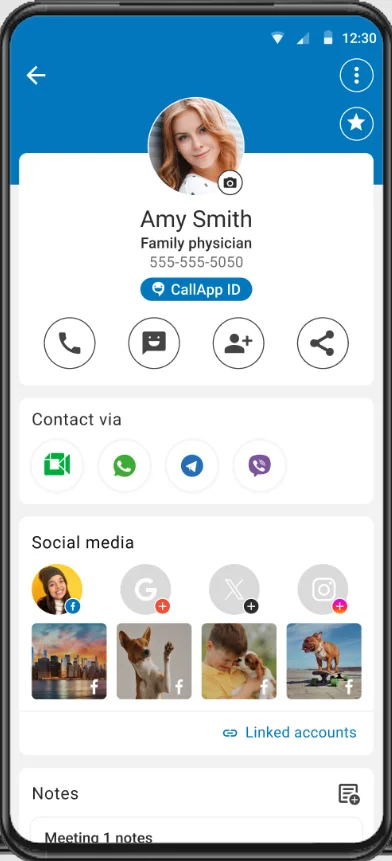
What is CallApp?
CallApp is a mobile app (Android/iOS) by CALLAPP Software Ltd that combines caller ID, call blocking, and call recording in one package. In short, it’s “the world’s largest, most comprehensive, unlimited and FREE caller-id” app. Behind the scenes, it aggregates data from public sources, social networks, and its user community to provide real-time information about incoming calls.
When you receive a call, CallApp cross-references the number with its database of contacts and public profiles, showing you the caller’s name and photo even if you haven’t saved them. It marks known spam/scam numbers and lets you add unwanted numbers to a blacklist. In addition to caller ID, this app serves as a dialer and default SMS app: you can browse contacts, make calls, and send texts within the app itself.
Beyond basic calling, it includes social integration – it can update contact cards with Facebook, LinkedIn, or WhatsApp info – and advanced features like video ringtones and call reminders. In short, it aims to be an all-in-one communication tool: it identifies who is calling, blocks scams, records important calls, and helps you manage communications efficiently.
- ✔ Verified App – High user rating and downloads.
- ⭐ 100M+ Installs on Google Play.
- ⭐ 4.3★ Rating from 1.75M+ reviews.
- 🔍 Identifies 8+ Billion Numbers globally.
Quick Information Table
| Information | Details |
| Developer | CALLAPP Software Ltd (Israel) |
| Category | Communication / Caller ID |
| Platforms | Android (Phone, Tablet, Wear OS), iOS (iPhone) |
| Current Version | iOS 1.19 (May 2026); Android version available on Google Play Store |
| Initial Release | Early 2010s (Android launched around 2012, iOS released later) |
| Pricing | Free with ads; optional Premium subscription (monthly, yearly, or one-time purchase) to remove ads and unlock advanced features |
| Availability | Available worldwide in 100+ countries |
| Languages | English plus 22 additional languages, including Spanish, French, Arabic, Chinese, German, Portuguese, and more |
| Security & Privacy | Collects contacts, call logs, SMS, location, and device identifiers for core functionality. Does not provide end-to-end encryption. Offers local-only call recordings and states that user data is not sold to third parties. |
| Official Website | callapp.com |
| Help Center | callapp.com/support |
| Last Reviewed | June 2026 |
Key Features
- Caller ID & Contact Info: Identifies incoming callers by name and photo, even if the number is not in your phone. It links phone numbers to public profiles (Facebook, Twitter, LinkedIn, WhatsApp, etc.) and displays that info during a call. This means you often know who’s calling before you answer.
- Spam and Call Blocking: Automatic spam detection blocks unwanted calls and texts. This app lets you add numbers or entire prefixes to a blacklist. Known robocallers and telemarketers are flagged in the database, so CallApp can block or warn you about them. It also filters SMS spam when used as the default messaging app. Users can mark any number as spam to improve the database.
- Call Recording (Android only): This app can automatically record phone calls. Due to Android policy, you must install a special version from it’s website to enable recording. Once set up, recordings are saved locally on your device (and can be uploaded to the cloud for backup). On iPhone, automatic call recording isn’t supported because iOS restricts it.
- Video Ringtones: Custom video backgrounds for incoming calls. You can set a unique video or animated screen for each contact, making calls more personal (a sample is shown below).
- Default SMS & Chat Integration: When set as your default SMS app, this app manages text messages and blocks spam SMS. It also identifies calls and messages from WhatsApp, Viber, Telegram and other chat apps, showing you who’s calling on those platforms (a feature called CallApp+).
- Contact Enhancement: It can augment your address book by syncing with social networks. It fetches contact photos, emails, and job titles from Facebook, LinkedIn, and more, keeping your contacts up-to-date.
- Call Reminders: You can schedule follow-up reminders for calls. For any contact or missed call, set a reminder note and time; this app will alert you when it’s time to return that call. This helps manage callbacks and important conversations.
- Personalization: Includes quick-dial speed dials, themes, VIP list, and more. For example, you can mark contacts as favorites, assign video ringtones, and tweak spam filter settings.
Supported Devices
- Android Phones & Tablets: This app is fully supported on Android devices (phones, tablets), including devices running Android 7.0 and up. It’s also available on Android-based Chromebooks via the Play Store.
- iPhone: Available on iOS (iPhone). It requires iOS 13.0 or later. The iPhone app focuses on caller ID and spam blocking (some Android-only features like call recording require the Android version).
- Wear OS (Smartwatches): It works with Android Wear OS watches. You can receive call notifications on your watch and initiate spam block directly from the wearable.
- Other: There is no native Windows/Mac desktop app. However, as a cloud-based service, CallApp’s identification features work wherever you make calls (e.g., Skype or web calls on Android devices). There is also a separate CallApp for Business service (web dashboard) for companies to verify outgoing calls, but that’s distinct.
Note: CallApp does not run on smart TVs or non-phone devices.
How to Download CallApp App
- Android: Open the Google Play Store on your phone, search for “CallApp”, and tap Install.
- iPhone: Open the Apple App Store on your iPhone, search for “CallApp”, and tap Get.
- Official Sources: Always download from the official stores or callapp.com (the site provides direct links). Do not download from unknown third-party sites to avoid fake or malicious versions.
How to Set Up CallApp
After installing:
- Launch and Sign In: Tap the CallApp icon. You can sign up using your phone number or log in via Google or Facebook. If you use Google/Facebook, choose the account when prompted. No password is required; you’ll get an SMS code to confirm your phone number if you use it to sign in.
- Set as Default Dialer: CallApp needs to be your phone’s default calling app to intercept incoming calls. Approve it as your default dialer when prompted in setup. You can also change this later in Android Settings > Apps > Default Apps.
- Grant Permissions: Allow CallApp to access your Contacts, Call Log, SMS, Phone, Microphone (for recording), and Storage. These permissions let the app identify callers and block spam. As the app notes, your data stays private (it does not share your personal info with outsiders). Also grant “Display over other apps” (Draw over apps) so this app can show caller-ID popups on the lock screen.
- Verify Number: If you signed up by phone, enter the SMS code received to confirm your number. It can auto-detect the code for you. If the code fails, use the “Call Me” option and answer briefly to verify.
- Social Sync (Optional): The app may ask to connect to Facebook, LinkedIn, etc. Approving this lets it pull profile photos and info into your contacts for better Caller ID context. This step is optional.
- Complete Tutorial: This app often offers a brief tutorial or “Gift” for new users (see the gift icon). You can skip or complete it to see hidden features.
- Premium Offer: You’ll be offered an upgrade to remove ads and unlock extra features (e.g., unlimited recordings). This is optional.
Once done, you’re set! Ensure the app is not blocked by battery optimizers, and you’re ready to use all features.
How to Use CallApp App
- Answering Calls: After setup, CallApp will pop up on incoming calls with a detailed caller ID screen (name, photo, and location if available). Simply swipe or tap to answer or reject as usual.
- Making Calls: Open the app to browse contacts or use the dialer. You can also search by number to look up info before calling (like “Reverse lookup”).
- Blocking Calls: To block a caller, tap the caller ID screen or open their contact in CallApp and select “Block” or the spam icon. You can also long-press numbers in Call History to mark them as spam. Blocked numbers go to the spam list.
- Recording Calls: On Android (if using the special APK), you can enable automatic call recording in Settings > Recorder. All calls will then be saved locally (accessible under Recordings). Use the built-in “Recording Test” tool (Menu > Settings > Recorder) if recording fails. iPhone cannot natively record calls due to iOS restrictions.
- SMS and Chat: If you set this app as your default SMS app, incoming texts are organized into personal vs. spam. The app identifies unknown SMS senders with Caller ID if possible. For WhatsApp/Viber calls, CallApp+ will show the caller’s ID name on your screen just like a regular call.
- Video Ringtone: To set a video ringtone, open a contact in the app and assign a video clip or live photo. Now, when that person calls you, your chosen video will play as the call screen background.
- Call Reminders: In a contact’s profile or in Call History, choose “Remind me” to schedule a call-back. You can write a note (e.g., “Ask about project X”) and set a time. The app will notify you with the note when it’s time to call back.
- Favorites & History: Use the Star icon to mark VIP contacts. They show on your home screen for quick access. The call and message history is available under History/Logs in the app, sorted by date.
- Search: Use the number search feature to look up any phone number in CallApp’s database without calling it.
- Settings: Tweak caller ID settings (e.g., enabling “Solve double ringing” and “Always ring/vibrate” to avoid missed calls). Adjust spam filters, recording options, and app theme under the main Settings menu.
Common Uses
- Spam Call Defense: Many users install this app to stop nuisance calls. It automatically filters robocalls and labels unknown numbers, so you only pick up important calls.
- Business Contacts: Professionals use it to identify unknown business or client calls by seeing names and company info (often linked via LinkedIn) before answering.
- Call Recording: Journalists or anyone needing notes can record important calls for review. With CallApp Premium, recordings are unlimited and saved to the cloud for later listening.
- Managing Contacts: It helps users keep contacts updated with social profile photos and job titles. It merges duplicate contacts and shows unified communication history (calls, texts, emails) per person.
- Multimedia Calls: Users often set fun video ringtones for family and friends (e.g., kids dancing) to personalize incoming calls.
- Travel/Vacations: It shows city/country info for the caller’s location, which helps on trips. It even detects if someone is calling from your own city or abroad.
CallApp Pricing
This app is free to download and use indefinitely. The free version includes all core features, supported by ads.
Optional CallApp Premium (subscription) removes ads and adds bonuses. Plans include monthly, yearly, or one-time “lifetime” options. Premium features typically include:
- Ad-free experience.
- Unlimited call recording. (The free version may limit the number of recordings.)
- Unlocking certain video ringtones or advanced themes.
- Priority customer support.
Premium pricing varies by region (e.g., roughly $1–$3 per month). Promotional deals and trials may be available in the app. You can purchase Premium from within CallApp under the “Go Premium” section or via the App Store/Play Store subscriptions.
Privacy & Security
Permissions: The app requires access to your contacts, call logs, SMS, phone, and storage to function. It may also request location (for caller area) and camera/gallery (for photos and video ringtones). According to its documentation, these permissions are needed to identify callers, block spam, and save recordings.
Data Collection: The app’s Privacy Policy (updated Nov 2025) is extensive. It collects the phone numbers and names in your contacts, incoming/outgoing call metadata, and SMS content metadata. If you link social accounts, it pulls profile info. Call recording audio stays on your device (not uploaded).
No Third-Party Selling: It emphasizes that it does not share or sell your personal data to advertisers or outsiders. It says it only shares data with third parties under legal obligations or with your consent. For example, it may send anonymized spam reports to improve its database.
Encryption: It itself does not end-to-end encrypt your call details or messages. The Google Play listing notes “Data isn’t encrypted”. This means communications are protected by standard network encryption, but CallApp (as the app developer) could theoretically access the contents it handles.
Privacy Controls: You can manage your data in several ways:
- Deactivate Account: In CallApp settings > My Account > Deactivate, or email support@callapp.com to delete your account and data. This removes your profile and associated data from the app’s servers.
- Opt-Out: You can unlist your phone number from the Caller ID database via the “Opt-out” tool on the website, making you invisible to others using it.
- Permissions: You can revoke permissions anytime in Android Settings if you want to limit data sharing (though caller ID may then stop working).
Safety Features: CallApp’s main security feature is spam protection. It flags known fraud numbers and blocks unwanted calls. It also warns users about potentially spoofed “No Caller ID” calls (which are often scams). Because call recording and data stay local (not on servers), your personal conversations remain on your device unless you manually back them up.
In summary, this app collects significant personal data to identify calls, but claims robust privacy practices (no ad tracking, no data sale). Users should weigh this when installing. If you’re uncomfortable, you can always deactivate your account and uninstall.
Pros & Cons
| Pros | Cons |
| ✓ Rich caller ID: Identifies most unknown numbers and shows contact photos/info. | ✗ Privacy concerns: Requires access to contacts, call logs, SMS, etc., which may be invasive to privacy. |
| ✓ Feature-packed: Includes call blocking, SMS filtering, recording, video ringtones, reminders. | ✗ Ads: The free version has banner and interstitial ads. |
| ✓ High accuracy: Large database (8+ billion numbers) yields few “unknown” calls. | ✗ Heavy permissions: Must accept many permissions (contacts, storage, location) to use the app. |
| ✓ No third-party sale: Calls and SMS content stay on your device. | ✗ Call recording limitations: Android can only record via a special APK (not on Play), and iOS cannot record at all due to system restrictions. |
| ✓ Customizable: Video ringtones and extensive settings (spam settings, do-not-disturb, etc.). | ✗ Battery usage: Running always-on caller ID can drain battery on some devices. Some users report background activity issues. |
| ✓ Regular updates: Active development with frequent bug fixes and new languages. | ✗ Double-ring/notifications: Sometimes you may hear a short ring if CallApp wasn’t default; solved by enabling “solve double ringing”. |
Tips & Tricks
- Mark Favorites: Tap the star icon next to a contact to add them to your Favorites (VIP). You can then see these contacts on the main screen for quick calls.
- Enable Power Saving: In Android settings, disable battery optimization for this app to ensure it always intercepts calls.
- Use “Solve Double Ringing”: If you hear your phone ring twice for the same call, go to CallApp Settings > Caller ID > “Solve double ringing” and enable it.
- Set Custom Video Ringtones: Give each family member or friend a special video as a ringtone. In the contact profile, tap the video camera icon. This makes incoming calls more fun.
- Whitelist Contacts: In Spam settings, add all your contacts to the “Allow” list so you never accidentally block a saved contact.
- Night Mode: Enable Dark Mode in CallApp’s appearance settings for a dark theme (easier on the eyes at night).
- SMS Quick Reply: When a call comes in, swipe up on the call screen to send a quick predefined SMS (e.g., “Can’t talk now, call you back” or a custom message).
- Use Call Reminders: After missing an important call, tap the clock icon on the call log entry to set a reminder. You can add notes (e.g., “prepare report”) so you’re ready.
Common Problems & Solutions
- App Not Ringing on Calls: If you don’t hear incoming calls (only see the screen), go to Settings > Caller ID in CallApp and enable “Always ring/vibrate on incoming call”. Also, ensure this app is the default dialer.
- Double Ringing: If calls make your phone ring twice, enable “Solve double ringing” in Settings > Caller ID.
- Caller ID Not Showing Name: Make sure the app has permission to access your contacts and is set as the default dialer. Also, verify your region/country settings. Uncommon local numbers might not be in the database.
- Block List Errors: If a number in your contacts is being blocked by mistake, check CallApp’s Spam list. Remove it from the blacklist if needed. You can unmark any number by tapping the “Not Spam” option in the block list.
- Call Recording Stopped Working: Note that Google Play policy prohibits standard call recording. You must download the CallApp APK from callapp.com for recording to work. If recordings are poor, use the built-in “Recording Test” under Settings > Recorder.
- App Crashes or Freezes: Ensure you have the latest version from the App/Play Store. Rebooting your phone or reinstalling the app can fix rare issues.
- Spam SMS in Contacts: Sometimes spam texts appear in your inbox despite being in your contacts. Mark them as spam in the CallApp SMS interface. Over time, this app learns and should filter them automatically.
- Video Ringtone Not Showing: Check permissions – CallApp needs “Draw over other apps” to display video ringtones during calls. Verify in phone settings that this is allowed.
- Account Problems: If you lose your phone or reinstall, simply re-login with your phone number or Google/Facebook. Your profile (contacts shared in the cloud) will sync back. To permanently delete your data, follow the “Deactivate Account” steps.
If problems persist, use the in-app “Contact Us” feature or email support@callapp.com for help.
Alternatives
| App | Caller ID | Spam Block | Call Recording | Platform | Notes |
| Truecaller | ✔ Yes | ✔ Yes | ❌ (limited) | Android, iOS | Huge database; ads in free version. |
| Hiya / Mr. Number | ✔ Yes | ✔ Yes | ❌ | Android, iOS | Simple UI; no call recording. |
| Showcaller | ✔ Yes | ✔ Yes | ❌ | Android | Lightweight ID caller. |
| Should I Answer? | ✔ Yes | ✔ Yes | ❌ | Android | Community-driven spam list. |
| Phone by Google | ✔ Yes | ✔ Yes | ❌ | Android (only) | Basic ID & spam; no recording. |
When to choose alternatives:
- If you want smaller permissions or a lighter app, Truecaller or Hiya may suffice (they still require SMS/call access).
- If call recording is crucial and you’re on Android, note that CallApp’s recording requires an APK. There are dedicated recording apps (e.g. “Call Recorder” on iOS) if CallApp’s solution isn’t suitable.
- For maximum privacy, an app like “Should I Answer?” asks fewer permissions (though it offers only crowd-sourced number info).
App Statistics
- Downloads: 100 million+ installs on Google Play (not counting iOS downloads).
- Users: Estimated tens of millions of active users globally. (Exact active user count is not publicly released.)
- Supported Countries: Available in over 100 countries worldwide. The app’s spam lists and caller ID data have broad international coverage.
- Developer: CALLAPP Software Ltd, Tel Aviv, Israel.
- Release Year: Founded 2011; Android app launched circa 2012. iOS app followed in later years.
Frequently Asked Questions
What is CallApp?
It is a mobile caller-ID and call-blocking app. It identifies incoming callers by name and photo (even if they’re not in your phone), blocks spam calls and texts, and provides extra features like call recording and video ringtones.
How do I download CallApp?
On Android, open Google Play Store, search for “CallApp Caller ID”, and tap Install. On iPhone, open the App Store, search “CallApp”, and tap Get. Alternatively, visit the official website for direct links to both stores.
How do I update CallApp?
Updates come through the Play Store (Android) or App Store (iOS). Enable automatic updates in the store settings, or manually update by visiting the the app’s page in the store and tapping Update.
Why won’t my calls show up in CallApp?
Ensure CallApp is set as your default phone app (Settings > Apps > Default Apps > Phone App) and that it has all necessary permissions (Contacts, Phone, etc.). Also, check that Battery Saver is not restricting it. After fixing those, restart your phone.
How do I delete my CallApp account?
In CallApp, go to Settings > My Account > Deactivate My Account and follow prompts. This deletes your data from the app. Alternatively, email support@callapp.com to request deletion.
How do I reset my CallApp password?
This app uses phone numbers or social logins, so there’s no traditional password. If you signed up via phone, you verify by SMS each time. If you used Google/Facebook, manage passwords through those services.
Is CallApp free?
Yes. CallApp is free to download and use unlimitedly, with ads. An optional Premium subscription (monthly, yearly, or one-time) removes ads and adds extras (e.g., unlimited recordings).
Is CallApp safe?
CallApp states it does not sell or share your personal data with third parties. It uses your data only to provide services (ID and spam filtering). However, it does collect contacts, call logs, etc., on your device. Use the opt-out/deactivate options if you have privacy concerns.
Can I use CallApp offline?
Basic functions (dialing, playing set video ringtones, reviewing saved contacts) work offline. However, identifying unknown numbers and updating spam lists requires internet access, since it looks up numbers in an online database.
How do I fix CallApp not ringing/vibrating?
If the app identifies the call but the phone doesn’t ring, open CallApp > Menu > Settings > Caller ID and enable Always ring/vibrate on incoming call. Also check your system’s Do Not Disturb settings.
Why do I get two rings for each call?
This “double ringing” happens if your default dialer and CallApp clash. To fix it, open CallApp Settings > Caller ID and turn on Solve double ringing. Also, ensure CallApp remains the default phone app.
How do I block spam calls?
In CallApp’s home screen or call history, tap a number and select Block (or mark as spam). You can also set automatic blocking in Settings > Spam. This app will then reject calls and messages from those numbers.
How do I record calls?
On Android, download CallApp from its website to enable recordings. Then in CallApp Settings > Recorder, turn on automatic recording. Calls will be saved to your device. On iPhone, call recording isn’t supported due to system restrictions.
How do I grant CallApp permissions?
This app will prompt for permissions when needed. To do it manually on Android, go to Settings > Apps > CallApp > Permissions and enable Contacts, Phone, SMS, Microphone, etc. (The app explains that it won’t misuse your data.)
How do I contact CallApp support?
Email support@callapp.com or use the “Contact Us” feature within the app (Menu > Contact Us). You can also reach out on their official social media or help center page at callapp.com/support.
How do I uninstall CallApp?
On Android, press and hold the CallApp icon and drag to Uninstall, or go to Settings > Apps > CallApp > Uninstall. On iPhone, hold the app icon and tap “Remove App”. Note: On some Samsung or Xiaomi phones, this app may be a system app; in that case, it can’t be uninstalled, only disabled, or you can choose another default dialer.
Why is CallApp asking for so many permissions?
The app’s features (caller ID, SMS filtering, recording) require broad access to calls, messages, contacts, etc. The app’s UI lists some permissions as “optional,” but they are needed for full functionality. You may grant only what you’re comfortable with (but some features will be disabled if denied).
What if I don’t want CallApp to share my contacts?
You can restrict permissions on your device. CallApp will then have limited caller-ID capability. For complete removal of your data, deactivate your account.
Does CallApp show who is calling on WhatsApp?
Yes – with CallApp+ features, incoming WhatsApp calls are intercepted and identified just like normal calls. CallApp will display the WhatsApp caller’s name and photo if it’s in the database.
Does CallApp work on tablets or iPads?
CallApp is designed for phone calls, so it’s only available on Android phones (and tablets that support calling). The iOS app is iPhone-only; it has no native iPad version.
How do I turn off CallApp?
If you want to temporarily disable CallApp, you can revoke its phone/call permissions in system settings. Or uninstall/disable the app. Remember to switch back to your default dialer and SMS apps afterward.
How do I save or share call recordings?
Recorded calls (on Android) are stored on your device in CallApp’s folder. You can play them in the app and share via email or cloud. With Premium, recordings can also be synced to CallApp’s secure cloud (if that option is enabled).
What if Caller ID is inaccurate?
Caller ID may be wrong if multiple people use the same number or have similar names. You can tap “Not this person” in the call screen to correct it. Over time, community feedback and ML should improve accuracy.
How do I fix “CallApp is not working”?
First, update to the latest version from the App Store. Then reboot your device. If issues continue, check permissions and default app settings. Finally, use “Contact Us” in-app or email support@callapp.com with details; they can help diagnose the issue.
Can CallApp identify private or “Unknown” calls?
CallApp cannot reveal numbers that the caller has deliberately hidden (“Private” or “No Caller ID”). Those usually show as spam or unknown. It’s generally recommended not to answer such calls, as they are often scams.
How do I prevent my number from being on CallApp’s database?
To unlist your number, visit the CallApp site’s opt-out page. You can also email support@callapp.com requesting that your number be removed or masked in the public database.
How do I fix battery drain by CallApp?
CallApp’s caller-ID service can use battery. To reduce drain, disable any “screen pop” features you don’t need and ensure Battery Optimization isn’t blocking it. On some phones, toggling “unrestricted battery” for CallApp helps.
How do I change the app’s language?
CallApp uses the phone’s system language by default. To change it, switch your device’s language. CallApp supports 23 languages (for example, Spanish, French, German, Chinese, Hindi, etc.).
Why are some calls and messages not identified?
Not all numbers are in CallApp’s database. New or very local numbers might not match. Also, if the caller’s number is listed under a nickname or business listing you don’t recognize, CallApp may show a category (e.g., “Telemarketer”). In time, reported spam numbers and your own feedback will fill gaps.
Can I use CallApp on multiple devices?
Your profile is tied to your phone number or login. You can install CallApp on another phone and sign in the same way; your synced contacts and premium status (if any) should carry over. However, only one device can be the “default dialer” at a time.
What does “Enable Caller ID” do?
In Settings > Caller ID, toggling this on activates real-time identification. If off, CallApp won’t pop up on incoming calls. Make sure it’s enabled for the app to work properly.
How do I remove spam messages?
In the SMS tab, CallApp typically auto-filters spam. You can manually move messages between Spam and Inbox. Ensure you’ve allowed CallApp to access SMS in settings; without SMS permission, filtering won’t work.
How do I update CallApp’s spam list?
CallApp updates its spam database automatically over the internet. Whenever you mark numbers as spam or receive new scam reports, the app syncs those. Ensure you have an internet connection so CallApp can download the latest spam definitions.
How do I back up my contacts to CallApp?
CallApp doesn’t store your actual contacts on its servers. It only reads them locally to match calls. For safety, use your phone’s contact backup (Google, iCloud).