

Limeade ONE App
✓ Verified AppLimeade ONE is an employee experience and workplace engagement app that brings company communications, well-being resources, benefits information, recognition, learning, and employee support into one place. It is designed for organizations that use the Limeade platform, helping employees stay connected with their workplace from anywhere.
What is Limeade ONE App?
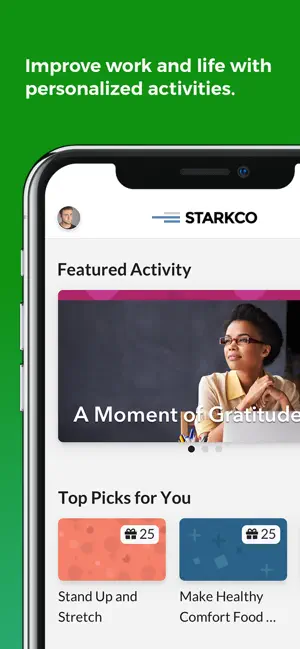
Limeade ONE is an enterprise-focused employee engagement and wellness platform. In the app, users see personalized well-being activities (such as “A Moment of Gratitude” or stretch reminders) and relevant company updates on their home screen. The platform is used by businesses to run wellness programs; employees can give feedback on workplace topics, earn points for healthy behaviors, and send “cheers” to recognize colleagues’ achievements. The app also integrates with fitness trackers and Apple Health to automatically log steps and other activity data, so employees don’t have to enter everything manually.
The app solves the problem of disconnected communications and low participation in wellness programs by centralizing company news, health activities, and peer support in one place. It is popular because it is free to employees (the subscription is paid by the company) and can be customized to each organization’s culture and initiatives. Many users report that Limeade App helps them feel more connected to their company’s health and engagement efforts.
Quick Information Table
| Developer | Limeade, Inc. |
| Category | Business (Employee Wellness) |
| Platforms | Android (phone/tablet), iPhone, iPad, Web (browser) |
| Current Version | 4.39.0 (May 22, 2026) |
| Initial Release | 2016 (enterprise app launch) |
| Pricing | Free to employees (cost covered by employers) |
| Availability | Enterprise (requires corporate program) |
| Languages | 19 (incl. English, Spanish, French, German, Chinese, etc.) |
| Security | Data encryption in transit; strict privacy (no 3rd-party ad sharing) |
| Official Website | limeade.com |
| Help Center | support.limeade.com |
| Last Reviewed | July 12, 2026 |
App Statistics
- Downloads (Android): 220,000+ installs (as of 2026).
- Ratings: 4.8 out of 5 (11K+ ratings on iOS).
- Availability: Used worldwide, available in 19 languages. Primarily adopted in the U.S. corporate market (many Fortune 500 companies).
- Supported Countries: Global (the app store listing shows availability in all major regions).
- Developer: Limeade, Inc. (a WebMD company).
- Release Year: 2016 (initial launch of the Limeade ONE platform).
Key Features
- Well-Being Activities & Incentives: It offers daily activities and challenges (e.g., meditation, exercise, learning tasks) tailored to each user. These activities help improve work-life balance by providing tips and reminders. Employees earn points for completing activities, helping them reach incentive thresholds offered by their company. (For example, users can earn up to 25% of incentive points through “My Choice” activities.)
- Feedback & Surveys: The app allows employees to share feedback on workplace issues. Periodically, it may prompt users to take short pulse surveys about job satisfaction, well-being, or corporate culture. This “voice of the employee” feature lets workers express opinions anonymously, giving management insights into staff sentiment. (For instance, one screen shows a quick survey question about understanding company strategy – users select agree/disagree.)
- Social Recognition (Cheers & Feed): Users can send “cheers” to colleagues to recognize good work, fostering a supportive culture. The app includes a social feed where people see posts of colleagues’ successes, comment on updates, and like or cheer positive actions. For example, a screenshot shows a user celebrating team performance (“Great job on project X!”), and others can send back emojis or comments.
- Company News & Resources: Limeade ONE delivers important announcements, newsletters, and documents from HR or management right to the app. Users stay up to date on company news and can access internal resources (benefits info, wellness reports, etc.) on demand. As one feature states, employees can “get important company updates and resources, no matter your location”, ensuring remote or deskless workers are informed.
- Activity Recommendations: Limeade App uses the user’s profile, past activities, and (if used) well-being assessment results to suggest relevant tasks. Sections like “Trending Now” and “Top Picks for You” show popular or personalized activities, while a “Featured” section highlights employer-chosen tasks. This keeps content fresh and aligned with company goals (e.g., a “Recommended by [Company]” section).
- Fitness Tracker Integration: Users can link popular fitness and health apps to sync steps, workouts, and other data automatically. On iPhone, it connects to Apple Health and Apple Watch (the Apple Watch is fully supported via Health syncing). On Android, it supports Google Fit (through Health Connect). Fitbits, Garmins, and other devices can also sync through similar authorization processes. This automation means participating in step goals or activity challenges is effortless, with activity points logged automatically.
- Privacy Controls: As a workplace app, it is privacy-focused. Personal identifiers and health data are only used internally for the program; no personal data is shared with advertisers. Users’ contributions to surveys and activities may be aggregated for reporting to employers, but individual responses remain confidential under US privacy laws.
Supported Devices
- Android: Smartphones and tablets running Android 10 or later. The Limeade App Android app is available on Google Play (220K+ downloads) and requires Android 10+.
- iPhone / iPad: iPhones and iPads running iOS 14.0 or later. The app works on iPhone and iPad (and even Vision OS). It can sync with Apple Watch via the Health app.
- Web (Desktop): It also has a web portal accessible in any browser. Employees can log in on a desktop PC or Mac via the company’s unique Limeade program URL. (The help center notes you can continue using the web experience, although the mobile app is recommended for the best experience.)
- Wearables / Smart Devices: Through app integration, it supports data from devices like Fitbit, Garmin, Apple Watch, Samsung smartwatches, etc. For example, it syncs data from Apple Health/Watch and Google Fit. Samsung Health users can share data via Google Fit/Health Connect.
- TV / Other: No dedicated TV or console apps. The primary interfaces are mobile and web.
How to Download the Limeade App
- Android: Open the Google Play Store, search for “Limeade ONE”, and install the app. (Google Play lists it as “Limeade ONE – Corporate employee engagement”.)
- iPhone/iPad: Open the App Store, search for “Limeade ONE”, and tap Get to download. (Ensure you have at least iOS 14.0.)
- Desktop/Web: Go to your employer’s designated Limeade program URL or contact HR to get the web link. You can then log in using the web sign-in page. (The help docs confirm you may choose the web version, though they advise using the app for the best experience.)
- Official Sources: Always download Limeade ONE from the official app stores or your company’s portal. Do not trust unofficial download links. The official website for help and links is support.limeade.com.
How to Set Up the Limeade App
- Obtain program details: Your employer or benefits provider will give you a registration link or code. This information is usually provided in a welcome email or on the company intranet.
- Install and open the app: Download Limeade ONE (as above) and launch it.
- Delete old app (if needed): If you used the previous Limeade app, first uninstall it before proceeding.
- Find your employer: In the app, search for your company name or enter the program code provided by HR.
- Create your account: Enter your work email and set a password (8+ characters with letters, numbers, etc. is required).
- Verify and log in: You may need to confirm your email address. After verification, log in with your new credentials.
- Accept terms: You will be prompted to accept Limeade’s Terms of Service and Privacy Policy.
- Complete your profile: Optionally fill in your profile details and preferences in the Settings tab.
- Start participating: You are now registered! Begin exploring activities, surveys, and company updates in the app.
How to Use the Limeade App
Once set up, the app’s interface is divided into tabs. A typical home screen shows your My Activities and My Updates on the main page. In My Activities, you’ll see tasks or challenges you’ve joined, along with progress and points. My Updates shows company news posts and any social recognition (Cheers) you’ve received.
- Tabs: The bottom navigation has several tabs (e.g., Home, Discover/Activities, Services, Community, Profile – specific names may vary). Tap each tab to explore.
- Discover/Activities: Browse available activities and challenges here. Sections like “Featured”, “Trending Now,” and “Top Picks for You” surface personalized or popular activities. Tap an activity to join it or mark it done.
- Community (Cheers/Feed): View posts where colleagues send Cheers or share updates. You can click a user’s profile to give them a cheer or comment on their post.
- Services/Resources: Access HR resources, directories, or links provided by your employer. Here you’ll also find features like Invite a Colleague (to share the program link).
- Profile/Settings: Tap your profile icon (usually top right or in a tab). Here you can update your profile photo, name, and manage connected devices. Under Settings > Apps & Devices, link your fitness trackers (e.g., tap Connect Apple Health on iPhone or Connect Google Fit on Android). Also manage notification preferences and view your points/achievements.
- Notifications: Make sure to allow push notifications so you don’t miss new activities or company announcements.
Common Uses of the Limeade App
- Daily well-being check-ins: Employees routinely open Limeade ONE to complete a quick wellness activity (like a mindfulness exercise) and earn points. For example, answering a gratitude prompt or logging steps from a workout.
- Giving feedback: Staff use the app’s surveys to share how they feel about a new policy or their work environment. This feedback helps HR gauge employee morale.
- Peer recognition: Team members send “Cheers” through the app when someone does great work, boosting morale. For instance, congratulating a colleague on a project success.
- Staying informed: Workers view company announcements or HR updates in the app, especially if they are remote or in the field. For example, accessing benefits resources or reading the latest CEO message.
- Syncing fitness data: Users integrate their Fitbit or phone tracker so their daily steps automatically count toward wellness challenges without manual entry.
- Collecting incentives: When a wellness campaign is active (like a step challenge or learning quiz), employees use this app to track progress and redeem rewards offered by their employer.
Pricing
- Free (for users): It has no cost for individual employees. It is provided by employers as part of corporate well-being programs. End users simply download and sign in at no charge.
- Enterprise subscription: Companies pay a subscription to Limeade (now WebMD) to run their wellness platform. There are no in-app purchases or user fees. Limeade’s business model is B2B, not consumer. Users should contact their employer for any program-specific fees or reward funding.
- Trials: Not applicable to individual users (access is controlled by the employer’s contract with Limeade).
Privacy & Security
Limeade ONE App is designed with enterprise-grade privacy and security in mind. Key points:
- No data for ads: Limeade explicitly states it does not share personal user information with marketers or advertisers. Your data isn’t sold or used for third-party marketing.
- Limited data sharing: By law, Limeade can share only basic participation info (like your name and program engagement) with the sponsoring organization to manage incentives. Any such data exchange is protected by federal regulations. All detailed responses (survey answers, personal health details) remain confidential.
- De-identified reporting: Employers typically receive only aggregated reports (e.g., participation rates) without individual names attached. Limeade cannot alter benefits or premiums based on your data; BMI or health info cannot be used to raise your copays.
- Encryption: Data transmitted between your device and Limeade servers is encrypted (HTTPS/SSL). On mobile, the app uses secure channels to protect login credentials and personal data. (Limeade mentions strict data safeguards, although specific details are not publicized.)
- Permissions: The app requests permissions only for needed data. On iOS, it may access your Health & Fitness data, location, and contacts if you allow it. But it uses this data solely for wellness features. You can review and revoke permissions in your device settings at any time.
- Account security: Passwords must be strong (Limeade requires combinations of letters, numbers, symbols). If Single Sign-On (SSO) is enabled by your company, you may log in using corporate credentials.
- Deleting data: Users can request account removal. Limeade will delete personal and health data from its main system on request, though backups may retain encrypted copies as required by law. Note that deleting an account will terminate any ongoing incentive eligibility (earned rewards or credits may be lost).
Pros & Cons
| Pros | Cons |
| ✅ Encourages daily wellness with engaging activities and health tracking integration. | ❌ Only accessible if your employer subscribes to the Limeade program – not for general public use. |
| ✅ Comprehensive features in one app: activities, surveys, social recognition (Cheers), company news. | ❌ Some users report occasional sync or login glitches (common with enterprise apps); needs internet access. |
| ✅ Integrates with popular fitness devices (Apple Health/Watch, Google Fit, Fitbit, etc.). | ❌ Mobile interface is essentially a web portal; some users find it slower than native apps (per user feedback). |
| ✅ High-quality support and regular updates (latest version 2026). | ❌ Limited to content and incentives provided by your employer – no standalone features. |
| ✅ Solid privacy: no ad tracking, compliant with health privacy laws. | ❌ Lacks certain consumer-style features (no offline mode, no personal billing). |
Tips & Tricks
- Enable all health data permissions: On iPhone, after connecting Apple Health, tap Turn On All Categories for Limeade in the Health app. This ensures steps, workouts, and standing minutes sync automatically.
- Refresh content: Pull down to refresh the Home or Activities screen if new content (activities or updates) is not appearing. Sometimes it takes a few seconds to load.
- Use search or invite features: In the Services tab, use “Invite a Colleague” to share the program link, or search for coworkers by name to send cheers.
- Filter activities: When viewing Discover/Activities, filter by category (e.g., “Team” vs “Individual” activities) to find what interests you.
- Calendar & reminders: Turn on notifications so that activity reminders arrive (e.g., “Drink water” or “Take a break”). This helps you earn points consistently.
- Bookmark resources: In the Resources section, long-press or use menu options to save important company documents or links for quick reference.
- Check progress: Tap your profile icon to see your points, badges, and ranking. Seeing progress encourages more participation.
Common Problems & Solutions
- Forgot password or account locked: Tap Forgot password on the sign-in screen. Enter your email to receive a reset link. If your account locks (due to too many wrong attempts), check your email for an unlock link and follow it.
- Login still failing: Make sure you are using the correct company program link and email. If your organization enabled Single Sign-On, use the corporate SSO button. If problems continue, try clearing the app or browser cache and cookies or reinstalling the app.
- App not syncing / no internet: Limeade App requires an internet connection. Ensure Wi-Fi or mobile data is on. If an activity or points aren’t updating, try closing and reopening the app. Check if Limeade servers are temporarily down (ask colleagues).
- Device sync issues: If fitness data (Fitbit/Apple Watch, etc.) isn’t updating, go to Profile > Settings > Apps & Devices and disconnect, then reconnect the device. For example, disconnect Fitbit and reconnect as outlined in Limeade’s help. Also verify the correct account is linked (e.g., same Fitbit account email). Note that device data syncs overnight after initial setup.
- Crashes or errors: Make sure your device OS meets requirements (Android 10+/iOS 14+). Update the app to the latest version. On iPhone, try reinstalling the app if it frequently crashes. On Android, try clearing the app cache. If you see a specific error code or message, take a screenshot and contact support with details.
- No activities to join: If the app shows “No activities available,” it may be because none are currently published by your employer. Check back later or verify you are logged into the correct program.
- Miscellaneous glitches: If something isn’t working as expected (e.g., stuck on loading screen), force-close the app and reopen it. Logging out and back in can resolve profile sync issues.
Alternatives
When evaluating wellness apps, consider how this app compares:
| App | Best for | Cost |
| Limeade ONE | Corporate employee engagement and well-being programs (activities, coaching, social features) | Free to individual users (covered by employer) |
| Virgin Pulse | Large enterprises needing a broad, scalable wellness platform (with biometric data integration) | Premium per-employee pricing (approx $10–15/mon) |
| Wellable | Organizations focused on gamified fitness tracking and simple challenges (steps, leaderboards) | Moderate pricing (approx $5–8/emp per month) |
- Choose Virgin Pulse or a similar platform if your company wants advanced device integration and global scaling.
- Choose Wellable if you need a straightforward, low-cost fitness challenge app.
- Stay with the Limeade app if you want a comprehensive engagement tool that ties together activities, feedback, and company culture.
Each platform has trade-offs: Limeade ONE adds behavioral coaching content over basic step-tracking, while Virgin Pulse offers more enterprise features at higher cost.
Frequently Asked Questions
What is Limeade App?
Limeade ONE is a corporate employee wellness and engagement app. It lets company employees participate in well-being activities, view news, and connect with coworkers.
Who can use this app?
Only employees of organizations that have purchased a Limeade program can use the app. Your company must provide a Limeade program code or registration link. It is not available for individual use outside a corporate wellness plan.
How do I download the app?
On Android, open Google Play and search for “Limeade ONE.” On iPhone/iPad, use the App Store. Install the app and launch it. (The app is free to download.)
Can I use this App on the web?
Yes. Limeade app provides a web portal. You can log in from a desktop browser using your company’s unique program link. However, Limeade recommends using the mobile app for the best user experience.
How do I activate/register my account?
After downloading, open the app and search for your employer or enter the program code given by your company. Then enter your work email, create a password, and follow the prompts. Don’t forget to accept the Terms of Service and Privacy Policy when asked.
How do I log in?
On the sign-in page, enter your email and password, then tap Continue. If your company uses Single Sign-On (SSO), you can use the corporate SSO button instead.
I forgot my password. What do I do?
Tap Forgot password on the login screen and enter your email. Limeade will email a reset link. Follow that link to create a new password. Make sure your password is at least 8 characters with letters, numbers, or symbols.
How do I delete my account and data?
Contact your company’s administrator or Limeade support to request account deletion. Limeade can remove your user account and personal data from its system. Note that deleting your account will also end any incentive eligibility, and you will lose any unredeemed credits. (Backups may still retain your data in encrypted form as required by law.)
How do I uninstall Limeade ONE App?
On Android, long-press the app icon and select Uninstall. On iPhone, press and hold the app icon and tap the x to delete. Your account is on Limeade’s servers – uninstalling does not delete your account by itself.
Is Limeade ONE free?
Yes. The app is free for end users. Employees download and use it at no cost. The employer pays Limeade for the program. There are no in-app purchases or fees for the employee.
Is Limeade ONE safe?
The app adheres to strict privacy standards. It encrypts data and does not share personal info with advertisers. Collected data (surveys, activities) is used internally for the wellness program only. No identifiable health data is given to outsiders or used to change your benefits.
What data does the app collect?
It may collect health & fitness data (if you connect a tracker), contact info, and app usage data. Location data might be used for certain activities (e.g., finding a local gym). Analytics like crash reports are also collected. Check Limeade’s Privacy Policy for full details.
Can I use this app offline?
The app primarily requires internet access. You can view already-downloaded content offline, but to record new activities or fetch updates, you need a connection. Always sync when online to record activities.
How do I fix common errors?
For login issues, use the “Forgot password” link or clear your cache/cookies. If the app hangs, try restarting it or reinstalling. Make sure your device OS is supported (Android 10+/iOS 14+). For persistent bugs, contact Limeade Support.
Can I invite coworkers to Limeade App?
Yes. In the app’s Services tab, tap Invite a Colleague. You can share a unique link via email or chat to invite someone to your program. (Your colleague must still be eligible through the same employer program.)
How do I send and view Cheers?
To send a cheer, find a colleague’s profile (e.g., via search or from the community feed) and tap Give Cheers. To view cheers given to you, go to your profile or community feed – there is a section listing all cheers sent and received. (The help center shows that you can see cheers in the app.)
Why do I need to delete the old Limeade app?
If you previously used Limeade Classic, its data isn’t compatible with this new app. The help docs explicitly say to uninstall the old app before using the new app. This prevents conflicts and ensures all new data goes into the updated platform.
Will my data from the old app transfer to the new app?
Yes. When you log into Limeade ONE, any existing incentive, activity, or survey data from the old platform is preserved. You won’t lose your points or assessment results by upgrading.
Do I have to retake the Well-Being Assessment after upgrading?
No. Your previous Well-Being Assessment results carry over, and you won’t need to redo it.
What fitness trackers can I connect?
It supports many popular fitness devices. On iPhone, connect Apple Health/Watch (toggle on all categories as needed). On Android, use Google Fit (via Health Connect). You can also sync Fitbit, Garmin, Samsung Health, Polar, and others – usually by authorizing Limeade in the tracker’s app and then refreshing Limeade’s connections. For Samsung devices, for example, you’d sync Samsung Health with Google Fit and then allow Limeade to access it.
What languages does the app support?
Limeade ONE is available in 19 languages. These include English, Spanish, French, German, Simplified Chinese, Hindi, Japanese, Korean, Arabic, and others. The app will typically default to your device language if it is on the list.
What are the system requirements?
- Android: Requires Android 10.0 or later.
- iPhone/iPad: Requires iOS/iPadOS 14.0 or later.
- The app is free, but needs an account in a Limeade program.
How do I contact support?
Visit support.limeade.com to browse Help Center articles or submit a request. You can also email support@limeade.com or ask your HR/benefits team for help.