

Dayforce App
✓ Verified AppDayforce App is a workforce management and human capital management (HCM) application that helps employees and managers access work schedules, clock in and out, view pay information, request time off, manage benefits, and complete HR tasks from their mobile devices. It is designed for organizations that use the Dayforce platform to simplify workforce management and employee self-service.
What is the Dayforce App?
Dayforce is Ceridian’s integrated workforce management system, and the Dayforce App is the phone/tablet interface for it. In essence, it’s an employee self-service (ESS) and manager self-service (MSS) tool. It brings HR and payroll tools to your phone, so workers and managers can handle tasks without paperwork. With this app, users can clock in and out, view schedules, swap shifts, request time off, check benefits, and track earnings right from their devices. Managers get tools to approve timesheets and manage shift requests on the go.
The app is designed for employees and managers whose organization uses Dayforce. It solves the problem of accessing HR/payroll info outside the office. Instead of logging into a computer at work, employees use the app to stay connected 24/7. This convenience and real-time access to work info is why Dayforce has become popular in large enterprises. (Note: Only companies that have activated Dayforce Mobile allow employee access.)
The mobile app mirrors many functions of the web portal, but is streamlined for touchscreens. Not all features are always visible – an administrator can enable or disable modules. Still, for most employees, this app is a one-stop hub for their daily HR and work tasks.
Quick Information Table
| Information | Details |
| Developer | Dayforce, Inc. (formerly Ceridian HCM) |
| Category | Business / HR & Workforce Management |
| Platforms | Android, iPhone, iPad, Web (accessible through browsers on Windows and Mac) |
| Current Version | Updated frequently (e.g., iOS v2026.7.x released in June 2026) |
| Initial Release | Circa 2012 (introduced as the mobile extension of the Dayforce HCM platform) |
| Pricing | Free for employees; access is provided by participating employers (no separate subscription required) |
| Availability | Global (available in countries where organizations deploy Dayforce) |
| Languages | 40 supported languages (English plus 39 additional languages) |
| Security | Encrypted data in transit, two-factor authentication (2FA), Touch ID and Face ID support, enterprise-grade authentication |
| Official Website | https://www.dayforce.com |
| Help Center | https://www.dayforce.com/resources/help-center |
| Last Reviewed | June 2026 |
Dayforce App Statistics
- Developer: Dayforce, Inc. (Ceridian HCM)
- Total Downloads: Millions of installs (150K+ reviews on Google Play, 494K ratings on iOS)
- Active Users: Used by hundreds of thousands of employees worldwide.
- Supported Countries: Global – Dayforce customers span the Americas, Europe, Asia-Pacific, and beyond. Languages supported include English, Spanish, French, Chinese, and many more.
- Release Year: Dayforce (as an HCM platform) launched in 2012; the mobile app followed in the years after as part of Ceridian’s rollout.
- Last Update: The app is actively maintained (latest versions as of June 2026).
Key Features
- Clocking & Scheduling: Clock in/out with GPS if enabled, or note your time. View your rostered shifts and weekly schedule. The app notifies you of new schedules or shift changes.
- Shift Management: Offer, swap, or pick up shifts in the marketplace. Approve or review pending shift trades (for managers).
- Time Off & Leave: Submit vacation or sick day requests. Track leave balances and pending approvals.
- Payroll & Paystubs: Check current and past payslips. Track your earnings in real time. Some employers enable Wallet, allowing you to move earned wages to a prepaid card for on-demand pay.
- Benefits Enrollment: View and update benefits enrollment and life event changes (if permitted by your employer).
- Onboarding & Training: Access onboarding checklists, complete forms, or training modules. (Recent updates added mobile onboarding functionality.)
- Profile & Info Updates: Update personal contact info, addresses, emergency contacts, and even your profile photo. Manage bank info for direct deposit.
- Manager Tools: For those with leadership roles, Dayforce provides approvals for timesheets, PTO requests, and shift trades. Managers can also assign tasks to team members.
- Calendar Sync: You can sync your Dayforce schedule to your phone’s native calendar app, so shifts appear alongside personal events.
- Security & Login: Strong security is built in. The app supports two-factor authentication (2FA) on login and lets you use device biometrics (Touch ID/Face ID) for convenience.
- Notifications: Push notifications alert you to messages, approvals, or schedule changes.
- Dayforce Assistant (AI): A conversational assistant helps answer “how do I” questions (e.g., “show me my schedule”, “request vacation”) and guides new users through features.
Supported Devices
- Android: The app is available on Android phones and tablets (Android 8.0+ typically). Download from Google Play.
- iPhone: Available on iPhone (requires iOS 15.0+). Download from the App Store.
- iPad: The app is compatible with iPad; interface scales to larger screens (but it’s not a separate iPad-only app).
- Windows/Mac: There is no standalone desktop app, but Dayforce can be accessed via any web browser (using your organization’s Dayforce URL).
- Smart Devices: There is no dedicated Apple Watch or Android Wear app. (The app does not currently run on TV or wearable devices.)
- Offline Use: Most features require an internet connection. Some basic info (e.g., last synced schedule) may be viewable offline, but you generally need connectivity to log in and perform tasks.
How to Download the Dayforce App
Android: Open the Google Play Store app on your device and search for “Dayforce”. Or go to the Dayforce Google Play page and tap Install.
iPhone/iPad: Open the App Store on your iOS device and search “Dayforce HCM”. Or use this App Store link to download.
Via Dayforce Portal: If already logged into Dayforce on a browser, go to the Apps tab in your profile. You’ll see links (and a QR code) to quickly open the app store for your device.
Desktop: The mobile app itself doesn’t run on PC/Mac; however, you can use Dayforce via your employer’s Dayforce website. Simply open your browser and log in to your company’s Dayforce HCM URL.
How to Set Up the Dayforce App
- Confirm Eligibility: Make sure your employer uses Dayforce and has enabled mobile access. (If not, the app will not work.)
- Install the App: Follow the download steps above.
- Gather Login Info: You will need your Company ID, Username, and Password. Your HR department or manager can tell you the Company ID (a code unique to your company). This is not your employee number.
- Launch and Log In: Open Dayforce on your device. Enter Company ID, then your username/password. If your company uses SSO or MFA, follow the prompts.
- Set Up Security: You may be asked to set up two-factor auth (via text or authenticator). Once logged in, you can enable biometrics (Touch/Face ID) in Settings for easier access. On iOS, enabling Touch ID means your password is saved locally in an encrypted form.
- Permissions: The app may ask for permissions (location, calendar, etc.). Location is used for time-clock geofencing; calendar permission is for syncing shifts. Grant as needed.
- Verify: You should see your home dashboard with key info (schedule, tasks, announcements). If you see an error like “unable to retrieve configuration”, try clearing the cache/reinstalling the app, or ensuring your Company ID is correct.
How to Use the Dayforce App
After setup, you can use the Dayforce app for daily tasks:
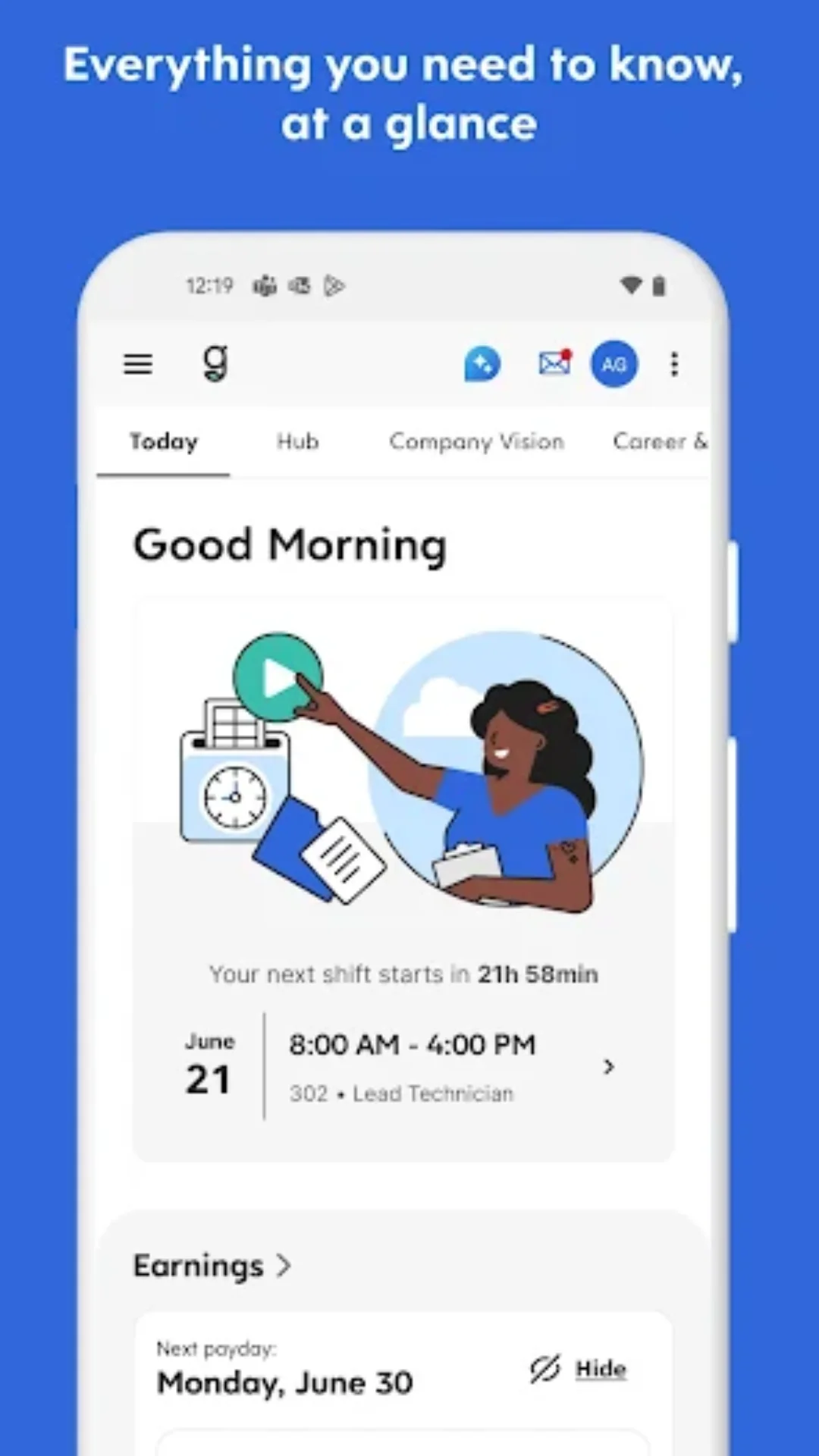
- Dashboard/Home: The first screen typically shows your name and upcoming shifts or notifications. Familiarize yourself with the navigation menu (often a sidebar or bottom tabs) to find features like Schedule, Time Off, etc.
- Time Clock: If you have time-entry permissions, the Clock or Home screen will let you Clock In/Out. Some companies require managers to configure clock-in rules (e.g., geolocation).
- Schedule: Tap “Schedules” or “Calendar” to see your posted shifts. Approved shift trades or changes will appear here. You can tap a shift to see details (start/end times, location).
- Time Off Requests: Use the Time Away or Requests menu to submit a vacation or sick request. Pick dates, select the reason, and submit. The app will show if it’s approved or pending.
- Pay & Benefits: Under Earnings or Pay, view your current pay stub, tax documents, and pay history. The Benefits section lists your health/dental enrollments and open enrollment status.
- Profile & Documents: In My Profile, you can update contact info or banking for direct deposit. The Documents section holds past pay statements and W-2s.
- Managers: If you are a manager, you will have an Approvals or Team Requests section. Here you can approve employee timecards, leave requests, and shift offers.
- Notifications: Check the Messages or Inbox to see alerts, direct messages from HR, or action items. Mark them read or respond if needed.
- Dayforce Assistant: Tap the chat icon or Assistant to ask questions (e.g., “What’s my schedule this week?”). This AI helper guides you through tasks and answers policy questions.
- Sync Calendar: If your employer allows it, use the “Sync Schedule” button to export your work schedule to your phone’s calendar app (usually a one-time setup).
Spend a few minutes tapping through the app’s menus to explore. Many features are context-sensitive – for example, the Clock button appears only if your company uses mobile time entry.
Common Uses
- Checking Your Shift Schedule: Employees often use the Dayforce app to see their weekly or monthly work schedule without calling work.
- Submitting Leave Requests: Easy on-the-go time-off requests (vacation, personal, etc.) right before or after discussing with a manager.
- Time Tracking: Clocking in/out from a job site instead of at a terminal.
- Viewing Pay Stubs: Checking hours and pay after each payday, or reviewing deductions on the train ride home.
- Approving Requests: Managers can approve PTO and shift trades from anywhere (e.g., on lunch break) to speed up HR processes.
- Benefits Review: During open enrollment season, employees browse benefit choices and coverage details via the app’s Benefits section.
- Onboarding: New hires complete paperwork and training checklists assigned by HR, getting up to speed faster using the mobile onboarding features.
- Team Communication: Using the app’s messaging or directory to contact coworkers or HR (e.g., asking about schedule changes).
Pricing
The Dayforce app itself is free to download and use – it comes as part of your employer’s Dayforce service. There is no separate subscription or in-app purchase. All core features (time tracking, scheduling, payroll info, benefits) are available at no cost to the user; costs are covered by the employer’s subscription to Dayforce HCM.
There are no premium tiers or unlockable features in the app itself. However, some features depend on your employer’s configuration and plan (for example, Dayforce Wallet on-demand pay is optional and may have usage fees set by the employer’s partner bank). In summary, as an employee, you can use the app at no direct cost.
Privacy & Security
Dayforce App is designed with enterprise security in mind:
- User Authentication: You must log in with your Company ID and work credentials. Dayforce supports two-factor authentication, which may be required for every login for added security. After the initial login, you can usually opt into biometric unlock (Touch/Face ID) for convenience, which encrypts your password on the device.
- Data Encryption: All communication between your app and Dayforce servers is encrypted in transit. This protects your data (schedule, pay details, etc.) from interception.
- Local Storage: The app stores very limited data on your device. It only keeps your Company ID and username locally. It does not store your password on the device unless you enable Touch ID on iOS (then it stores an encrypted token). Other personal or company data is not cached on your phone.
- Permissions: Dayforce may request permissions like Location (for GPS clock-in), Calendar (to sync schedules), and Push Notifications. A mobile app security scan found Dayforce requests standard permissions (location, contacts, camera, etc.) common to HR apps. Review these permissions before accepting. You can always revoke them later in your phone’s Settings.
- Data Collection: According to Dayforce’s privacy policy, the company collects usage data (like your device’s IP address and app usage patterns) to maintain the service. As a service provider, it does not independently share your personal info with marketers; it processes data on behalf of your employer. Check with your company’s HR for details on data retention. Dayforce’s policy states that personal info collected (including from the app) is handled under strict controls.
- Your Controls: You can reset your password anytime (via “Forgot Password” on the login screen). In the app’s settings, you can log out or remove accounts. For mobile-specific support, contact your manager or HR – Dayforce staff will direct you to internal support contacts.
- Safety Features: The app allows admins to disable mobile features if necessary (for example, disabling schedule changes). It also supports timeout lockouts after failed login attempts to prevent unauthorized access.
Pros & Cons
| Pros | Cons |
| • Comprehensive HR/Payroll tool on the go | • Only works if your employer uses Dayforce |
| • Real-time schedule, time-off, pay info | • App can be complex for first-time users |
| • Built-in security (2FA, encryption) | • Requires remembering Company ID + credentials |
| • Frequent updates and bug fixes | • Some users report login/MFA or sync issues |
| • Android and iOS support | • Requests many permissions (location, contacts, etc.) |
| • Useful for both employees and managers | • No standalone data (all info is employer-controlled) |
Tips & Tricks
- Sync Your Calendar: After logging in, find Schedules > Sync Calendar to export shifts to your phone’s native calendar. This way, you’ll get daily reminders even without opening the app.
- Use Biometrics: Enable Fingerprint/Face ID in Settings for quick logins. This keeps your account secure while saving you time.
- Add Multiple Accounts: If you work for more than one company that uses Dayforce, you can add multiple accounts in the app (Find this under Settings). Switch between them easily.
- Set Favorite Features: Configure your home screen with the modules you use most (clock, time off, schedule), so you see them right away.
- Dayforce Assistant: Try typing natural language requests (e.g., “Request 2 days off next month”) into the Dayforce chat assistant. It can guide you through tasks faster than tapping menus.
- Push Notifications: Turn on notifications (in your phone’s settings) to get alerts for approvals or schedule changes. Don’t rely on email alone if you need fast approvals.
- Keep App Updated: Install updates promptly. The Dayforce app is frequently updated with fixes and new features (for example, recent updates improved onboarding and stability).
- Bookmark Favorites: On iPad or tablet, you can add Dayforce Mobile to your home screen for one-tap access.
- Offline Access: The app has very limited offline capability. If you need to use it without data or Wi-Fi, open the features you need first, then go offline. For example, sync your schedule while online so you can still view it offline.
- Use Wifi: When downloading or updating, connect to Wi-Fi. The app’s data usage is modest, but syncing large documents (e.g., year-end forms) is faster on Wi-Fi.
Common Problems & Solutions
- “I can’t log in” or “Invalid credentials”: Make sure you have the correct Company ID, username, and password. Contact your HR if you’re unsure. Remember, the app only works for employees of organizations using Dayforce.
- App says “Unable to retrieve mobile device configuration”: This often means the mobile setup hasn’t been enabled for your company or account. First, confirm that mobile access is turned on by your admin. If it should work, try clearing the app cache or reinstalling the app. A fresh install often fixes this.
- Frequent logouts or password errors: Dayforce now requires 2FA on nearly every login for security. Be prepared to verify via text or email. If it keeps logging you out, clear the app data or sign out and back in. Ensure your phone’s time and date settings are correct (that can affect secure logins).
- Two-Factor (2FA) issues: If your 2FA code goes to an old phone number, change your recovery number via the Dayforce web portal (often the Bridge or HR portal) rather than the mobile app. It may take a few minutes after updating for the change to take effect.
- “App keeps loading” or stuck on splash screen: Try force-quitting and reopening. If it still hangs, log out and log back in, or reinstall. Make sure you have a stable internet connection. On Android, go to Settings > Apps > Dayforce and tap Clear Data/Cache, then log in again.
- Dayforce freezes or crashes: Check that your device OS is supported and up to date. Often, updating to the latest app version fixes crashes. If a new update introduced bugs, you may temporarily uninstall and reinstall the app to get a clean install.
- Can’t clock in/out or location not detected: If geo-location clocking is enforced, ensure Dayforce has location permission. If the app still won’t clock, try toggling location services off and on, or check internet connectivity. If you see “Outside of shift window”, contact your manager (some companies restrict early clock-ins).
- No features showing (like Time Off or Benefits): Your company may not use those modules, or they may be disabled on mobile. Consult your HR or manager to see if those features should be available.
- Notifications not arriving: On iOS or Android, verify that Dayforce has permission to send notifications in your device settings. Also, check the app’s Push Notifications settings to ensure alerts are enabled for schedule changes, approvals, etc.
- Still need help? If you can’t resolve an issue, your first point of contact is usually your company’s HR or IT help desk. They can check if there’s a wider outage or account issue. Additionally, Dayforce provides an End User Help email (enduserhelp@dayforce.com) and a help center online for support resources.
Alternatives
Dayforce is an enterprise HCM suite, so comparable apps are other corporate HR/payroll platforms. Here are a few common alternatives:
| App | Key Focus | When to Choose Instead |
| Workday | Cloud HCM (HR, payroll, finances) | If your company uses Workday HCM (common in large enterprises). Offers similar mobile features (Workday app). |
| ADP Mobile | Payroll & HR for businesses | If your employer runs ADP Workforce Now or ADP Global Payroll. Good for simple payroll/HR tasks on mobile. |
| UKG Pro (Kronos) | Workforce management and payroll | If your company uses UKG (formerly Kronos) for timekeeping and HR. Strong in shift scheduling and time tracking. |
| SAP SuccessFactors Mobile | Global HR suite | If on SAP HCM or SuccessFactors. It provides mobile access to HR self-service and talent management functions. |
| BambooHR | HR for small/medium businesses | If you work at a small company with BambooHR, use its app. Simpler interface but fewer payroll/time features. |
| QuickBooks Time (TSheets) | Time tracking app | For companies that only need time sheets and scheduling, not full payroll HR. Integrates with QuickBooks payroll. |
| Rippling | HR and IT management platform | A newer all-in-one HR/payroll/IT tool. Its mobile app covers the basics but is less common. |
Users typically don’t get to choose Dayforce – it’s set by their employer. But if you have flexibility, consider:
- Large Enterprise: Dayforce or Workday are common for companies with global payroll needs and strong mobile features.
- Shift-Driven Workplaces: UKG Pro (Kronos) or ADP may have stronger scheduling specialties.
- Smaller Businesses: BambooHR, Zoho People, or Gusto (for payroll) often serve SMBs where Dayforce might be overkill.
- Payroll-Only Needs: For just payroll stubs and basic time, ADP Mobile or even a simple pay stub portal might suffice instead of full HCM.
Frequently Asked Questions
What is the Dayforce mobile app?
Dayforce App is Ceridian’s mobile client for the Dayforce HCM platform. It lets employees and managers handle HR tasks (time clock, scheduling, benefits, pay stubs, etc.) on their phones.
Who can use the Dayforce app?
Only employees (or managers) of organizations that use the Dayforce HCM system can use it. If your company hasn’t enabled Dayforce Mobile, the app won’t work.
How do I download Dayforce?
On Android, open Google Play and install “Dayforce”. On iPhone/iPad, install “Dayforce HCM” from the App Store. Alternatively, use the link or QR code in your Dayforce profile’s Apps section. Links: Google Play, App Store.
How do I update Dayforce to the latest version?
Updates are handled through the app stores. Simply go to Google Play or the App Store, and tap Update if available. Because Dayforce releases updates often (bug fixes and new features), it’s best to keep auto-updates on.
Why can’t I log in?
Check these common issues: (1) Verify you have the correct Company ID, username, and password. (Ask your HR for the Company ID.) (2) Ensure your company has mobile access enabled. (3) Make sure you have internet/Wi-Fi. (4) If the app shows “Unable to retrieve configuration”, try clearing the cache or reinstalling.
How do I reset my password?
On the login screen, tap Forgot Password. You will be prompted to enter your Company ID and username to receive a reset link (usually via email or SMS). If you’re already logged in and see a menu, use My Profile > Reset Password. If you don’t have the option, ask your manager or HR to reset it for you.
Why does the Dayforce app ask for two-factor authentication (2FA) every time?
For security, the Dayforce app may require 2FA on every login. Users report that recent updates enforce 2FA each session. You must enter the code sent to your registered device. This is by design to protect your account.
How do I change my phone number for 2FA?
You need to update it on Dayforce’s web portal (desktop). Log in to your company’s Dayforce website, go to your profile or security settings, and set the new phone number as your 2FA recovery. Wait a few minutes and then try the mobile app again.
What company ID do I use?
The company ID is a code unique to your organization (not your employee number). Your employer should provide it. You cannot guess it. Do not use any number or email; use the exact company ID given by HR.
Can I use Dayforce if I change jobs or leave the company?
No. Dayforce accounts are tied to your employer. If you switch companies, you will need a new Dayforce login from your new employer (if they use Dayforce). You cannot transfer or keep your old Dayforce account.
Is the Dayforce app free?
Yes. The app itself is free to download and use for employees of Dayforce-using companies. There are no in-app purchases or subscription fees in the app.
Is the Dayforce app secure?
Yes. All data is sent over encrypted channels (HTTPS). You must log in with two-factor authentication and can use a biometric lock. The app does request various permissions (location, contacts, etc.) for its features, so only grant what you are comfortable with. Your employer’s company policy should detail how they protect your data.
Can I use the app offline?
No, most features require internet access. Once logged in, you might view some cached info (like a saved schedule) briefly without data, but you can’t log in or update data offline.
How do I uninstall the app?
Remove it like any app: on Android or iOS, tap and hold the Dayforce icon and select Uninstall/Delete. (This will log you out and remove data from the device, but not affect your account on the server.)
What if the Dayforce app freezes or crashes?
Try closing the app fully and reopening. If that fails, update to the latest version or reinstall. On Android, you can also clear the app cache (Settings > Apps > Dayforce > Storage > Clear Cache/Data), then log in again.
How do I change my time format (12h/24h)?
Time format is set by your employer’s Dayforce settings. You can’t change it in the app yourself – it will follow the format configured on the company side.
Can managers use the app too?
Yes. Manager accounts see extra tools (approvals, team schedules). If you have supervisor privileges, log in normally and tap “Approvals” or “Team” to access those features.
What do I do if I forgot my Company ID?
Only your employer can provide that. Contact your HR or system administrator for the company ID – it’s not displayed in the app before login.
Who do I contact for help?
First, ask your manager or HR/personnel department; they manage Dayforce for your company. The app’s help center advises contacting your admin for mobile issues. It also provides an End User Help email (enduserhelp@dayforce.com) and online FAQs, but often your company’s support team will handle account or access problems.
Are all features available on mobile?
Most common features are, but some desktop-only functions (like certain payroll admin tools) might not be in the app. Your admin can enable/disable modules. For example, if you don’t see “Benefits” or “Time Off”, it could be turned off by your company.
Does the Dayforce app share data with other apps?
Dayforce does not share your personal work data with unrelated third parties. It does integrate with Dayforce Wallet for on-demand pay (partner banks), but banks handle that data separately. The app’s privacy statement says personal info is only used per your employer’s instructions.