

Family Dollar App
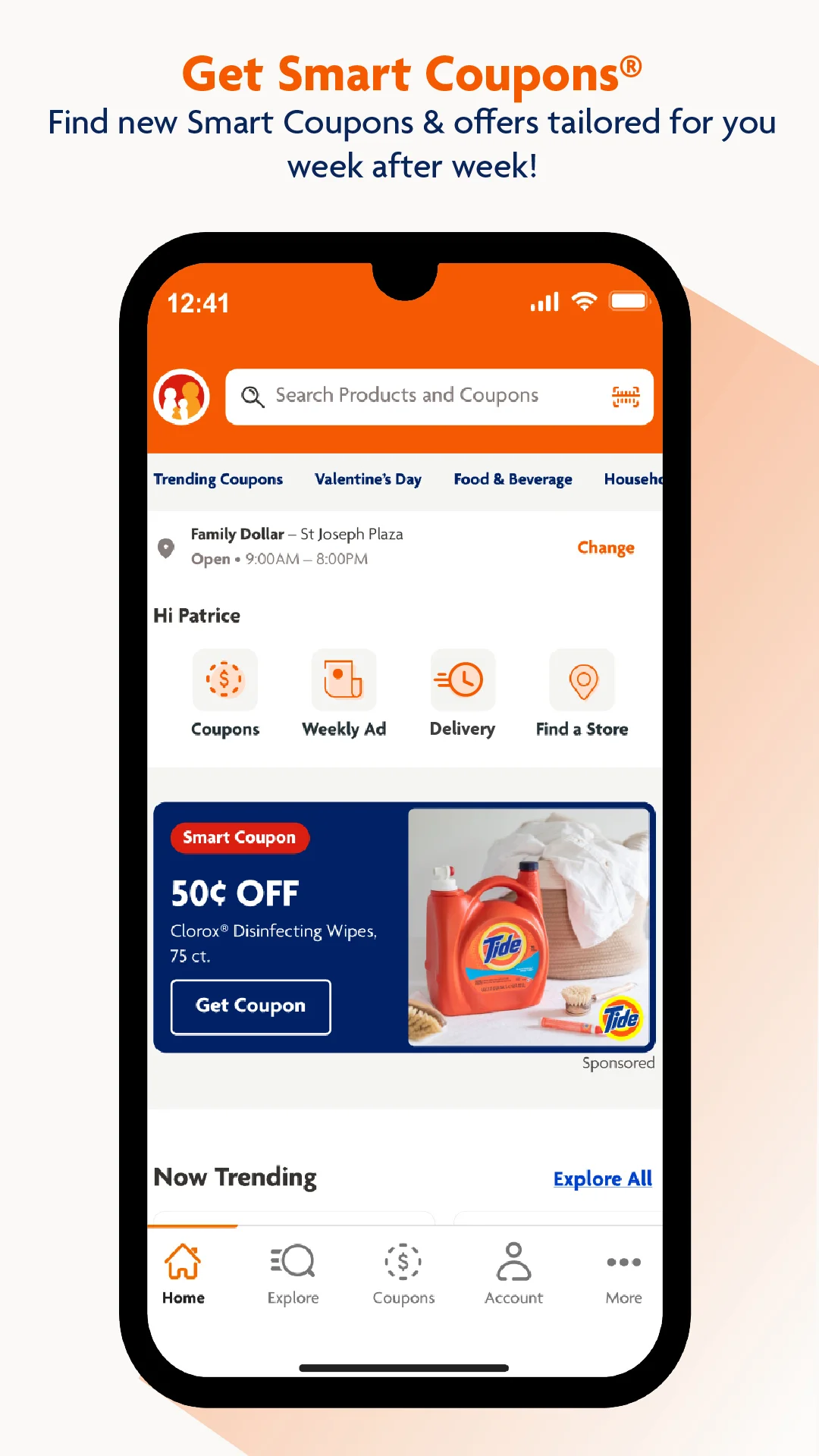
✓ Verified AppFamily Dollar App is the official shopping and savings app for Family Dollar customers. It helps users access Smart Coupons, browse weekly ads, discover personalized offers, scan product barcodes for available discounts, track savings, and find nearby Family Dollar stores. The app is designed to make shopping easier while helping customers save money on everyday essentials.
What is the Family Dollar App?
The Family Dollar app is the official mobile app for Family Dollar store shoppers. It helps users save money and time by providing digital Smart Coupons, personalized offers, and weekly ads directly on their phones. Anyone who shops at Family Dollar — especially coupon-savvy or budget-conscious customers — can use the app to clip digital coupons, check store deals, scan product barcodes for instant discounts, and track their lifetime savings on everyday essentials.
Developed by Family Dollar (a Dollar Tree, Inc. brand), the app was completely redesigned in late 2023 as part of the company’s digital overhaul. It’s popular because it centralizes savings tools: users can save up to $500 a week via the app’s Smart Coupons program. The app’s large user base and high rating (4.8★ on iOS with 655K+ reviews) reflect its importance to loyal customers.
In addition to coupons, the app offers features like a barcode scanner to instantly find coupons on products you’re interested in, a digital wallet for organizing clipped coupons, and product search tools (including weekly ads and product availability). Family Dollar’s press release highlights that the app provides “seamless navigation” to manage coupons and explore weekly ads. In short, the Family Dollar app is a mobile savings tool for shopping at Family Dollar stores, bringing coupons and deals into the digital age.
Quick Information Table
| Developer | Family Dollar Management, LLC |
| Category | Shopping |
| Platforms | Android (phones), iOS (iPhone), macOS (Apple M1+), Web |
| Current Version | 8.2.1 (May 2026) |
| Initial Release | October 2023 (redesigned app) |
| Pricing | Free (contains ads) |
| Availability | USA (Family Dollar stores in 48 states) |
| Languages | English |
| Security | Encrypted data in transit; can request data deletion |
| Official Website | familydollar.com |
| Help Center | Customer Service & FAQs |
| Last Reviewed | June 2026 (updated with latest info) |
Family Dollar App Statistics
- Android Installs: 10M+ downloads (Google Play)
- iOS Ratings: 655K+ ratings, 4.8★ on App Store
- Supported Countries: United States (Family Dollar stores in 48 states)
- Supported Languages: English
- Release Year: 2023 (major redesign)
- Developer: Family Dollar Stores, Inc. / Family Dollar Management, LLC
Key Features
- Smart Coupons (Digital Coupons): Clip digital coupons from weekly ads, catalogs, or app promotions with one tap. Shoppers can save on top brands – the app claims users can save up to $500 per week using Smart Coupons. Coupons live in a digital wallet inside the app, ready to redeem at checkout.
- Personalized Offers: The app learns your shopping patterns and recommends deals on items you frequently buy. You’ll see “hot” coupons and savings events throughout the year, tailored to your history (e.g., holiday promotions or birthday specials). This personalization ensures you don’t miss deals on your favorite products.
- Easy Coupon Clipping: Clipping is simplified – you can clip directly from in-app weekly ads or special events by tapping a button. Instead of cutting paper, one-click clipping loads coupons into your account instantly.
- Barcode Scanner: In-store, use the app’s barcode scanner to check if any coupons apply to an item. Point your phone’s camera at a product barcode, and the app will tell you if there are matching coupons. This feature helps find extra savings on-the-spot, making shopping more interactive.
- Digital Wallet: All clipped coupons are stored in a wallet within the app. Before checkout, review your wallet to see which coupons are active. When paying, simply present your unique app barcode (or phone number) and the discounts automatically apply. The app tracks your lifetime savings so you can see how much you’ve saved over time.
- Store Locator: Find nearby Family Dollar stores and set your preferred store. The app can display store addresses, hours, and even inventory availability for certain items. (The shopping list and product availability features are part of the app’s expanded capabilities.)
- Shopping List & Product Search: Organize your shopping by creating in-app lists of items you need. You can also browse product categories and search the catalog to see what’s available. According to app descriptions, you can “browse all product categories, including groceries, health & beauty, household, baby essentials,” and add items to a shopping list.
- Integration with Delivery Services: The app integrates with online ordering partners (e.g., Instacart) to offer same-day delivery where available. You can shop Family Dollar products online through the app and have them delivered to your home.
- Weekly Ads and Special Events: Access the weekly ad flyers in the app to plan your shopping. During special sales events, Family Dollar often releases exclusive digital offers and coupons only through the app (e.g., holiday promotions). These hot deals are prominently featured on the app’s home screen.
Supported Devices
- Android: Works on Android smartphones (Android 8.0 and up recommended for the latest version). Available on Google Play for most Android devices.
- iPhone (iOS): Requires iOS 16.0 or later (as of v8.2.1). Designed for iPhone; iPad compatibility is not official (the App Store listing shows “Only for iPhone”). Download from the Apple App Store.
- iPad: Not officially supported, but the iPhone app can run on iPad in compatibility mode. There is no dedicated iPad-optimized version.
- Mac: The Family Dollar app is available on macOS (for Macs with Apple M1/M2 chips or later) via the Mac App Store. If you have a newer Mac, you can download the iPhone version on your computer.
- Windows/PC: No native Windows app. PC users can shop via the Family Dollar website (familydollar.com) or use Android emulators if desired.
- Web: While not a standalone “app,” the website offers many of the same features (digital coupons, store locator, weekly ads) in a desktop/mobile web interface.
- Other Devices: There are no dedicated Family Dollar apps for TVs or smartwatches. Some basic functionalities (e.g., account login on smart devices) might be accessible via the website on those platforms, but no official app exists for wearables or TV.
How to Download the Family Dollar App
- Android (Google Play): On your Android phone, open the Google Play Store. Search for “Family Dollar” (developer: Family Dollar Stores) and tap Install. Or use this link: Google Play – Family Dollar. The app is free to download (contains ads).
- iPhone (App Store): On your iPhone, open the Apple App Store. Search for Family Dollar and tap Get. Alternatively, go to App Store – Family Dollar. Tap Install or Get (it’s free). Ensure you have iOS 16.0 or later to run the latest version.
- Mac (Apple Silicon): If you have an Apple M1/M2 Mac, open the Mac App Store and search for Family Dollar. Download the same app as on iPhone (it will say “Designed for iPhone” but is available on the Mac App Store for compatible Macs).
- Official Sources Only: Always download the Family Dollar app from the official Google Play or Apple App Store links above. Beware of unofficial download sites. The official links ensure you get the real app, which is free to install.
How to Set Up the Family Dollar App
- Open the App: Once installed, tap the Family Dollar icon to launch the app.
- Create an Account / Log In: On first use, you will be prompted to sign in or create a new account. Tap Create Account and enter your email address, phone number, and a password. You may also be asked to confirm your email via a verification link.
- Set Your Store: The app may ask for your preferred store location. You can either let it use your current location or search for your usual Family Dollar store by city or ZIP code. Setting a store helps personalize offers.
- Enable Notifications (Optional): You may be prompted to allow notifications. Enabling push notifications will let the app alert you to new coupons or deals. (This is optional but recommended for timely savings.)
- Link Phone Number: The app uses your phone number to apply coupons at checkout. Make sure the number you registered in the app is the one you’ll give at the register. You can usually find or update your phone number under Account or Settings.
- Explore & Clip: You’re now set up! Tap on the Coupons or Deals sections to start clipping coupons. Check the Weekly Ad tab for current promotions.
Tip: If you already have a Family Dollar website account, you can log in with the same credentials. Otherwise, creating a new account is straightforward. Family Dollar suggests calling customer service if you have any issues with account setup or linking your phone at checkout.
How to Use the Family Dollar App
- Clip Coupons: Tap the Coupons or Smart Coupons section. Browse available coupons and tap the Clip button next to each deal you want. Clipped coupons go into your digital wallet automatically. There may also be a “Clip All” option for the weekly ad to save time.
- Use the Barcode Scanner: In-store, go to the Scanner feature in the app. Scan a product’s barcode with your phone camera to see if any coupons apply. This helps you find extra savings on the spot. If a code is hard to scan, try adjusting the camera angle or lighting.
- Redeem at Checkout: At the register, open the app’s home screen and tap Show My Barcode (sometimes labeled “My Barcode” or “Scan at Checkout”). Present that unique code to the cashier’s scanner or let them enter your linked phone number. The app will automatically apply all eligible clipped coupons to your purchase. Your savings will appear as a discount on the total.
- Track Your Savings: The app tracks how much you save over time. You may see a running total of savings or the number of coupons used (check My Savings or similar). It’s motivating to see your cumulative discounts grow.
- Browse Weekly Ads: View the current Family Dollar circular in-app to plan your shopping. You can clip coupons directly from the weekly ad by tapping items in the flyer. This is handy for meal planning or stocking up on items with new deals.
- Create Shopping Lists: Use the app’s Shopping List feature to add items you want to buy. As you add coupons or scan items, the list can help you keep track of what you need.
- Explore Exclusive Deals: Check the Deals or Offers tab often for special promotions (holiday deals, seasonal sales, or brand-sponsored events). These exclusive app-only offers give extra savings beyond regular coupons.
- Combine with Loyalty: If you use other coupon or cashback apps, you can use them in tandem. For example, Family Dollar partners with Ibotta – you can link Family Dollar purchases on Ibotta to earn cash back on top of the savings from Smart Coupons.
Common Uses of the Family Dollar App
- Weekly Grocery Shopping: Many users clip coupons each week before shopping. For example, if a user routinely buys cleaning supplies and snacks at Family Dollar, they might start by browsing the app for coupons on those products. Clipping $3-off and $5-off coupons each visit can add up to major savings over time.
- On-the-Go Savings: While walking through the store, use the barcode scanner to check deals on the fly. Suppose you spot laundry detergent; a quick scan might reveal a coupon you didn’t know about, turning a $10 item into $7.20, for instance.
- Shopping List Management: Use the app to list needed items. Before leaving home, add items to your in-app list, clip coupons for those items, and then follow the list in-store, redeeming coupons at checkout.
- Special Events: During holiday or seasonal sales (like Black Friday or back-to-school), the app often has extra coupons. Users might log in to grab those limited-time coupons for big-ticket items on sale.
- Store Locator: Before traveling, check the app’s store locator to find the nearest Family Dollar. Users on the road can find local deals in new stores.
- Savings Tracking: Savvy shoppers may use the app’s lifetime savings feature as a budgeting tool – they check periodically to see how much the app has saved them year-to-date. It’s a way to quantify their couponing success.
Pricing
The Family Dollar app is completely free to download and use. There are no paid subscriptions or “premium” tiers – all coupon features are available at no cost. The app is supported by advertising and optional partner offers. You may see occasional in-app banners or notifications about promotions, but these do not require payment. No in-app purchases are necessary to access coupons or deals. In short, save on every shopping trip without spending on the app itself.
Privacy & Security
- Permissions: The app requests minimal permissions for its features. It may ask to access your Camera (for scanning barcodes), Location (if you use the store locator feature), and Notifications (to send deal alerts). These permissions are optional and can be disabled in your phone’s settings, though disabling the camera will disable the barcode scanner feature. The Family Dollar app will never request sensitive permissions like contacts or messages unless you grant them for specific features.
- Data Encryption: All data transmitted by the app is encrypted in transit. This means coupon clipping, login, and other interactions are protected from eavesdropping.
- Data Collection: According to the app’s privacy disclosures, Family Dollar may collect certain personal data for app functionality and marketing. For example, the App Store listing indicates the app may collect identifiers (like a user ID), contact info (email/name/phone), usage data, and diagnostic data. Location data (precise or coarse) may be collected if allowed, typically to support store-finding features. Much of this data is used to personalize offers and improve app performance. Family Dollar does not sell your personal data; any sharing of your info (e.g., with advertising partners) is governed by the privacy policy on their website.
- Privacy Controls: You can manage your data in a few ways. In the Family Dollar app (or website), there may be options in Account Settings to edit your email, phone number, and preferences. The app also includes a privacy setting to request account deletion. The Google Play listing notes “You can request that data be deleted”. To do this, contact Family Dollar customer service (see support). Also, you can disable permissions (like location) in your device’s settings at any time.
- Safety Features: Being an official retailer app, Family Dollar follows standard security practices. It uses encryption and secure login (email/phone plus password). If you use mobile payment services or link gift cards, those transactions are additionally protected. Always keep your app updated to benefit from the latest security fixes.
Pros & Cons
| Pros | Cons |
| • Easy access to digital coupons and savings (up to $500/week) | • Only available in the USA (Family Dollar is U.S.-only) |
| • Personalized deals tailored to your shopping habits | • Requires internet connection (not fully offline) |
| • Convenient barcode scanner for on-the-spot deals | • Contains ads (in-app advertising) |
| • Tracks lifetime savings and rewards coupon use | • Some users report occasional glitches/coupon errors |
| • Free to use with no subscription | • No dedicated iPad/Windows version (only iPhone/Mac) |
Tips & Tricks
- Clip Coupons Early: As soon as the weekly ad is posted, open the app and clip coupons for items you’ll buy later. The app holds coupons for weeks, so you can stock up when an item is on sale.
- Combine with Ibotta: Link the Family Dollar app with Ibotta (a cashback app) to stack savings. Through their partnership, you can redeem the same purchase on Ibotta to earn extra cash back.
- Use Your Phone Number: At checkout, it’s often faster to give your phone number than to show a barcode. Just ensure the number is correct in your profile.
- Check Expirations: The app rarely reminds you when coupons expire. Periodically check your wallet and use coupons before they vanish.
- Manage Notifications: Turn on notifications for deal alerts. Family Dollar will notify you of time-sensitive offers and event coupons.
- Update Regularly: Keep the app updated. Family Dollar frequently releases bug fixes and new features (versions 8.1.x and 8.2.x rolled out in 2025–2026). The latest versions improve stability and performance.
- Use the Website Too: Some features (like certain promotions or the Smart Coupons sign-up) may be easier on the desktop site (familydollar.com). If the app ever has issues, the website’s Smart Coupons page can serve as an alternative place to clip deals.
Common Problems & Solutions
- Problem: The app won’t open or crashes on startup.
Solution: Restart your phone and try again. If it still fails, delete and reinstall the app. This often clears the corrupted cache. Make sure you’re on the latest version (check the App Store/Play Store for updates).
- Problem: Clipped coupons are not applying at checkout.
Solution: First, verify that you actually clipped the coupon and it’s listed in your wallet. Double-check that you gave the cashier the same phone number linked to your account. Sometimes, scanning your “My Barcode” at checkout is needed. If it still fails, clear the app’s cache (Android) or force-close and reopen. Many users have found that reinstalling the app fixes syncing issues. Keep your app updated and re-login if needed. If the problem persists, take a picture of the coupon and contact support to report it.
- Problem: I forgot my password / can’t log in.
Solution: On the login screen, tap Forgot Password (or similar). Enter your email/phone and follow the reset link sent to your email. If you don’t receive an email, check your spam folder or try again after a few minutes. If that fails, contact Family Dollar customer service for help restoring your account.
- Problem: I want to delete my Family Dollar account.
Solution: The app doesn’t offer a one-tap “delete account” option. To remove your account, you must contact Family Dollar support. Use the Contact Us page on familydollar.com or call 833-232-0002 and request account deletion. They may ask for verification (account email, etc.).
- Problem: Coupons or app data seem outdated.
Solution: Pull down or refresh within the Coupons or Deals page to force a sync. Check for an app update. If the weekly ad just changed and you still see old coupons, try logging out and back in, or reinstall.
- Problem: The barcode scanner won’t read a code.
Solution: Make sure you have granted the app permission to use your camera. If barcodes are damaged, try moving to better light or aligning the barcode in the center of the frame. A steady hand helps. If the in-app scanner still fails, you can enter the product’s UPC manually or ask the cashier to look up the coupon.
Contact Support: If none of the above works, Family Dollar’s customer support can help. Call 833-232-0002 or use the Contact form on their website. For in-store issues, keep your receipt and explain the coupon situation. The support team can often reissue a coupon or credit your account.
Alternatives
| App | Platforms | Key Features / Best For | Limitations |
| Family Dollar (official) | Android, iOS, Mac | Smart Coupons, in-app barcode scanner, store locator | Works only at Family Dollar stores (US) |
| Dollar General (DG) App | Android, iOS | DG-specific digital coupons, DG reward program, and coupon wallet | Only for Dollar General stores (no FD deals) |
| Flipp | Android, iOS, Web | Weekly ads and circulars for many retailers, shopping lists | No direct coupons – shows ads only |
| Ibotta | Android, iOS, Web | Cash-back offers at many retailers (including Family Dollar), rebates | Requires buying items and scanning receipts |
| RetailMeNot / Coupons.com | Android, iOS, Web | Platform for general retailer coupons and promo codes | Not store-specific; fewer Family Dollar offers |
Users should choose an alternative when shopping at other stores or seeking different kinds of savings. For example, Dollar General’s app is similar but only for DG deals, while Ibotta can add cashback on any store purchase. For Family Dollar shopping specifically, the official app remains the best choice due to its exclusive digital coupons.
Frequently Asked Questions
What is the Family Dollar app?
The Family Dollar app is the official mobile app for Family Dollar stores. It lets shoppers browse weekly ads, clip digital coupons (Smart Coupons), and redeem them at checkout using a unique in-app barcode. It also provides personalized deals and savings on everyday essentials.
How do I download the Family Dollar app?
On Android, open Google Play and search “Family Dollar”, then tap Install. On iPhone, open the App Store, search for Family Dollar, and tap Get. You can also use the links in the Hero section. The app is free and official.
How do I update the Family Dollar app?
Updates come through the app store. On Android, go to Google Play > My apps & games and find Family Dollar, then tap Update if available. On iPhone, open the App Store, tap your profile, scroll to available updates, and tap Update next to Family Dollar. Keeping the app updated ensures you have the latest coupons and features.
Why is the Family Dollar app not working?
Common issues include poor internet connectivity or outdated app versions. If the app won’t open or displays errors, first ensure you have an internet connection. Try closing and reopening the app. If problems persist, clear the app’s cache (Android) or reinstall the app. Make sure your phone’s date/time is correct and that you’re on a supported OS version (Android 8.0+ or iOS 16.0+).
How do I delete my Family Dollar account?
The app itself doesn’t offer a direct “delete account” button. To delete your account, contact Family Dollar’s customer support and request it. You can call 833-232-0002 or use the online contact form on familydollar.com. Provide your account email/phone and ask them to remove your data.
How do I reset my Family Dollar app password?
In the Family Dollar app login screen, tap “Forgot Password.” Enter the email address you used to register. The app will send a reset link to that email. Click the link and follow the instructions to set a new password. If you don’t receive an email, check your spam folder or try again.
How do I contact Family Dollar app support?
For app issues, use Family Dollar’s official support channels. Visit Family Dollar Contact to access live chat or phone support. You can also call customer service at 833-232-0002 (toll-free in the US) and ask about app-related questions.
How do I uninstall the Family Dollar app?
Standard device procedures apply. On Android, open Settings > Apps, select Family Dollar, then tap Uninstall. On iPhone, touch and hold the app icon until it jiggles, then tap the ‘X’ or Delete App. Confirm to remove it. (Deleting the app does not delete your account.)
Is the Family Dollar app free?
Yes – the Family Dollar app is completely free to download and use. There are no fees or subscriptions. The app is supported by in-app ads, but you pay nothing to clip or redeem coupons.
Is the Family Dollar app safe?
Yes. The app is the official app from Family Dollar/Dollar Tree, Inc., a large U.S. retailer. It uses encrypted connections to protect your data. The app’s privacy policy is publicly available on familydollar.com. As always, download only from the Google Play or Apple App Store to avoid malicious copies.
Can I use the Family Dollar app offline?
No, the app requires an internet connection to fetch coupons and sync data. You should be online (Wi-Fi or cellular) to load new coupons and update offers. Once coupons are clipped, you can sometimes check out in-store without data, but for the best results, keep the app connected.
How do I fix common errors in the Family Dollar app?
The most effective fixes are: (1) Update to the latest app version. (2) Restart the app or device. (3) Clear the app’s cache or reinstall the app. Also, check that you’re entering the correct phone number at checkout (if coupons aren’t recognized). Contact support if problems persist.
What are Smart Coupons?
Smart Coupons are digital coupons offered through Family Dollar’s app. Instead of paper coupons, you clip them in the app. When you shop, scanning your app’s barcode at checkout automatically applies all clipped coupons to your purchase. It’s an easier way to use coupons without having physical paper.
How do I get Smart Coupons?
First, download and open the Family Dollar app and log in. Then browse the Smart Coupons section or the weekly ad in the app. Tap Clip on any coupons you want. They’ll save in your account. When you buy those items in-store, present your app barcode, and the savings will apply.
How do I redeem my Family Dollar app coupons?
At checkout, open the app and tap on Show My Barcode (or similar). The cashier scans this barcode just like any coupon. Alternatively, give the cashier the phone number tied to your account. The app will apply all valid clipped coupons to your order.
Why isn’t my coupon being applied at checkout?
Ensure you actually clipped the coupon and that it’s still valid (check the expiration date). Make sure you’re giving the cashier the correct phone number linked to your app. If issues persist, try clearing the app cache or reinstalling the app – this often fixes syncing bugs. If the cashier is not familiar with digital coupons, politely ask for a manager’s help.
Can I use the Family Dollar app at Dollar Tree or other stores?
No. The app only works at Family Dollar stores. Dollar Tree is a sister company, but it has its own separate system (a Dollar Tree app is launching separately). Use Family Dollar coupons only at Family Dollar registers.
Can I link my Family Dollar app to Instacart?
Family Dollar partners with Instacart for delivery. You can use the Family Dollar app to check prices and build a shopping list, and then place an online order through Instacart for delivery. (Instacart’s own app or site will be used to check out and pay.) Note that digital coupons clipped in the Family Dollar app do not apply to Instacart orders; Instacart may offer its own deals.
Does the Family Dollar app work with Ibotta?
Yes. Family Dollar joined Ibotta’s rewards network. After shopping at Family Dollar, you can submit your receipt to Ibotta for additional cash back on qualifying items. Check Ibotta for any Family Dollar offers and link your app account when prompted.
How do I update my preferred store in the app?
In the app, go to Store Locator or Settings and find the option to select or change your store. You can search by ZIP code or allow location access. Once you pick a store, the app will remember it as your “home” store for deals and price checks.
Why does the Family Dollar app need camera permission?
The app uses your camera for the built-in barcode scanner. This allows you to scan product barcodes in-store to check for coupons. The app will only use the camera for scanning barcodes, and you can revoke camera access at any time in your device settings (though then the scanner won’t work).
Can I use coupons at multiple stores?
No. When you clip a coupon in the app, you must redeem it at a Family Dollar store. Coupons are store-agnostic (they apply at any FD location), but each coupon is single-use. For example, if you clip a $2 off snack coupon and use it at one store, you cannot use that same coupon at another store after checkout.
Do I earn rewards or points with the app?
Currently, the Family Dollar app’s main benefit is coupons and savings; there is no separate points/loyalty program built in. However, Dollar Tree Inc. (Family Dollar’s parent) does run occasional promotions and “Buy more, save more” deals, which may be reflected in the app.
What if I lose my phone or uninstall the app?
Your Family Dollar account is tied to your email/phone, not the device. If you lose your phone or switch devices, just install the app again and log in with your existing credentials. All your clipped coupons and savings will be there as long as you use the same account. (If you deleted your account, the coupons will be lost.)
Can I use the app without an account?
No – you must create or log into an account to use the app’s features. Creating an account is quick and free, and it allows the app to save your clipped coupons and track your savings over time.
Does the app work internationally?
No. Family Dollar operates only in the United States. The app is designed for U.S. stores (the App Store shows “United States” region). It won’t have store data or deals if you try to use it outside the US.
Are there any in-app purchases?
No. The Family Dollar app is free. There are no premium subscriptions or purchases within the app. The only costs you pay are for the products you buy at the store – the app itself charges nothing.
How do I unsubscribe from promotional emails or notifications?
If you’re getting too many Family Dollar emails, scroll to the bottom of an email and click “unsubscribe.” For app notifications, go to your phone’s Settings > Notifications > Family Dollar and toggle off notifications. You can still check the app manually for deals at any time.
Can I scan the Family Dollar app barcode myself at home?
No, the app’s barcode is meant for the store’s scanner at checkout. Scanning it at home won’t apply coupons. To simulate a purchase with clipped coupons, you must go through the in-store checkout process or use Instacart as an intermediary.
What if the app is constantly saying “loading” or shows an error?
First, check your internet connection. If Wi-Fi/cellular is fine, try clearing the app cache (Android) or reinstalling the app. If the problem continues, it may be a server-side issue. Wait a few minutes and try again. You can also try logging out and back in. If the error persists, contact Family Dollar support as above.
How do I know my coupons have been redeemed?
After checkout, the app may update your “savings total” to reflect the used coupons. You can also view your transaction receipt: it should show discounts applied. Keep your receipt until you confirm the savings. If a coupon didn’t apply, see common solutions above.
How do I remove expired coupons?
Clipped coupons automatically expire after their date and disappear from your wallet. There’s usually no need to delete them manually. Expired coupons may appear greyed out; tap them and choose “Remove” if you want to clean your wallet.
Do I need the app for mobile payment?
No. The Family Dollar app is not a mobile payment system. You still pay by cash, card, or digital wallet at the register. The app only provides coupons and deals. If Family Dollar introduces mobile checkout in the future, it will be announced in the app.
Is there a way to share coupons with family?
No. Coupons clipped to your account are personal and cannot be transferred. Each person needs their own Family Dollar account to clip and redeem coupons. If you shop together, each person can have the app open on their phone to combine savings.
What if I accidentally clipped the wrong coupon?
If you clipped a coupon by mistake, open your My Coupons wallet, find the coupon, and tap “Remove” or “Unclip” (if that option exists). If it’s too late (used or past expiration), you’ll have to wait until you can clip a new coupon in a future week.
How do I change my email or phone number in the app?
Go to the Account or Profile section in the app. You should see options to edit your email address or phone number. After changing, you may need to re-verify via email. If you can’t change it there, contact Family Dollar support for assistance.