
Target App
✓ Verified AppThe Target app is the official mobile shopping app from Target. It allows customers to browse millions of products, shop online, create shopping lists, manage Target Circle rewards, access exclusive deals, use Wallet for faster checkout, order same-day delivery or Drive Up pickup, track purchases, and manage their Target account from one place.
What is the Target App?
The Target app is the official shopping application for Target stores, bringing the full retail experience to mobile devices. This is a free mobile application by Target Corporation. It serves as a one-stop shop for Target’s retail offerings on Android and iOS devices. It’s designed for Target customers who want to browse products, use coupons and rewards, and manage orders on-the-go. With the app, you can shop by category (electronics, groceries, clothing, and more), check store inventory, and save items to your cart or list for later. Users can also access personalized deals and Target Circle™ coupons inside the app.
This app is ideal for Target shoppers who prefer the convenience of mobile browsing, personalized savings, and features like drive-up pickup and same-day delivery. It solves common shopping challenges—like checking if an item is in stock, planning purchases, and finding coupons—making it easier to save time and money. The Target app is popular because it consolidates many shopping tasks into one place, from ordering essentials to exploring new designer collections, with seamless checkout via Apple Pay or Google Pay.
Content and features in the app may vary by region and account. It seamlessly ties into Target’s “guest account” system and loyalty program, making the shopping experience unified whether you’re at home or in-store.
Quick Information Table
| Developer | Target Corporation |
| Category | Shopping / Retail |
| Platforms | Android, iOS (iPhone, iPad) |
| Current Version | 2026.28.0 (as of July 2026) |
| Initial Release | (Introduced in app stores circa early 2010s) |
| Pricing | Free to download; contains ads and optional in-app payment options |
| Availability | USA (English language) |
| Languages | English |
| Security | Secure account login, encrypted data transfer, privacy policy |
| Official Site | target.com |
| Help Center | Target Help – Mobile & app support |
| Last Reviewed | July 2026 (Updated) |
App Statistics
- Downloads: 10M+ on Google Play; over 6.8 million ratings on iOS (likely over 10M downloads as well).
- Users: Millions of users, given nearly every Target shopper can use the app. (Target reports nearly 2,000 stores in the US and high engagement among app users.)
- Availability: U.S. market only (Target’s primary retail market).
- Supported Countries: United States (app store region set to US).
- Developer: Target Corporation (Minneapolis, MN).
- Latest Release (year): 2026 (latest version 2026.28.0, updated July 2026).
- First Released: Early 2010s (Target launched its first mobile app around 2009–2010).
- App Rating: Google Play: 4.7/5 (386K reviews); App Store: 4.9/5 (6.8M ratings).
Key Features
- Seasonal Shopping Guides: The app highlights timely categories (e.g., seasonal deals, back-to-school supplies, holiday gifts). For example, it suggests Memorial Day sales, patio decor for summer, or college dorm essentials as the season changes.
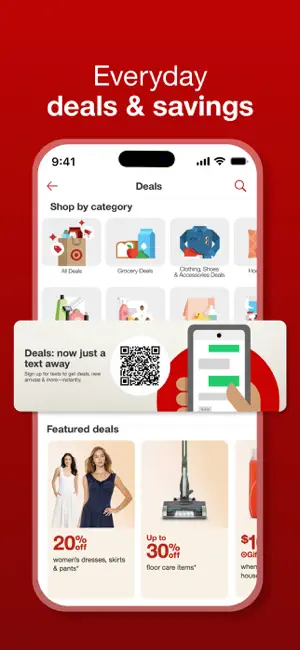
- Target Circle™ Deals: Access hundreds of digital coupons. You can browse and activate Circle deals in-app, and even scan a barcode in-store to automatically apply nearby deals.
- RedCard Integration: Link your Target credit/debit RedCard for automatic 5% savings and other perks (free shipping, extended returns). The Wallet tab helps manage gift cards and RedCard savings in one place.
- Drive Up & Pickup: Use the app to place a curbside Drive Up order – Target staff will load your trunk at no extra cost. You can also choose Order Pickup to have items ready in-store. The app shows order status and lets you check in when you arrive.
- Same-Day Delivery: Members with Target Circle 360™ (or anyone for a fee) can get same-day delivery on qualifying orders above $35. The app coordinates checkout and scheduling.
- Shopping Lists & Buy Again: Create and save shopping lists. The “Buy Again” tab recommends items you’ve purchased previously for one-tap reordering. This makes routine shopping convenient.
- In-Store Navigator (Store Mode): With Bluetooth beacons in many stores, the app can guide you to items’ exact aisles. A 2017 rollout (expanded in 2025 with “Store Mode” AI enhancements) lets you search for an item and see a store map to its location.
- Visual Shopping Tools: Try before you buy with “See It In Your Space” (place furniture or decor in your room via augmented reality) and Virtual Try-On for beauty products. These help you visualize products.
- Search & Browse: Powerful search function plus curated categories (e.g., “Deals on fashion & essentials”). Filters and sorting help find items quickly.
- Order Tracking & Returns: Check delivery status of online orders, and easily initiate returns or track returns from the app.
- Push Notifications: Optional alerts for deal reminders, order updates, restock alerts, and more. (Configurable in app settings).
- Target Wallet: A one-scan wallet barcode that holds your Circle deals, gift cards, and payment cards, simplifying checkout.
Supported Devices
- Android: Requires Android 8.0 or newer. Available on Google Play (10M+ downloads).
- iPhone / iPad (iOS): Requires iOS 17.0 or later (iPhone, iPad). Available on the Apple App Store (6.8 million ratings, 4.9 stars).
- Apple Watch / Wearables: Target’s main app is mobile-only. There is no separate Target Watch app, but notifications from the app can appear via a paired Apple Watch.
- Desktop / Web: The full Target.com website complements the app. However, desktop is not needed for basic app use.
- Other: The app does not support smart TVs or game consoles. However, some features like voice assistants (e.g., Target’s Alexa skill) exist separately.
How to Download the Target App
Android: Go to the Google Play Store and search for “Target: Shop. Style. Save.” or use this link. Tap Install. (Requires a Google account and Android 8.0+).
iPhone/iPad: Open the App Store and search for “Target: Shop. Style. Save.” (or go here). Tap Get. Requires iOS 17.0 or later.
Desktop: The app itself is mobile-only. Instead, go to Target.com in a web browser for similar shopping experiences (or use the app if possible). There is no separate desktop client.
Official Sources: Always use the official stores or Target’s website. Beware of fake apps. Official links are:
- target.com (target.com/download-app page).
- Apple App Store.
- Google Play Store.
Ensure your device meets the requirements and that you have sufficient storage (about 350 MB on iOS).
How to Set Up the Target App
- Create/Sign in to Account: Open the app and sign in with your Target.com account credentials. If you don’t have an account, tap Create Account and follow the prompts (you’ll need an email and phone number). Your account links purchases, lists, and rewards.
- Enable Permissions: The app may ask for permissions (Location, Notifications, Camera). These allow features like store maps and mobile wallet. You can allow or skip and enable later in settings.
- Set Up Target Wallet: In the app menu, go to Wallet. Here you can add:
- Target Circle (ensure you’re enrolled to earn rewards).
- Payment methods (credit/debit cards, including RedCard).
- Gift cards (scan or enter codes).
- Digital coupons will automatically load to your Wallet.
- Preferences: In Account > Settings, adjust preferences:
- Notification settings (special offers, order alerts).
- Default store or location (for stock checking and in-store features).
- Payment & address info (for faster checkout).
- Link Services: If you use RedCard, add it under Payments for automatic 5% savings. If you want health tracking integration (Target Wellness), connect Health apps if prompted (for some wellness programs via the app).
- Familiarize: Browse the app menus: Home page deals, Shop by category, Cart, Orders, Lists, Wallet. Enable fingerprint/FaceID login for convenience if prompted.
Once set up, you’re ready to shop. Your lists, payment methods, and preferences will sync across devices when signed into the same account.
How to Use the Target App
Getting Started: Open the app to the home screen, where you’ll see current promotions, a search bar, and categories. You can search for items by name or scan barcodes with the camera icon.
Searching & Browsing: Tap Search and type a product or brand. You can also browse by category tabs (e.g., Electronics, Clothing). Use filters (by brand, price, rating, availability) to narrow results.
Shopping List (Buy Again): Use the Buy Again or Shopping List tab (often a heart or list icon). This shows items you’ve purchased before or saved. Add them to your cart with one tap. You can fill out a list and then find them quickly in-store or reorder online.
Clipping Deals: On product pages, you may see a Circle button to clip a coupon. Clip deals you want, and they save to your Wallet. You can also browse Deals or Target Circle™ sections to see all current coupons. In-store, scan the barcode on an item, and the app will automatically apply any relevant deals.
Checkout: When done shopping, tap the Cart icon. Review items, apply any gift cards or RedCard under payment options, and tap Checkout. You can choose shipping, delivery, or pickup. Pay using cards in your Wallet or scan your Wallet barcode in-store (to pay and redeem deals).
Order Tracking: Under Orders, you can track the status of your purchases. The app will notify you of shipment or arrival. For Drive Up/Pickup, the app shows when your order is ready.
In-Store Mode: If you’re in a Target store, a “Store Mode” map may auto-activate (look for the store icon). Search for an item, and the app will show its aisle on a store map. Follow it to find your item quickly.
Wishlist & Registry: Save items to your list or registry for later. These appear under My Lists or My Registry.
Profile & Settings: Tap Account for your orders, payment settings, address book, and profile info. Under Help, you can access order details, FAQs, and customer service.
Step through each section slowly. Use the on-screen prompts – the app is mostly intuitive. As you use the app more, personalized suggestions and easier reorder options will appear.
Common Uses
- Weekly Grocery Shop: Use Lists to plan groceries, then use Same-Day Delivery for perishables or Drive Up for curbside pickup.
- Holiday Shopping: Browse curated gift guides (e.g., toys, home decor) and use Wish Lists to manage multiple recipients.
- Clipping Coupons: While shopping in-store, scan items with the in-app scanner to instantly apply Circle coupons and see their ratings.
- Price Checking: Use the app to compare prices or scan barcodes when in another store to see if Target has it cheaper.
- Pharmacy & Services: Use the app to manage prescriptions (Target pharmacy), book services (optical, Starbucks in-store), or check Target Circle™ Card balance.
- Rewards Management: Track and redeem RedCard and Circle rewards easily each trip without fumbling with physical coupons or cards.
- Home Decor Planning: Try the AR See It In Your Space feature to visualize furniture or decor.
- Business Replenishment: Many businesses use the app to order bulk household essentials via Target Restock.
Pricing
- Free: The app is free to download and use. There’s no cost to sign up or browse.
- In-App Purchases: There are none for consumers (all products are standard Target items you pay for). The app contains ads and pushes promotions, but no extra in-app buying besides purchases of goods and optional services (e.g., payment for non-member same-day delivery).
- Subscriptions: Not applicable. There are no subscriptions within the app. (Note: Target Circle 360™ membership exists, but it is more for delivery benefits than app content.)
- Trials: N/A. The app itself has no trial period.
- Costs: The only costs are the items you buy. Shipping, delivery, and taxes apply as usual. Drive Up is free. Standard shipping may be free for orders above a minimum, or available via RedCard benefits.
Privacy & Security
Permissions: The Target app requests permissions to enhance shopping:
- Location: (Optional) Allowing location lets the app show nearby stores and enable in-store features (Store Mode mapping). Without location, some features like store inventory may be limited.
- Camera: Used to scan product barcodes and QR codes for coupons or lists.
- Notifications: Turning notifications on allows order updates, deal alerts, and app messages.
- Contacts/Address Book: If you wish to easily enter shipping addresses or invite friends, but not required.
Data & Encryption: Target states that in-transit data is encrypted. The app collects data typical for shopping apps: purchase history, contact info (name, address), usage data, and device identifiers. According to the Google Play listing, personal and financial info may be collected and (with your consent) shared with third parties. Apple’s privacy details show that purchases, usage, and contact data may be linked to your identity.
Data Sharing & Tracking: The app may use your purchase history and usage data for personalized recommendations and marketing. It may track your activity across apps for ads (privacy policy warns of “tracking” data). You can opt out of targeted ads through device settings.
Privacy Controls:
- You can view and delete your Target account data by logging into Target.com and managing your account settings.
- You can request data deletion through Target’s privacy page (see link).
- On iOS, you can see what data is linked or tracked (see App Privacy section on App Store listing).
- In-app, under Account > Settings, you can toggle notifications and location permissions.
Safety Features:
- The app uses secure login (password, optional 2FA via email/text).
- No sensitive password info is stored on-device.
- The checkout supports secure payment options (Apple Pay, Google Pay, saved cards).
- The app’s Privacy Policy (linked in app and on target.com/privacy) complies with regulations and explains data handling.
Pros & Cons
| Pros | Cons |
| ✅ Combines browsing, deals, and orders in one app. | ❌ Contains ads/promotions, which can be distracting. |
| ✅ Easy coupon clipping (Target Circle) and wallet barcode for quick checkout. | ❌ Sometimes slow loading or crashes reported by users (cache issues or outdated app). |
| ✅ Supports Drive Up and same-day delivery services (free for many orders). | ❌ Requires a Target account; not useful for casual browsing without an account. |
| ✅ High user ratings (4.7/5) indicating satisfaction. | ❌ Some features (in-store map) depend on store hardware and beacon availability; limited to major stores. |
| ✅ In-store features like barcode scanning and aisle finder improve in-store shopping. | ❌ Privacy trade-offs: collects a lot of personal data for personalization. |
| ✅ Regular updates with new features (e.g., AI gift finder, list scanning). | ❌ App size is large (~350MB on iOS); may take up space on older devices. |
| ✅ Free to use; loyalty program bonuses integrated. | ❌ Some users report occasional login or syncing glitches (try clearing cache). |
Tips & Tricks
- Order Ahead with Lists: Before you shop, fill out a Shopping List in the app. In-store, switch to Store Mode to see your list items on the store map and check them off as you go.
- Find Hidden Deals: Use the barcode scanner to discover deals. Even when not on sale, scanning an item shows if there’s a Cartwheel (Circle) offer nearby.
- Maximize RedCard Savings: Link your RedCard under Wallet to automatically apply 5% off eligible purchases. Also check for seasonal RedCard bonuses (target.com often runs extra reward promotions).
- Digital Receipts: Get email/text receipts by enabling e-receipts. They appear in your Target Wallet for easy returns or budgeting.
- Use Apple Pay / Google Pay: For fast checkout, add your wallet to the app. On iPhone, Apple Pay can check out in the app seamlessly.
- Holiday “Find Bullseye” Game: During holidays, Target often hides a digital mascot (Bullseye dog) in the app for a fun sticker giveaway at checkout. Participate for freebies (while available).
- Check Clearance: The app has sections for clearance deals. Tap Deals and then Clearance. You can also filter by Sale in search results.
- Save Gift Cards: Take a photo of your physical Target gift card. The app can load it into Wallet so you don’t lose gift card balances.
- Activate Dark Mode: In Account > App Settings, turn on Dark Interface to reduce eye strain (iOS-supported feature).
- Enable Biometrics: If prompted, use fingerprint/FaceID to unlock the app for faster login.
Common Problems & Solutions
1. App won’t open or crashes:
- Ensure you have the latest app version (check App Store/Play Store).
- Restart your device.
- If it still crashes, try clearing the app’s cache (Android Settings → Apps → Target → Storage → Clear Cache) or reinstall the app.
- Check if the network is working; the app needs internet for most features.
2. Cannot sign in / login issues:
- Double-check email and password. Use “Forgot password” on the login screen to reset if needed.
- If receiving errors (like “email already taken” or login loops), try closing the app completely and reopening.
- On iOS: If login fails, clear Safari’s history and website data in Settings, then retry (per Target Help).
- Disable any VPN or ad-blockers that might interfere, as suggested on Target’s help page.
- Ensure JavaScript is enabled in your browser (if using the web view).
- Contact Target support if problems persist.
3. Purchases not showing in app:
- Make sure you are signed into the same Target account used to place the order.
- Tap Orders and pull down to refresh.
- Sometimes syncing can be delayed; wait a few minutes and reopen the app.
4. Payment or Checkout failures:
- Verify your card details in Wallet (expiry, CVV).
- If using Apple Pay/Google Pay, ensure those wallets have a valid payment method.
- Try removing and re-adding the card under Payments in your account settings.
- If a gift card isn’t working, ensure the barcode was entered correctly, or call the number on the back to check its balance.
5. Location issues / Store Mode not working:
- Ensure Location permission is granted (Settings → Target → Location → “Always” or “While Using” on iOS, Android Location permissions on). The help page shows how.
- If Store Mode map doesn’t load, it may be that the store isn’t equipped with beacons or the feature is off. Try searching for items normally.
- Sometimes toggling location off and on can reset it.
6. Notifications not working:
- In the app under Settings > Manage Notifications, verify notifications are on (also check device notification settings for the Target app).
- If you still don’t receive them, uninstall/reinstall may help.
7. List scanning error (Holiday List Scanner):
- Ensure the latest app update. The List Scanner (introduced in 2025) requires a clear photo and stable internet.
- If it fails, try typing items manually.
8. Unable to use Drive Up / Pickup:
- Make sure you’ve selected your store and that the order qualifies (in-stock and above minimum for free pickup).
- If Drive Up is selected, the app should say “Curbside” – if it only shows delivery, the store might not offer Drive Up.
If these steps don’t help, use Help > Contact Support in the app or call Target guest services for assistance.
Alternatives
If the Target app doesn’t suit your needs, consider these alternatives:
| App | Key Points |
| Walmart App | Offers grocery and retail shopping; similar features like Scan & Go, Walmart Pay, and Pickup/Delivery. Good for Walmart shoppers. |
| Amazon | Extensive online store, Prime membership benefits, voice shopping (Alexa), and app coupons. Best for variety, though no physical store pickup at your nearest Walmart. |
| Instacart | Focuses on same-day delivery from multiple grocery/retail stores (including some products from Target in some areas). Useful for quick deliveries, but with delivery fees. |
| Target Restock | A separate app (from Target) for bulk home essentials (like Amazon Subscribe & Save). Better for household staples in volume. |
| Kroger/Albertsons Apps | If you need more grocery store options with loyalty deals. |
| Retail Competitors: Apps like Best Buy, Costco, Home Depot have niche inventories if you need something Target doesn’t carry. |
Choose another app if:
- You don’t shop at Target: e.g., Walmart app if you have Walmart nearby.
- You need a different shopping model: e.g., Amazon for delivery, Instacart for multiple stores.
- You want specialized features: e.g., Costco app for bulk warehouse deals (with membership).
Most competing retail apps offer similar coupons and pickup options now, so consider what fits your shopping patterns.
Frequently Asked Questions
What is the Target app?
The Target app is a free mobile shopping application by Target Corporation. It lets you browse Target’s products, clip digital coupons (Target Circle), track orders, and use services like Drive Up and same-day delivery on your phone.
Is the Target app free?
Yes. The app is free to download and use. All shopping is optional; you only pay for the products you buy, not the app itself.
How do I download the Target app?
On iOS, open the App Store and search “Target: Shop. Style. Save.” (or use this link). On Android, use the Google Play Store or this link. Tap “Install”/“Get” and wait for it to download.
How do I update the Target app?
Go to your App Store or Google Play Store, search for Target, and tap “Update” if available. Keeping it updated ensures you have the latest features and fixes (last updated July 2026).
Why won’t the Target app open or load?
Try the following:
- Ensure you have a stable internet connection (Wi-Fi or cellular).
- Check for an app update. If it’s crashing, restart your device and reopen the app.
- If it still fails, clear the app cache (Android) or reinstall the app.
- For login issues specifically, try clearing your browser cache (for iOS, clear Safari data), then sign in again.
Why am I not receiving notifications?
Open the Target app, go to Account > Settings > Manage Notifications, and enable the types of alerts you want. Also ensure notifications are allowed for the Target app in your phone’s system settings. Restarting the app after changing these may help.
How do I delete my Target account?
You can manage your account or request deletion at Target.com by signing in and visiting Account > Settings. Alternatively, contact Target Guest Services or privacy@target.com to request deletion of personal data. (Note: Deleting your account will remove order history and require a new account to shop again.)
How do I reset my Target password?
In the app’s login screen, tap Forgot Password. Enter your email to receive a password reset link. Follow the link sent to your email to set a new password. Ensure you use the same email associated with your Target account.
How do I contact Target app support?
Inside the app, go to Account > Help > Contact Us for chat or call options. You can also email Target at Target.comGuestServices@target.com or call 1-800-440-0680. The Target Help Center online (help.target.com) has FAQs and a live chat feature for assistance.
How do I uninstall the Target app?
On iOS, touch and hold the app icon, then tap “Remove App” > “Delete App”. On Android, go to Settings > Apps > Target, and tap Uninstall. This removes the app from your device. (You can reinstall anytime from the store.)
What is Target Circle?
Target Circle is Target’s free rewards program integrated into the app. By signing up, you earn 1% back on purchases in the form of Circle rewards, which you redeem on future shopping. Circle members get access to exclusive deals and offers you clip in the app.
How do I use a gift card in the Target app?
Go to Account > Payments > Add a payment method > Gift Card. Scan the back of the card or enter the number. The balance will appear under Wallet. At checkout, select gift card as payment or scan the Wallet barcode in-store.
How do I apply a coupon or deal?
Open the Circle deals tab or a product page and tap Clip. The coupon loads to your Wallet. At checkout, the savings apply automatically when you pay with the Wallet barcode or your linked RedCard.
Can I use the Target app outside the USA?
The Target retail app is primarily for U.S. stores and customers. If you’re in another country, check if there’s a local Target app (e.g., in Australia). The main app only supports U.S. stores, prices, and shipping.
Is the Target app safe to use?
Yes. It uses secure login and encrypted connections for transactions. Only download from official stores. Protect your account by using a strong password and monitoring your account activity.
Can I shop offline in the Target app?
No. The app requires an internet connection to browse items, update deals, and check out. Some parts (like viewing saved lists) might be cached, but you need online access for most functions.
How do I fix common error messages?
- “Still loading…” or “Something went wrong”: This often means the app’s data got stuck. Force close and reopen the app. If the issue continues, clear your browser cache (for login), or reinstall the app.
- Location errors: Grant location permission, or select a default store manually in the app settings.
How do I change the store for Drive Up or pickup?
On the checkout screen, tap the location/Store name and pick a different Target store from the list. Ensure the new store carries your items (the app shows stock by store).
How do I leave a review or rating?
In the app’s menu, go to Settings > App feedback to rate or send feedback. To post on the App Store or Google Play, open the respective store, find the Target app, and submit a star rating and review.
What if I see a wrong price or a coupon not applying?
Pricing errors are rare. Double-check the price by scanning the barcode in-store (the in-app scanner shows the current price). Ensure the coupon was clipped correctly and hasn’t expired. If incorrect, call the store manager – Target typically honors the lower price or corrects it.
How do I redeem RedCard benefits?
Add your RedCard in Wallet. At checkout (online or in-store), scan the app’s wallet barcode to apply 5% off. For online shopping, using a RedCard gives free shipping and extended returns automatically once linked.
Why is my app balance showing the wrong gift card amount?
Make sure the gift card was added correctly. Sometimes it may require syncing: exit and reopen the app. If it still shows incorrectly, contact Guest Services with the gift card number to check the balance.
Is there a Target app for employees?
Yes, Target employees (Team Members) use a different portal/app (Target MyTime) for scheduling/payroll, not the consumer shopping app.