


Bible App
✓ Verified AppBible App by YouVersion is a free Bible reading and study application that provides access to hundreds of Bible translations, audio Bibles, devotionals, reading plans, prayer tools, and verse-sharing features. It helps users read, study, listen to, and engage with Scripture across mobile devices, tablets, and the web, with many resources available offline.
What is the Bible App (YouVersion)?
The Bible App by YouVersion is essentially a comprehensive Bible-reading and devotional platform. Launched in 2008 with the original iPhone’s App Store, it was one of the first Bible apps ever released. Over time, it has become a global digital ministry: by 2025, it reached over a billion installs worldwide.
The app includes access to a huge library of Scriptures: over 3,600 versions in more than 2,300 languages. These range from popular English versions (KJV, NIV, ESV, etc.) to virtually all major world languages. It’s not tied to any one denomination or Bible publisher; it partners with publishers and organizations to offer translations freely.
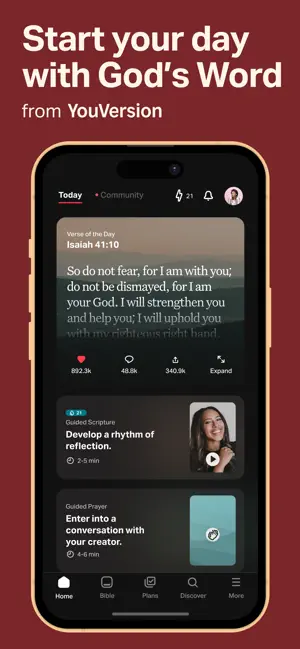
Beyond just reading text, the Bible App integrates many features: audio Bibles (you can listen to Scripture, with playback speed control), daily reading plans and devotionals, a Verse of the Day, a built-in Bible search engine, video content (like clips from The Bible series or The Chosen), and social features to connect with friends. All content is synced across your devices when you sign up, so your highlights, notes, bookmarks, and completed plans are saved to your account. In short, it’s a free, all-in-one mobile Bible study tool backed by Life.Church’s mission to make Scripture accessible to everyone.
Three Trust Signals:
- 4.9⭐ rating with millions of reviews (Android and iOS combined)
- Over 1 billion installs globally (as of 2025)
- 100% free and ad-free (Life.Church-funded; no in-app purchases)
Quick Information Table
| Developer | Life.Church (Life Covenant Church, Inc) |
| Category | Books & Reference (Bible) |
| Platforms | Android (phones/tablets); iPhone, iPad; macOS/PC (web); Apple Watch; Apple TV; Amazon Echo (Alexa); Kindle/Fire tablets |
| Current Version | ~11.25.1 (iOS) – updated June 2026; (Android update June 12, 2026) |
| Initial Release | 2008 (iOS App Store launch) |
| Pricing | Free (no ads, no in-app purchases) |
| Availability | Worldwide (200+ countries) |
| Languages (UI) | App interface in 64 languages (Apple App Store info) |
| Content Languages | 3,600+ Bible translations in 2,300+ languages |
| Security | Data encrypted in transit; no data selling; optional permissions for offline use |
| Official Website | youversion.com |
| Help Center | help.youversion.com |
| Last Reviewed | June 2026 |
App Statistics
- Worldwide Installs: Over 1 billion (all platforms combined).
- Google Play: 8.53 million reviews, 4.9⭐.
- Apple App Store: 13 million ratings, 4.9⭐ (as of 2026).
- Availability: Used in 200+ countries (global distribution).
- Supported Countries: Virtually worldwide; translations cover nearly all linguistic communities.
- Developer: Life.Church (Headquarters: Edmond, Oklahoma, USA).
- Release Year: 2008 (iPhone App Store launch).
- Current Version (2026): ~11.25.x (iOS), Updated June 2026.
Key Features
- Bible Reading (Multiple Versions & Languages): Access the Bible in thousands of languages and versions. You can switch instantly between versions (e.g. KJV, NIV, ESV, NASB, NLT) and languages. Popular versions are built-in, and you can search for others by language or name. The app lets you download any version for offline reading (useful on flights or without Wi-Fi).
- Audio Bibles: Many Bible versions offer narrated audio. You can play Scripture aloud, adjust playback speed, and use a sleep timer. This is great for listening during commutes or when reading isn’t convenient. (Note: audio streaming requires internet; it’s not available offline.)
- Reading Plans & Devotionals: Thousands of structured plans guide you through topics or Bible portions day by day. There are topical plans (e.g. love, anxiety) and chronological/plans to read the whole Bible. Each day’s selection comes with devotionals or questions. Over a million plans are completed each month, helping users build consistent reading habits. You can subscribe to plans and set reminders.
- Verse of the Day: Each day features a selected verse. The Verse of the Day comes with a short devotional and a beautiful image backdrop by default. You can subscribe to have this verse delivered daily via notification or email, making it easy to get a daily Scripture prompt.
- Verse Images: A built-in verse image tool lets you turn any Bible verse into a shareable graphic. Simply select a verse and tap the “Verse Image” option; you can choose a background photo or color theme. This creates a picture with the verse text that you can save or share to social media. Thousands of users share these daily for encouragement.
- Highlights, Bookmarks, and Notes: You can highlight verses in custom colors (for example, red for favorite verses or yellow for promises), add bookmarks to mark passages, and write notes. Notes can be kept private or shared with friends. All these are linked to your free YouVersion account so they sync to any device.
- Search & Topics: A search feature lets you find verses by keywords or look up topics. The app also curates content by topics and tags, so you can discover relevant verses, plans, and videos on subjects (e.g., “hope”, “forgiveness”).
- Social & Prayer Features: You can add friends who also use the app. A “Friends” feed shows your friends’ public bookmarks, highlights, and prayer requests (no private info is shared). You can pray for friends’ requests and even collaborate on plans together. The app encourages community: for example, one family starts dinner by discussing the day’s Verse of the Day notification.
- Prayer Lists: You can create and share prayer lists. Add people or topics as prayer items and check them off as you pray. You can also pray together with friends by sharing prayer lists.
- Video Bible: Under the Videos section, you can watch Bible story clips and faith-based videos from ministries. For instance, short episodes from The Jesus Film, The Chosen, or the Bible Project are integrated. These videos can be streamed on the app or cast to devices like Apple TV, making the Bible engaging visually.
- Customization: Adjust reading settings to your liking – change font size, text style, and switch to dark mode or sepia theme for comfortable reading. There’s also an “OpenDyslexic” font option for dyslexic readers (improving readability).
- Sync Across Devices: By creating a free account, all your data (notes, highlights, progress on plans, etc.) is saved to the cloud. You can pick up where you left off on any supported device. The app even has a home screen widget (on Android) for the Verse of the Day.
Supported Devices
The Bible App supports a wide range of devices and platforms:
- Android: Smartphones and tablets (via Google Play Store).
- Apple iPhone & iPad: iOS devices (via App Store).
- Windows/Mac (Desktop): Accessible via Bible.com in any web browser and also available as a Windows Store app.
- Amazon Devices: Available on Kindle Fire tablets and via the Amazon Alexa skill (Alexa voice support). On Alexa-enabled speakers, you can say, “Alexa, open YouVersion Bible” to hear the daily verse or listen to the Bible.
- Wearables: Apple Watch (the app can deliver verse-of-the-day notifications and simple reading on the watch). (No official Wear OS version, but phone apps have been used with Google’s smartwatches.)
- TV & Casting: Apple TV (Bible App for Apple TV) and Chromecast, so you can watch videos or read on a big screen.
How to Download the Bible App
- Android: Open Google Play and search for YouVersion Bible App + Audio. Confirm the publisher is Life.Church. Tap Install (on Android 5.0+). You can also go to play.google.com and click Install.
- iPhone/iPad: Open the App Store and search for Bible – Daily Study, Audio & Prayer (by Life.Church). Tap Get to install. Alternatively, click the App Store link above or visit apple.com/app-store.
- Desktop: Visit Bible.com/app in your web browser. You can read the Bible online without installing. For Windows PCs or Macs, it’s easiest to use the browser. (There’s also a Windows 10 app in the Microsoft Store.)
- Alternative: On a mobile device, you can scan the QR code from bible.com/app to go directly to the download page.
How to Set Up the Bible App
- Open the App: Launch the Bible App after installing.
- Create or Sign In to a YouVersion Account (optional but recommended): You will be prompted to sign in or sign up. Creating an account is free and allows syncing across devices. You can sign up with an email address or use Google/Facebook/Apple login. Enter your details and verify your email. (If you skip this step, you can still read without an account, but your data won’t sync.)
- Grant Permissions: The app may request permissions for (optional) features:
- Storage – for downloading offline Bibles. (Required if you want to read offline.)
- Wi-Fi state – to optimize image/video quality (does not collect personal data).
- Location – only used for location-based features (like Bible events). You can decline if not needed.
- Contacts – optional, only to invite friends to the app, never shared without consent.
You can allow these when prompted or enable them later in your device settings.
- Download Bibles: If you plan to use the app offline, go to the Bible tab, tap the book icon, and select “Download Bible.” Then choose the versions you want. Once downloaded, they’re available without internet.
- Set Preferences: In Settings (the gear icon, usually under the “You” tab), choose your primary language, preferred Bible version, enable notifications (Verse of Day, etc.), and adjust reading theme (dark mode, font size).
- Explore: The app’s Home/Discover screen may guide you through some tutorials or featured content. Feel free to skip or take an optional tour.
Now you’re ready to read and explore!
How to Use the Bible App
When you open the Bible App, you’ll see a tab or menu bar (usually along the bottom). Common sections include:
- Bible (Read): Tap this to open Scripture. You can select a book, chapter, and verse at the top. The text appears on-screen. Here, you can highlight, bookmark, note, or share any verse. Tap the book icon or the settings icon to switch versions or download the text for offline use. A search magnifier lets you search verses by keyword.
- Plans (or Home): This section shows reading plans and devotionals. Browse by theme or language, and subscribe to any plan. Each day’s plan will be marked as done when you finish, helping you keep a streak.
- Verse of the Day: Often on the home screen or a separate tab. It displays the daily verse with an image. You can swipe or tap to share it, or pin it as a widget on Android.
- Verse Images: To create one, highlight a verse and tap Share as Verse Image. Pick a background and style, then save/share.
- You (Profile): Here’s your profile. You can edit your profile info, see badges (streaks, achievements), view your highlights/bookmarks/notes, and access settings or sign out.
- Friends/Community: This might be a section within You or More. You can add friends by searching for their usernames, view their recent activity (public highlights or prayer requests), and comment/like.
- More/Discover: Some versions have a “Discover” or “More” tab for additional content. This may include Search (topic search), Videos, or other resources.
- Videos: If present, this tab plays curated Bible-related videos. Select a video to watch within the app or cast to your TV.
Basic Actions:
- Highlighting: Long-press a verse or tap the verse number. Choose “Highlight” and pick a color.
- Bookmarking: Similar to highlighting, choose “Bookmark.” It marks verses you want to revisit.
- Notes: After selecting a verse, tap “+ Note” or “Add Note” and type your thoughts. These are saved to your account.
- Sharing: Tap the share icon on a verse. You can send it via text, email, or social apps directly, or create a verse image to share.
- Reading Progress: Mark a chapter as read by tapping a checkmark or sliding. The app often tracks daily reading (like a “Bible in a Year” plan).
- Dark Mode/Font: Go to Settings in the You/Profile tab. Choose “Theme” or “Display” to switch to dark mode or change text size for comfortable reading.
Take your time exploring each feature. YouVersion is designed to be user-friendly, so most functions are discoverable via tapping and swiping. If you get stuck, the official Help Center (help.youversion.com) has guides for each feature.
Common Uses
- Daily Devotionals & Bible-in-a-Year: Many use the app for structured daily Bible reading. Plans like “Bible in a Year” guide you through all books by reading a bit each day.
- Audio Listening: Users who commute or prefer listening can follow along with the Audio Bible versions.
- Family & Small Groups: Families or small groups share the Verse of the Day or do the same reading plan together, often discussing in person or via the app’s comments.
- Multilingual Use: Non-English speakers use it to read the Bible in their language (over 2,300 languages are supported). Users often compare verses in multiple languages for deeper understanding.
- Prayer Support: People post prayer requests in the app, and friends pray for each other using the prayer list feature.
- Worship & Teaching: Pastors and leaders use it for quick Scripture look-up in sermons or classes (including using the audio for live reading) and for sharing verse images on church social media.
Pricing
- Free: The Bible App is 100% free to download and use. There are no costs, no subscriptions, no ads, and no in-app purchases.
- Premium/Subscriptions: None. You get all features for free as an individual user. (There is no paid “pro” version.)
- In-app Purchases: None for core app content. The only optional purchase in YouVersion is donating to Life.Church to support the app (via the “Give” link on the website) or buying partner content (very rare, and clearly labeled outside the main app features).
- Trials: Not applicable.
In short, everything in the Bible App — verses, audio, videos, plans — is offered at no charge. Life.Church covers costs as part of its ministry.
Privacy & Security
- Permissions: The app requests a few permissions: storage access (to download Bibles), Wi-Fi status (to optimize media streaming), optional contacts, and optional location. These are only for enhancing functionality (like offline reading or local events) and are not mandatory. You can always revoke them in your device’s settings. See [YouVersion’s privacy blog] or data policy for details.
- Encryption: All data (logins, notes, etc.) is encrypted in transit and stored securely. The app uses HTTPS and other security measures to protect your information.
- Data Collection: The app collects minimal personal data: your email (if you sign up), display name, and the content you create (highlights, notes, etc.) for syncing. It may also collect general usage data (like which features you use) for improving the app. Importantly, YouVersion does not sell or share your personal data with advertisers. They use it only to improve user experience (e.g., by saving your reading progress or customizing content).
- Privacy Controls: You have control: you can delete your account at any time (all your data is then erased, see below), or request a copy of your data. The app’s privacy policy makes it clear they honor GDPR/CCPA standards.
- Safety Features: Friend requests and social features are opt-in; you only add people you know. You can remove/block friends if needed. Any public comments are monitored by volunteer reviewers for offensive content, ensuring a safe community environment. The app also has a separate secure Kids version, which has no social features, for children.
Overall, the Bible App is considered very safe and privacy-conscious for an app of its kind.
Pros & Cons
| Pros | Cons |
| Completely free with no ads or purchases | Lacks some in-depth study tools (e.g., no built-in commentaries; for deep study, apps like Blue Letter Bible or Logos are better) |
| Huge library: 3,600+ versions, 2,300+ languages | Requires internet for many features (offline only for downloaded Bibles; some features like streaming audio need connectivity) |
| Feature-rich (audio, plans, highlights, verse images, etc.) | Limited customization on larger screens (some users find the tablet UI less optimal) |
| Synchronizes data across devices (notes, progress) | Must create an account to save data across devices (though optional reading mode exists) |
| Strong community features (friends, prayers, social) | Privacy-conscious design means some useful contacts/acceleration features (like auto-match on friends) are minimal by default |
| High user ratings (4.9⭐) and a massive user base | As the most popular app, it occasionally experiences heavy usage issues (server lag at very high load times) |
| Supported by a reputable organization (Life.Church) | No built-in note or audio export (notes stay within the app; audio can’t be downloaded for offline audio) |
Tips & Tricks
- Night Mode & Text Settings: In Settings, enable dark mode or choose a theme for night reading. You can also adjust font and line spacing for comfort.
- OpenDyslexic Font: In Settings > Bible Settings, enable the OpenDyslexic font to make reading easier for dyslexic users.
- Verse of the Day Widget: On Android, add the Bible App’s widget to your home screen to see the Verse of the Day at a glance. On iOS 14+, use the YouVersion widget for daily verses and quick access.
- Streaks & Badges: Try to maintain daily reading streaks with plans – the app rewards streaks with badges. Clearing the cache (Settings > Refresh) may temporarily hide badges, so force-close and reopen the app to restore them.
- Alexa Voice Commands: Enable the YouVersion skill on Amazon Alexa. You can say “Alexa, open the YouVersion Bible” to hear a verse of the day or Bible text.
- Offline Access: After downloading a version, you can also download daily devotionals in that language to read offline. Tap the download icon next to a plan to save it locally.
- Quick Navigation: On a chapter page, tap the current book name at the top to jump directly to any book, or use the menu to navigate swiftly.
- Custom Reading Plans: In YouVersion Connect, organizations can create custom plans and have them show up in the app. Check if your church offers any special plans.
- Search by Strong’s Numbers: While YouVersion doesn’t explicitly show Strong’s numbers, you can search for Greek/Hebrew terms in the text search to find all occurrences of a word.
- Backup Data: YouVersion syncs everything, but for peace of mind, you can email transcripts of your highlights or notes to yourself from the app (Share or Export options) to have an extra copy.
Common Problems & Solutions
- App Crashes or Won’t Open:
- Check Updates: Make sure you have the latest version of the app (via Google Play or App Store).
- Close and Reopen: Force close the app (swipe it away on your device) and restart it.
- Clear Cache: In the app, go to You (Profile) > Settings > Refresh. This clears temporary data and often fixes issues. (If your badges disappear after this, go back to Home/You and use “Force Quit” via device settings.)
- Sign Out & In: Sign out of your account (You > Settings > Sign Out) and sign back in.
- Reinstall: Uninstall the app and reinstall it. Everything you did (highlights, plans, etc.) is saved to your account on YouVersion’s servers, so you won’t lose your data.
- Login or Sync Issues: If you can’t sign in, ensure your email/password is correct. Use the Forgot Password link (in the You tab > Sign In > Forgot Password) to reset your password. YouVersion sends a reset email to set a new password. If you used Google/Facebook/Apple login initially, use those methods (no separate password needed).
- Bible Won’t Download/Offline Broken: Check that the app has storage permission enabled. Go to Android/iOS Settings > Apps > Bible App > Permissions and allow Storage. Then, in the app, try downloading your chosen Bible again. Also, ensure you’re on Wi-Fi or have a good signal. You may need to clear the cache and retry.
- Plan/Devotional Issues: If a plan isn’t showing updates, check You > Plans > Refresh Plans or simply wait a few hours after it’s launched. (Plans may sync slowly.) If you subscribed late, try resubscribing.
- Notifications Not Working: Go to your device’s notification settings and ensure notifications are allowed for the Bible App. In the app’s Settings, check notification preferences (e.g., Verse of Day, Plan reminders).
- Audio Not Playing: If audio stops or won’t play, check your internet connection (audio needs streaming). Also, ensure the app is up to date. Try closing other media apps. If it still fails, reinstall the app.
- Privacy/Data Concerns: YouVersion’s policy states they do not sell your data or show ads. If you are concerned about tracking, you can use the app mostly offline (download Bibles and use sync sparingly). To delete your account and all data, go to You > Settings > Account > Delete Account (be aware this is permanent).
- App Glitches: Sometimes certain functions (like tap targets or text alignment) behave oddly on different devices. Make sure the app is updated, clear the cache, or try the same action on another device/browser as a workaround. If you discover a bug (e.g., crashes on a specific verse), report it via You > Send Feedback or contact support at en.android@youversion.com.
- Device Compatibility: If your device is very old or uses an outdated OS (e.g., Android 4.x), the latest app may not install. YouVersion requires Android 5.0+ and iOS 12+. For very old devices, look for an older version of the Bible App (called Bible App Lite on Google Play) or read on the web at bible.com.
If problems persist, check the official YouVersion Support Center for device-specific guides (Android or iOS troubleshooting), or reach out to their support team via email or the app’s feedback option.
Alternatives
If YouVersion’s Bible App doesn’t meet your needs, here are some popular alternatives:
| App | Platforms | Price | Key Features | Ideal For |
| Bible App (YouVersion) | Android, iOS, Web, TV | Free (no ads) | 2,500+ versions, audio, plans, social, offline reading, verse images, many languages | All-around Bible reading & daily devotion; best for casual use and sharing with friends (most popular). |
| Bible Gateway | Android, iOS, Web | Free (with account) | 200+ Bible versions, 30+ audio (15+ languages), note-taking, compare versions, keyword study. | Quick reference and study with multiple translations; good note-sync (fewer social features). |
| Olive Tree Bible | Android, iOS, Windows, Mac | Free (with in-app add-ons) | Split-pane view (Bible + note/commentary side-by-side), large library of study resources (commentaries, maps), customizable UI. | In-depth Bible study; customizable and works well offline (offers purchase of commentaries). |
| Blue Letter Bible | Android, iOS, Web | Free (ad-supported) | In-depth study: Strong’s concordance, original-language tools, commentaries, daily devotionals, highlights and notes (cloud sync optional). | Serious Bible study (Greek/Hebrew research) on mobile; less polished UI, but powerful study tools. |
| JW Library | Android, iOS, Web | Free | Official Jehovah’s Witness app with various Bible translations (including JW’s NWT), dedicated study materials, and videos. | Jehovah’s Witness users (content specific to JW congregation). |
| ESV Bible (Crossway) | Android, iOS, Web | Free (premium features) | Easy-to-read modern translation, audio, reading plans, note-taking (some features behind subscription). | Users preferring the ESV translation; minimalistic design (no social features in the free version). |
| Logos Bible | Android, iOS, Windows, Mac | Freemium / Paid | Extensive library of theological books (study Bibles, commentaries), original language tools, sermon prep, note-sync. | Pastors, scholars, serious students who already invest in a digital library (free tier limited). |
When to consider alternatives: If you need advanced Bible study tools (original-language lexicons, commentaries, sermon prep), consider apps like Blue Letter Bible, Logos, or BibleHub. If you want a simpler Bible app without social features or with a non-YouVersion translation focus, Bible Gateway and JW Library (for Jehovah’s Witness content) are other free options. However, for most users seeking daily Scripture engagement, YouVersion covers nearly all needs.
Frequently Asked Questions
What is the Bible App?
The Bible App (by YouVersion) is a free mobile and web app that provides the Bible in various versions and languages. It includes reading plans, audio Bibles, verse sharing, and community features. It’s developed by Life.Church and is 100% free, with no ads or purchases needed.
How do I download the Bible App?
Go to the Google Play Store or Apple App Store and search for “YouVersion Bible App” or “Bible – Daily Study, Audio & Prayer” (publisher: Life.Church). Tap Install/Get. You can also scan the QR code on bible.com/app to go directly to the store page. It’s free to download.
How do I update the Bible App?
Open your device’s app store, search for the Bible App, and tap Update if it’s available. On Android, go to Google Play > Menu > My apps & games. On iPhone, go to App Store > Updates. Keeping the app updated ensures you have the latest features and bug fixes.
Why is the Bible App not working?
Common causes: lost internet connection, outdated app, or a temporary glitch. First, ensure you have Wi-Fi or data. Then try closing and reopening the app, or sign out and in. If problems persist, clear the cache (You > Settings > Refresh) or reinstall the app. For specific errors, check the YouVersion Support Center for troubleshooting tips.
How do I delete my account?
Go to the You tab, tap the settings gear, choose Edit Profile, and scroll down to Delete Account. Confirm deletion. This permanently removes all your data (notes, highlights, plans) from YouVersion’s servers. Use this only if you no longer want any account data saved.
How do I reset my password?
In the app, go to the You tab and tap Sign In. Then tap Forgot Password and enter your email address. The app will send a reset link to your email. Click the link and create a new password (must be 15–32 characters). If you used Google/Facebook/Apple to sign in, use those services’ own password reset procedures instead.
How do I contact support?
Use the Send Feedback option in the app (You > Settings > Contact Us) or email en.android@youversion.com for Android or en.ios@youversion.com for iPhone. You can also submit issues at help.youversion.com or find answers in their Knowledge Base. YouVersion staff and volunteers monitor these channels.
How do I uninstall the Bible App?
Like any app: on Android, long-press the app icon and choose Uninstall, or go to Settings > Apps > Bible App > Uninstall. On iPhone, long-press the app icon and tap Delete. Your account and data remain on the server, so if you reinstall and sign in, you will retrieve your notes and settings.
Is the Bible App really free?
Yes, it’s completely free. There are no hidden fees, ads, or subscription charges. Life.Church underwrites all costs so that anyone can access it for free.
Is the Bible App safe?
Yes. YouVersion encrypts your data in transit and does not sell your information. The app is community-moderated (no inappropriate ads) and has optional friend controls. Parents especially praise the Kids version for being safe for children (no open chat, no ads).
Can I use the Bible App offline?
Yes. After installing, go to the Bible tab and download the versions you need. Those Bibles will be available offline. You can then read them anytime without data or Wi-Fi. Note: audio Bibles and most videos require internet.
What permissions does it need?
Mainly Storage (for offline content) and Network State. Contacts and Location are optional (to invite friends and find events). It may also request access to notifications (for daily verse alerts) and Bluetooth (for some Bible event features). YouVersion’s blog explains that all permissions are used responsibly for app features.
How do I fix common errors?
- Sync or Loading Issues: Ensure a strong internet connection. Refresh the app (You > Settings > Refresh).
- Stuck on loading screen: Force close and reopen the app, or reinstall.
- Plan missing or not updating: Give it a few hours to sync after launch, or log out/in again.
- Verse images not saving: Check app permissions (Storage) and try again.
- Notifications not working: Check device settings and ensure notifications are enabled for the app.
If a solution isn’t obvious, check the official Troubleshooting guides by device or reach out to support.