

myChevrolet App
✓ Verified AppmyChevrolet is the official vehicle companion app for Chevrolet owners. It allows users to remotely start compatible vehicles, lock and unlock doors, check vehicle health and diagnostics, schedule maintenance, access roadside assistance, manage EV charging features, and stay connected with their vehicle from virtually anywhere using a smartphone.
What is myChevrolet App?
The myChevrolet app is Chevrolet’s official mobile app for vehicle owners, integrating with GM’s OnStar connected services. It is designed for Chevy owners who want smartphone control and monitoring of their vehicle. The app solves common ownership hassles by enabling remote start/stop, door lock/unlock, and monitoring of key metrics (fuel, oil, tire pressure, battery status) from anywhere. It also lets users schedule service, check for recalls, and manage in-car Wi-Fi. myChevrolet is popular for providing convenience (warm up your car on cold mornings or cool it in summer) and keeping drivers informed about their vehicle’s health. High user ratings (4.8 stars on iOS with ~926K reviews) reflect its usefulness to Chevy owners.
To use myChevrolet, your Chevy must be equipped with OnStar or Connected Vehicle services. You sign in with your GM (Chevrolet/OnStar) account – the same email used at vehicle purchase. Linking your OnStar account to your Chevrolet profile is crucial for remote features. Once set up, the app becomes your personal vehicle command center: it gathers data (fuel level, engine alerts, EV charge) and sends remote commands (start engine, lock doors, etc.) back to the car. All data exchanges are encrypted for security.
Quick Information Table
| Developer | General Motors Company |
| Category | Automotive / Lifestyle |
| Platforms | Android (Google Play), iPhone/iPad (App Store), Apple Watch, Web portal (my.chevrolet.com) |
| Current Version | 8.11.0 (as of June 2026) |
| Initial Release | 2010 (mobile app launched Oct 2010) |
| Pricing | Free to download (requires a paid OnStar plan for remote features) |
| Availability | USA (OnStar service available in the US, Canada, China, etc.) |
| Languages | 12 (EN + 11 languages) |
| Security | Data encrypted in transit; user data deletion on request; OnStar account authentication (email, PIN). |
| Official Website | https://chevrolet.com (Chevrolet Owner Center) |
| Help Center | Chevrolet Support (via app Help or OnStar support) |
| Last Reviewed | June 2026 |
App Statistics
- Downloads: 5M+ on Google Play. (Over a million ratings on iOS, reflecting a large user base.)
- Rating: 4.0★ on Google Play (287K+ reviews); 4.8★ on App Store (926K ratings).
- Supported Countries: Primarily the USA and Canada (countries where OnStar service is available).
- Developer: General Motors Company (Chevrolet).
- Release Year: myChevrolet was first released in 2010 (with major updates in later years).
Key Features
myChevrolet offers a range of features that let you control and monitor your Chevy remotely. Major features include:
- Remote Access: Start or stop your engine, and lock or unlock doors from anywhere. The app even lets you flash the lights or sound the horn to locate the vehicle. These commands require a compatible vehicle and active OnStar service.
- Vehicle Status & Diagnostics: View key vehicle data on your phone. This includes fuel level, oil life, tire pressure, and battery charge (EV range). The app shows when this data was last updated. If any system alerts (check-engine lights) appear, myChevrolet will display diagnostic information so you can take action.
- Service Scheduling & Recalls: Schedule dealer service appointments and view upcoming maintenance alerts through the app. The app can also notify you of open recalls for your vehicle.
- Roadside Assistance: Request OnStar roadside help (towing, flat tire, etc.) with one tap from the app. An OnStar Advisor will connect you, just as if you pressed your in-vehicle SOS button.
- GM Rewards Integration: Link your GM Rewards account to track and redeem points directly in myChevrolet. Points earned from purchases or service visits can be used for future GM products.
- Family Sharing: Share vehicle access with up to 8 family members. Each person uses their own GM account, and the app shows all linked vehicles. This way, each family member can remotely control or check the status without sharing the same login.
- Wi-Fi Hotspot Control: If your Chevy has an in-car Wi-Fi® hotspot, the app allows you to manage it. Change the network name/password and monitor data usage, or buy new hotspot plans on the go.
- Location & Navigation: The app can locate your parked vehicle on a map and provide walking directions back to it. You can also use the app’s map interface to send destinations or routes to the car’s navigation system. EV drivers can plan routes including charging stops.
- In-Car Settings & Media: Set up cabin climate, audio presets, and driver preferences from your phone. For example, you can adjust climate controls or audio settings (like radio presets or SiriusXM channels) before you enter the vehicle. Customizable vehicle settings (e.g., lighting or locking behaviors) are also accessible when your car supports them.
- EV & Energy Features: For Bolt, Blazer EV, and other electrics, myChevrolet provides detailed battery charge info and range estimates. It includes a trip planner that factors in charging stops. Through the app, EV owners can also activate GM’s Energy Assist and Energy Pass programs for nationwide DC fast chargers.
Each feature depends on vehicle model, equipment, and your OnStar plan. Not all vehicles support every feature (e.g., remote start requires a gas engine or a compatible EV configuration). The Chevy Support site emphasizes that properly equipped vehicles enable these key remote and status features.
Supported Devices
myChevrolet is available on major mobile platforms and integrates with vehicle infotainment:
- Android: Download from Google Play on phones/tablets running Android 8.0 or later.
- iOS (iPhone, iPad): Available in the Apple App Store for iOS 16.4+ (Universal app that works on iPhone and iPad).
- Apple Watch: The app has a watchOS companion (requires watchOS 10). You can initiate basic remote commands like remote start or lock from an Apple Watch.
- Web Portal: While there is no Windows or Mac desktop app, you can manage much of your account online at the Chevrolet Owner Center (my.chevrolet.com), including viewing diagnostics reports and vehicle status.
- Voice Assistants: (Limited) There used to be Alexa/Google Assistant integrations. Official support for Alexa skill was discontinued, but GM has experimented with Google Assistant. (No permanent, reliable integration has been maintained.)
- Other: No direct TV or CarPlay app for myChevrolet exists, though newer Chevys support wireless Apple CarPlay/Android Auto for phone mirroring.
How to Download the myChevrolet App
- Android: Open Google Play Store, search “myChevrolet,” and install the app by General Motors. Alternatively, visit play.google.com on your device.
- iOS (iPhone/iPad): Open the App Store and search for “myChevrolet”. It’s a free download by General Motors Company. You can also download from apps.apple.com.
- Alternate: Chevrolet lets you text “Chevrolet” to 56000 to receive a download link, or use the links on the official Chevy website.
- Desktop: While there’s no desktop app, you can use the Chevrolet Owner Center website or text link to install on your mobile.
Always download the app from official sources to avoid scams. Do not sideload from unverified sites.
How to Set Up the myChevrolet App
- Check compatibility: Ensure your Chevy model and year support the app (generally, most 2015+ Chevrolets with OnStar or a connectivity package are supported).
- Create a GM Account: If you haven’t already, sign up at experience.gm.com or the Chevrolet Owner Center. Use the same email you gave your dealer or used for OnStar.
- Link OnStar: In your online GM/OnStar account, link your OnStar account to your Chevrolet account (see Plans & Services on your profile). This step is crucial for remote features.
- Download and Launch App: Install myChevrolet from your app store and open it.
- Sign In: Log in with your GM/OnStar username and password. The app may prompt you to agree to the terms of service (OnStar user terms) on first login.
- Verify Identity: If prompted, complete the multi-factor authentication (code sent by email/SMS) to secure your account. You may also be asked to set or enter your OnStar PIN for certain commands.
- Add Your Vehicle: Once signed in, the app will list your vehicle if it’s already active on your account. If not, use the “Add Vehicle” option and enter your Vehicle Identification Number (VIN). (Often, linking accounts automatically shows any vehicles on your OnStar plan.)
- Enable Permissions: Allow the app to use required permissions (location, notifications, etc.) when prompted. This ensures remote commands and alerts work properly.
After setup, you can start using the app. The home screen will display your vehicle(s) and remote control icons. Keep the app updated to get new features and fixes.
How to Use the myChevrolet App
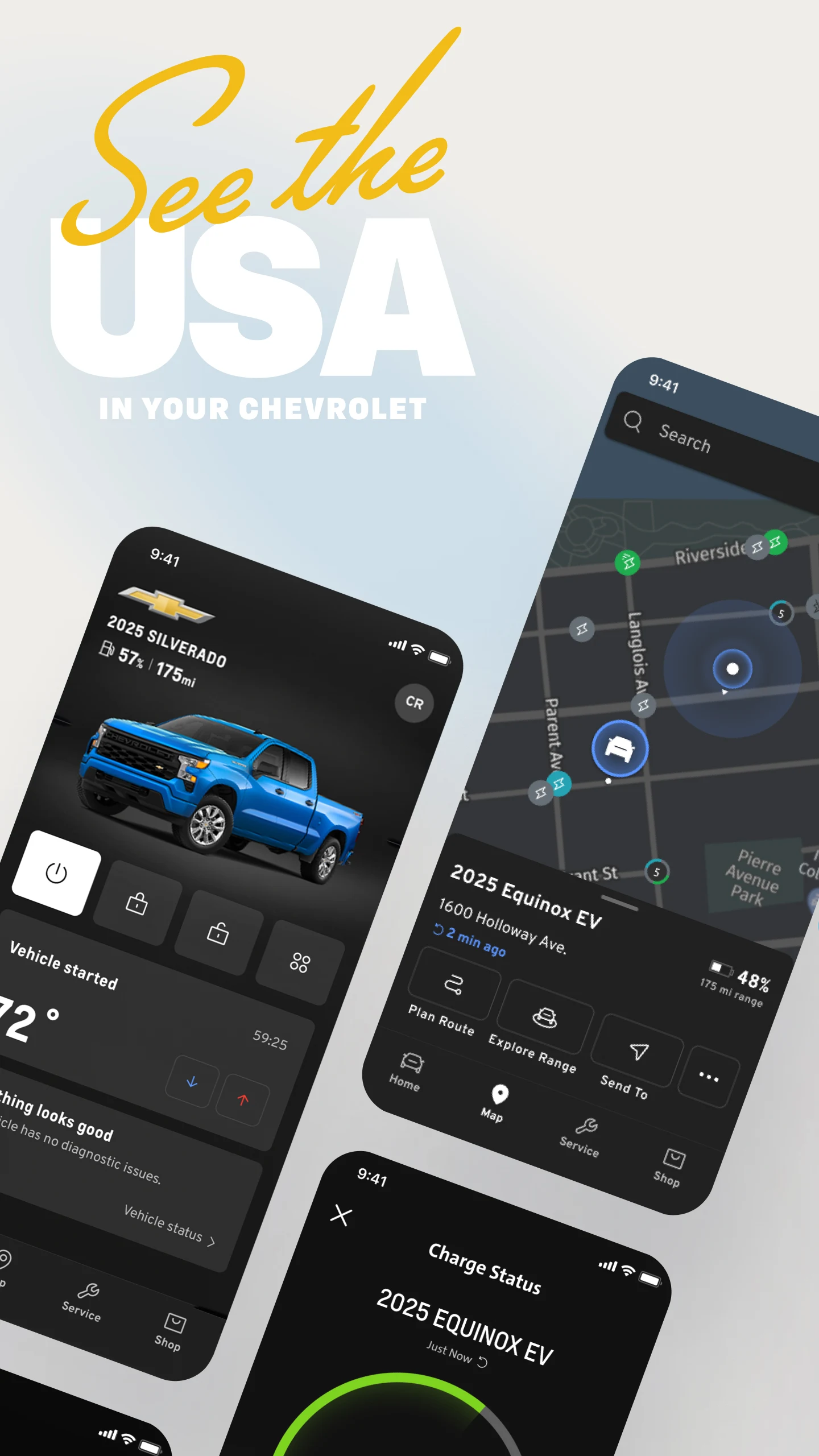
On first use, the Home Screen is your dashboard. It provides quick access to remote controls and summary info. Key areas:
- Top Bar: Tap the menu (your initials/avatar) at the top right to open Account and Help. Here you can switch vehicles, add a new vehicle, or find help articles and your Owner’s Manual.
- Remote Commands: The top navigation bar shows remote control icons:
- Climate/Start: Tap to start or stop the engine (and climate system) remotely. (If climate control isn’t supported, this icon toggles remote start.)
- Lock: Tap to lock all doors.
- Unlock: Tap to unlock all doors.
- More (four dots): Tap this for additional commands (horn, lights) or vehicle settings. If your vehicle doesn’t support extra commands, a gear icon appears here for Settings.
- The app sends each command to your car via OnStar, and upon completion, you’ll receive a notification. (Note: Each remote command may require confirmation of your OnStar PIN.)
- Status Widgets: Below the remote commands are quick-view widgets (if supported) for Climate, Vehicle Status, and EV Charge Status. These show current AC/heat settings, fuel/oil levels, and battery charge at a glance.
- Bottom Navigation: Icons at the bottom link to: Home, Map (to locate your vehicle or plan routes including EV chargers), Plan (schedule service or call Roadside Assistance), and Account.
- My Vehicle Tab: Tap My Vehicle (or swipe to it) to see detailed information. Under Vehicle Status, you can view fuel level, oil life, tire pressures, odometer, and any open doors/trunk. For EVs, the Charge Management screen shows battery level, estimated range, and plugged-in status.
- Climate Control: If you start the engine remotely, you can enable “pre-conditioning” to heat or cool the cabin. (The app may prompt you to set your preferred climate when starting, depending on vehicle features.)
- Service Scheduling: Use the Plan icon to schedule dealer service. You can set dates and reminders, and the app will show available dealers.
- Help & Support: In the Account menu (your initials), tap Help to access support articles, FAQs, or call an OnStar Advisor. You can also view your Owner’s Manual here.
Every feature you use will update data on your phone. For example, if you unlock the car with the app, the Vehicle Status screen will soon reflect that the doors are unlocked. Always make sure the app shows the correct vehicle at the top (if you have multiple) before issuing commands.
Common Uses
Real users rely on myChevrolet for everyday convenience:
- Climate Pre-conditioning: On cold mornings or hot days, users remote-start their Chevy to heat or cool the cabin before getting in. “I can remote start it from the app (best feature in winter),” a user notes, highlighting how the app warms up the car before you step out.
- Remote Entry: Forgot to lock the car after parking? Or need to let family in? Just tap Lock or Unlock in the app from anywhere. This can save trips back to a store or workplace.
- Vehicle Locator: In large parking lots, use the map feature to see exactly where your vehicle is parked. The app can also flash the lights or honk the horn remotely (via the “More” menu) to help find it.
- Fuel/Charge Monitoring: Before a long drive, check your fuel level or EV battery percentage. EV owners frequently use the app to track charge status and plan charging stops. One Bolt owner said they use it to check the state of charge remotely.
- Maintenance Reminders: The app tracks oil life and tire pressure, reminding you when service is due. Many users appreciate seeing these diagnostics on their phone and scheduling service with a tap.
- On-The-Go Assistance: If you have a breakdown or accident, you can use myChevrolet to quickly request roadside aid or emergency help through OnStar, even if you can’t reach the physical SOS button.
- Family Sharing: Parents or multiple drivers in a family can each have the app. Everyone can start or unlock the family’s Chevy from their own phone.
In short, in any scenario where you’d use your key fob or check the dash for info, you can often do it faster with myChevrolet from your pocket.
Pricing
The myChevrolet app itself is free to download and use. However, connected features require an active OnStar plan. Chevrolet includes a trial of Basic OnStar service (free plan) with new vehicles for a limited time, but after that, you must enroll in a paid OnStar subscription to keep using remote commands and status updates. Paid plans range from basic connectivity to full safety/control service (plans often start around $15–30/month, depending on current OnStar pricing).
- Free: Download, account creation, and basic usage (viewing limited info) are free.
- OnStar Subscription: Required for remote features like engine start, lock/unlock, and live vehicle data. Chevrolet typically offers various plans (OnStar Connect, OnStar Protect, etc.) that include these features.
- In-App Purchases: None. All features are included under your OnStar subscription; the app has no additional hidden charges.
If you cancel OnStar service, the myChevrolet app will still run, but most remote functions will be disabled (you would revert to using your key fob for start/lock and on-car displays for diagnostics).
Privacy & Security
myChevrolet uses the same robust security as OnStar: all communication is encrypted, and only authenticated users can access vehicle data. Key points:
- Permissions: The app may request Location (for mapping and remote features) and access to Photos & Videos (if you use any camera feature, like scanning a VIN). It may also request Contacts or App Activity for certain features. You can review these in your device settings.
- Data Encryption: According to Google Play’s data-safety info, myChevrolet “encrypts data in transit”, meaning commands and vehicle info are sent securely. Apple’s privacy labels also show it handles location, identifiers, and contact info, primarily to link your account and provide services.
- Account Security: Signing in uses your GM/OnStar credentials. The app may require a one-time PIN for remote commands (for example, an OnStar PIN) to prevent unauthorized use.
- Data Collection: The app collects only necessary data to operate (location, vehicle status, diagnostics). OnStar’s privacy policy covers how your data is used. You have the right to request deletion of your personal data from GM’s servers.
- Safety Features: myChevrolet is “Verified” on app stores and has strong user reviews, indicating it is a legitimate, safe app from a trusted company. Always download the official version to avoid malware.
In summary, myChevrolet follows industry-standard security. GM’s OnStar encrypts all remote commands and data. If privacy is a concern, review the OnStar/GM privacy statements and adjust permissions on your phone accordingly.
Pros & Cons
| Pros | Cons |
| Official GM app with full OnStar integration, supporting remote start/lock and detailed vehicle diagnostics. | Requires an active paid OnStar subscription for most functions. |
| Wide feature set for Chevy owners: service scheduling, EV charging info, family sharing, Wi-Fi hotspot control, and more. | Some users report occasional bugs or connectivity issues after updates (e.g., having to reinstall to fix errors). |
| High ratings on iOS (4.8★ from 926K reviews) and a clean, easy-to-navigate interface. | Lacks certain advanced features of competitor apps (e.g., no scheduled remote start, no free alternative without subscription). |
| Integrates Chevy-specific services: GM Rewards, family accounts, and built-in help resources. | Only works with OnStar-equipped Chevrolet vehicles – no support for used Chevys without active plans or for other car brands. |
| EV owners benefit from charge management and route-planning tools. | CarPlay/Android Auto does not mirror myChevrolet; if the app fails, the only option is to reinstall or contact support (frustrating for some users). |
Tips & Tricks
- Multi-Vehicle Accounts: If you own multiple GM-brand vehicles (Chevy, Buick, GMC, Cadillac), you can actually download any one brand’s app and manage all vehicles from the “Product Selector” in the app’s Account menu. For example, a truck owner could use the myGMC app with their Chevy. The app lets you switch vehicles under one login.
- Family & Guest Access: Use the Family Sharing feature so everyone in your household can access the car. Go to Account > Add People and invite family members. Each person uses their own app login.
- App Notifications: Enable push notifications in settings so you receive instant alerts when remote commands complete or if the app detects an issue (like low tire pressure).
- Resetting the App: If myChevrolet becomes unresponsive (doesn’t update status or run commands), try clearing the app’s data/cache or reinstalling. Many users have fixed glitches by uninstalling and reinstalling the app. After the reinstall, you’ll need to sign in again.
- Voice Assistants: You can set up Google Assistant routines (if your car and Google account are linked) to trigger basic commands via voice (e.g., “Hey Google, start my Chevy”). Note that official GM support for Alexa was discontinued, but Google routines sometimes work.
- Web Access: Remember, you can also log in at chevrolet.com on a browser to check vehicle status or manage your account if you don’t have your phone.
Common Problems & Solutions
- Cannot Log In / “Unable to Retrieve Account Details”: Often this happens if your Chevrolet account isn’t properly linked to your OnStar account. Make sure you’re signing in with the same email used for OnStar and that the accounts are linked on the GM account site. If the app still errors, try logging out and back in, or deleting and reinstalling the app. If problems persist, contact GM support (socialmedia@gm.com) as instructed in the OnStar forums.
- Vehicle Not Showing Up: If your vehicle does not appear after login, your account may be tied to a different email or your subscription recently changed. In the Account menu, ensure you have the right vehicle selected. Try logging out and back in. If it still fails, this is likely an account-linking issue (see sign-in email above). You may need to relink your OnStar service to your GM account or call OnStar (877-558-8352) for help.
- Remote Start/Lock Fails: First, verify you have an active OnStar Remote Access plan. Then ensure your vehicle is outdoors, within cellular range, and not already running. If a command fails, the app will say so. Sometimes forcing a log-out and re-login or clearing the app cache helps if commands hang. Also, some users noted that after updates, the UI may become sensitive – be sure to press and hold the Climate/Start button for a couple of seconds to avoid accidental starts. If your car still won’t start, try unlocking it once and then sending the start command again.
- Slow App / Crashes: If the app is sluggish or crashes, try closing other apps or force-close myChevrolet and reopen. Check for app updates. Clearing the app data/cache (in phone settings) or reinstalling often resolves instability. Also, ensure your phone’s OS is up to date. There have been isolated reports of updates causing temporary issues; these are usually fixed in subsequent app updates.
- Features Missing (e.g., Climate Control): Not all features are supported on every model. If the climate icon or other buttons don’t appear, your vehicle may not have that hardware or subscription. For example, remote climate preconditioning requires a remote-start-capable engine. Double-check your car’s equipment and OnStar plan level (Remote Access plan).
- Notifications Not Received: Make sure the app is allowed to send notifications in your phone’s settings. Push notifications should alert you when commands succeed or if vehicle status changes (like oil alerts). If you’re not getting them, check app permissions and background data settings.
- Account Email Issues: Always use the email your dealer/OnStar has on file. If you changed your email, update it on your Chevy/GM account and re-login.
- Error Codes: Some users see error codes (like error 0) in-app. Usually, logging out and back in or waiting a few minutes clears them. If errors persist, note the code and contact OnStar support.
Alternatives
| App | Platforms | Key Features | Best For |
| myChevrolet (Chevy) | Android, iOS | Remote start/stop, lock/unlock, vehicle status (fuel/oil/tire), schedule service, EV charge info | Owners of Chevrolet vehicles equipped with OnStar |
| myGMC / myBuick / myCadillac | Android, iOS | Similar features for GMC, Buick, or Cadillac vehicles (remote commands, diagnostics) | Owners of other GM-brand vehicles (GMC, Buick, Cadillac) |
| FordPass (or Lincoln Way) | Android, iOS | Remote start/stop (free), lock/unlock, vehicle locator, service scheduling, fuel level | Owners of Ford/Lincoln vehicles (often praised for reliability over Chevy’s app) |
| NissanConnect | Android, iOS | Remote commands, vehicle status (subscription needed), maintenance alerts | Owners of Nissan/Infiniti vehicles |
| Tesla | Android, iOS | Extensive EV control (free): charge/lock/honk/control from app | Owners of Tesla EVs (fully integrated; free service) |
| Third-Party Tracker Apps | Android, iOS | GPS vehicle tracking, OBD-II diagnostics (requires add-on hardware and subscription) | Any vehicle (no built-in remote control; for tracking/diagnostics enthusiasts) |
When to choose another app: If you drive multiple brands, use each automaker’s app (e.g., FordPass for Ford, NissanConnect for Nissan) to get similar remote features. For strictly Chevy users, the above GM brand apps (myGMC, etc.) share the same backend as myChevrolet. Some Chevy owners switch to Ford or Tesla vehicles for their more robust (free) mobile apps. Third-party OBD-II trackers (like Automatic, Garmin trackers) can give vehicle diagnostics and GPS tracking, but they cannot remotely start or lock doors.
For Ford owners, FordPass is a well-regarded free alternative; one user noted: “FordPass app is a lot more reliable compared to the myChevrolet app”. In general, if your vehicle isn’t a Chevy or you want a no-subscription option, you’ll need to look at other brands’ apps or hardware add-ons, not at a different Chevy app.
Frequently Asked Questions
What is the myChevrolet app?
It’s General Motors’ official mobile app for Chevrolet owners. Connected via OnStar, it lets you remotely start/stop, lock/unlock your Chevy, and monitor vehicle data (fuel, oil life, tire pressure, EV charge) from your phone.
How do I download myChevrolet?
It’s free in the app stores. On Android, open Google Play and install “myChevrolet” (General Motors). On iPhone/iPad, get it from the Apple App Store. Always use the official store or the Chevrolet’s website link.
How do I update the app?
Go to your device’s app store, find myChevrolet, and tap Update. Keep auto-updates on so you get new features and fixes.
Why isn’t my car showing up after I sign in?
Make sure you use the exact same email that’s linked to your OnStar account. Check that your Chevrolet account and OnStar account are linked (see Plans & Services online). If it still won’t show, try logging out/in or reinstalling the app. Contact OnStar support if problems persist.
Can I use myChevrolet without an OnStar subscription?
No. Basic account login is free, but remote features (start, lock, status updates) require an active OnStar plan. With only the free “OnStar Basic” trial, some app features may be limited.
Is the myChevrolet app free?
Yes, the app is free to download. However, after any trial expires, a paid OnStar Remote Access plan is needed to keep using most features.
How do I cancel my subscription or OnStar plan?
Subscriptions are managed through OnStar. You can cancel via your OnStar account at shop.onstar.com or by calling OnStar customer service. (Note: Canceling OnStar will disable remote-app features.)
Is myChevrolet safe to use?
Yes. It’s an official app from GM/OnStar. Data is encrypted in transit, and you log in securely. Only download from the official app store. The app’s data-safety info lists necessary permissions (location, etc.), all for legitimate features.
What permissions does myChevrolet require?
It may request Location (for vehicle location/map), Contacts, or Device ID (for account linking), and Photos/Videos (if using features like scanning a VIN). All permissions are optional and used to enable specific functions. You can toggle these in your phone’s settings.
Can I use myChevrolet if I have multiple GM-brand vehicles?
Yes. If you own multiple GM vehicles (Chevy, GMC, Buick, Cadillac), you can download any one of their apps and switch between vehicles. The Product Selector in the Account menu lets you manage all vehicles on your GM account.
How do I add a new vehicle to the app?
In the app’s Account menu, choose “Add Vehicle” and enter the vehicle’s 17-digit VIN. Alternatively, if your OnStar service is already active for that car, just linking your accounts should automatically add it.
I forgot my password. How do I reset it?
myChevrolet uses your GM/OnStar credentials. To reset, go to experience.gm.com and use “Forgot Password.” Follow the prompts to receive a reset link via email.
What email address should I use to sign in?
Use the exact email you used at purchase or gave to OnStar. If you have an existing GM/OnStar/GM Rewards account, use that email. If you get errors, you may need to create or update an account with that same email.
How do I reset the app if it’s not working?
Common fixes: close and reopen the app, clear its cache/data (in your phone settings), or uninstall and reinstall. Also, ensure you’re on a good data/Wi-Fi connection. These steps have resolved many user-reported bugs.
Can I use it offline?
No. myChevrolet app requires an Internet connection to communicate with OnStar servers and your vehicle. It will not work offline.
How do I contact support?
For technical issues, you can email GM at socialmedia@gm.com (as suggested in app reviews). For OnStar/account issues, call OnStar at 1-888-466-7827 (press *0 for tech support). You can also use the Help section in the app for guides and FAQs.
How do I uninstall myChevrolet?
On your smartphone, long-press the myChevrolet app icon and select Uninstall (Android) or remove from Home Screen/App Library (iOS). This will delete local data; your GM account and OnStar plan remain unaffected.
Why is remote start not working?
Possible reasons: your OnStar plan may have expired, the vehicle may be too hot/cold (some EVs limit remote start), or the car might not be in range of service. Also, certain delays apply: after unlocking, wait ~5 seconds before sending the start command. If it consistently fails, log out and back in, or ensure your car is OnStar-compatible and in an area with cellular coverage.
Why isn’t my climate control working?
Remote climate (pre-conditioning) is only available on vehicles with remote start and climate control capability. If your car lacks that option, the app will not have climate controls. For manual climate changes, you can only use the remote start command (which may enable auto climate, depending on vehicle settings).
Is the app also called OnStar RemoteLink?
No – OnStar RemoteLink was an older GM app replaced by myChevrolet (and equivalent “myBuick,” etc.) after 2016. Use myChevrolet for all current Chevy remote functions.
Can I use this app with a non-Chevy car?
No. It only works with Chevrolet vehicles that have OnStar connectivity. Other brands require their own app (e.g., FordPass for Ford cars, Blue Link for Hyundai, etc.).
Why did an app update remove features?
On rare occasions, GM updates change the app UI or temporarily remove features for redesign. If a feature disappears (like some climate functions), check GM’s release notes or help articles. Often it’s due to your car not supporting it under the new version.
How do I change my OnStar plan?
You can manage your plan at shop.onstar.com or through your GM Account under Plans & Services. The app itself points you to these resources. (See “Change or Cancel Plan” on Chevrolet Support for step-by-step instructions.)
Can someone use the app without permission?
No – any command requires logging into your account. You must also enter your OnStar PIN for certain actions. Keep your phone secure. If you sell your car, remove it from your myChevrolet app and disable OnStar to prevent access.