


ParentSquare App
✓ Verified AppParentSquare is a school-to-home communication app that helps schools, teachers, parents, guardians, and students stay connected. It provides announcements, direct messaging, attendance updates, calendars, forms, volunteer sign-ups, and other communication tools through a single secure platform. Access to the app depends on whether your school or district uses ParentSquare.
What is the ParentSquare App?
ParentSquare app is a unified school‑to‑home communication app. It lets parents, students, teachers, and administrators share announcements, messages, calendars, and more in one place. The app aims to keep families informed and connected, delivering school news, alerts, and event signups directly to parents’ phones. Schools feed student and parent data (e.g., names, contact info, school/schedule) from their databases into ParentSquare, so parents automatically “join” the right groups without manual sign-up.
Parents use this app to view school announcements, classroom updates, photos, calendars, and announcements about attendance or cafeteria accounts. They can also message teachers, sign up to volunteer or attend conferences, and even pay school fees in-app if their district has enabled those features. With automatic translation into 190+ languages, it helps non-English-speaking families stay informed. This app is popular because it reaches nearly every family – districts report 99%+ contactability – and it replaces scattered communication channels (paper flyers, email lists, texting) with one platform.
Unlike generic messaging apps, this app is managed by school districts: it automatically syncs with the district’s student information system so that parents only see relevant schools and classes.
Every family can customize how they get updates. For instance, parents can set “instant” notifications (push/texts in real time) or daily digests of all the day’s posts. Messages and posts can be replied to by text or in the app, enabling true two-way communication. The app’s interface shows a home feed of school and class posts, a calendar of events, an inbox for messages, and quick links to sign-ups (volunteering, conferences), forms, and payments. All content is accessible via the ParentSquare website or mobile app, so if you prefer a computer, you can simply log in at the district’s ParentSquare web portal.
The app stands out for its integration with the school’s systems: if you update your contact info in the school’s student information system (SIS), the app will sync those changes (usually within a day). This ensures that parents see the latest information without extra effort. It also offers security features like account authentication and granular privacy settings (districts control who sees directories or classes).
Quick Information Table
| Developer | ParentSquare LLC |
| Category | Education / School Communication (K-12) |
| Platforms | Android, iOS (iPhone/iPad), macOS (Apple M1+), Web |
| Current Version | iOS 2.129 (July 2026) (Android version current as of mid-2026) |
| Initial Release | 2014 (iOS) |
| Pricing | Free to download (families); school districts subscribe for use |
| Availability | Worldwide (used by schools in the USA and beyond) |
| Languages | App interface in English and Spanish; messages auto-translated to 190+ languages |
| Security | FERPA/COPPA-compliant; data encrypted in transit; no ads or data selling |
| Official Website | parentsquare.com |
| Help Center | ParentSquare Help Center |
| Last Reviewed | July 2026 |
App Statistics
- Users: Over 22 million students (and their families) are served by ParentSquare’s platform. This represents families across more than 42,000 schools in North America.
- Downloads: The app has over 1 million installs on Google Play (additional installs on Apple App Store not publicly counted).
- Availability: While ParentSquare started in the US, it is available worldwide to any school district choosing it. The app is available globally on major app stores, but its primary user base is in North America K-12.
- Supported Countries: Any country’s school district can use it, but most active use is in the United States and Canada. The app’s translation features also support international families.
- Developer: The app is developed by ParentSquare LLC, a company based in Goleta, California. They have been maintaining the app since 2014.
- Release Year: The app was first released in 2014 (iOS). The Android version appeared later (2019). The app is continuously updated, with the latest versions in 2026.
Key Features
- Two-way Messaging & Alerts: Parents can send and receive messages with teachers and staff directly in the app. They also get broadcast announcements from the school or district. This supports quick questions, feedback, or updates – similar to texting your child’s teacher but through a secure school channel. For example, a principal can post a district-wide alert about school closures, and a parent can reply with a question. All messages are logged and searchable.
- News Posts and Announcements: Schools and teachers can post updates, newsletters, and announcements (with photos or attachments) that appear in families’ feeds. Parents see real-time bulletins like schedule changes or school news. The app consolidates all news – district, school, and classroom – so parents don’t have to check multiple channels. According to users, it “stores parent phone numbers and emails, communicates in their preferred method,” and organizes information in one place.
- Calendar & Events: ParentSquare app includes a shared calendar of school events (e.g., conferences, field trips, PTA meetings). Parents can view these in-app and even sync events to their personal device calendar. They can also RSVP or sign up for volunteer slots and parent-teacher conferences directly in the app. For instance, a parent might sign their child up for a school play or a volunteer duty through an event form inside the app.
- Multi-language Support: All messages are automatically translated into the recipient’s preferred language. The app supports over 190 languages. Parents simply set their language preference in account settings, and then both incoming and outgoing messages are translated. This ensures non-English-speaking families can fully engage. As one school explains, the ParentSquare app “is designed to cater to the diverse needs of our community” by offering multi-language support.
- Attendance & Absence Reporting: The app includes quick tools for reporting student absences or tardies. Instead of calling the office, a parent can tap “Absence” in the app and note why a child is out. Schools can integrate this with attendance records. Parents receive notifications if their child is marked absent, and can reply to excuse it. This streamlines routine attendance communication.
- Forms & Payment Integration: Districts can push digital forms (field trip permission slips, surveys) through this app. Parents complete and submit forms in-app. The app also supports one-touch payments for school fees, lunch accounts, or field trips. If enabled, parents see pending invoices and can pay directly via the app, reducing paperwork.
- Notification Preferences: Parents choose how they want to receive updates – instantly (push notifications and/or texts) or as a digest email. Emergency alerts (like lockdown drills or closures) always bypass digests and come instantly. Parents can also mute non-urgent notices if desired. These settings help avoid notification overload; by default, non-critical posts may be grouped into a daily summary to simplify reading.
- Secure Document Sharing: Administrators and teachers can share PDF documents (like newsletters, report cards, menus) securely within the app. Parents download them within the app. This replaces emailing documents that could be missed or filtered out.
- Campus Connections: The app has built-in community groups (e.g., PTO, sports teams). Parents can join interest groups or class groups to collaborate with other families, all within the same app. Districts can control these groups.
- Single Sign-On (SSO): Many districts offer Google or Microsoft login. Parents with, for example, a Gmail address can simply click “Sign in with Google” to access the app without creating a new password.
Supported Devices
ParentSquare is designed for mobile and web:
- Android: Available on Android phones and tablets via Google Play (Android 9.0+ recommended).
- iPhone: Available on iPhone (iOS 16.0 or later).
- iPad: Available on iPad (iPadOS 16.0 or later).
- Mac: Available on Apple Mac (macOS 13.0+ on M1/M2 chips).
- Web Browser: Fully accessible through web browsers on any desktop or laptop (visit parentsquare.com and select “login”). There is no separate Windows Store app, but users can sign in through Chrome, Edge, etc.
- Apple Vision: It also runs on Apple Vision (visionOS 1.0+ on Apple Vision Pro).
Note: There is currently no specialized ParentSquare app for Apple Watch, Android Wear, or TV platforms. However, notifications can be delivered to a paired smartwatch or wearable if set up for mobile notifications.
How to Download the ParentSquare App
- Android: Open the Google Play Store on your device and search for “ParentSquare”, or use the official Google Play link. Tap “Install”.
- iPhone/iPad: Open the App Store on your device and search for “ParentSquare”, or use the official App Store link. Tap “Get” to download and install.
- Desktop/Web: There is no desktop “installation”; instead, visit parentsquare.com and click “Sign in” (or use the district’s custom ParentSquare URL). For quick access, bookmark the site or create a desktop shortcut to the login page.
- Official Sources: Always use the official links or your school’s provided link. The ParentSquare website provides direct links to the iOS and Android apps. Avoid downloading from third-party sites.
How to Set Up the ParentSquare App
- Create or Log in to Your Account: Open the app. If you already received a welcome email or text from your school, tap “Sign In” and enter the email address or phone number your school has on record. Then use the password or PIN you set. If it’s your first time, you may be prompted to set a password or PIN via a verification code sent to your contact info. (If you never received an invite, contact your school office to ensure they have your correct email/phone number.)
- Verify Your Child(ren): The app will automatically show any schools and children linked to your account (based on the school’s database). If you have more than one login (for example, if you used different emails/phones), use the Combine Accounts feature in “My Account” so all your children appear together. Once combined, you can log in with any of your emails or numbers.
- Set Preferences: In the app’s menu (top-left), go to My Account or Preferences. Here you can:
- Update your preferred language (so all messages translate appropriately).
- Choose notification settings (instant vs. daily digest vs. off) for each school.
- Manage push notification, email, or SMS options.
- Add More Contacts (Optional): You can add additional phone numbers or emails to your account to receive notifications. This is useful if you and a co-parent want alerts on separate phones. In “My Account,” select “Update Contact Info” or “Share Contact” and follow prompts. All linked contacts will get the same announcements.
- Explore the App: Once logged in, you’ll land on the home feed. Tap the menu (☰) to navigate to Inbox (for messages), Calendar (events), Groups, Folders (documents), and More for settings. ParentSquare has tooltips and tutorial pop-ups that guide you through features on first use.
Tip: If you are both a parent and school staff, you can easily switch between roles. Under “My Account,” use the Switch Account feature. This lets you access a teacher or admin view without logging out.
How to Use the ParentSquare App
- Home Feed: After logging in, the main screen shows announcements, posts, and news from your school and classes, sorted chronologically. New items have a bold title. Tap an item to read the full post, see attachments, or comment. Teachers often post classroom news (homework reminders, project updates) here.
- Inbox (Conversations): This is where private messages live. Tap the Inbox icon to see one-on-one or group messages. To send a new message, tap New Message (+) and select a teacher or group. You can also reply to any comment or post (just tap “Reply” below that post). All communication (SMS or app) with your school passes through this inbox.
- Calendar and Events: Tap Calendar to see upcoming events like parent-teacher conferences or sports games. Tapping an event shows details (time, location) and often a button to “RSVP” or “Add to Calendar.” Use Sync to Personal Calendar if offered (some districts allow exporting the school calendar to your phone’s calendar app).
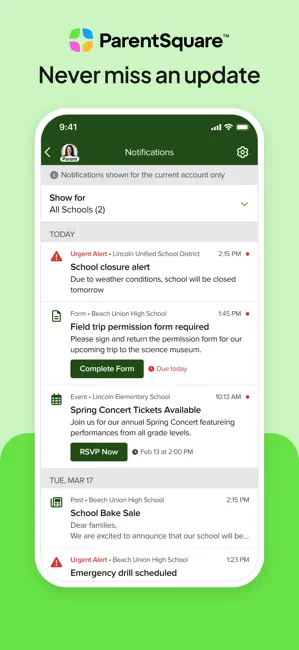
- Notifications: If you have allowed push notifications on your phone, the ParentSquare app will send alerts for new posts or messages based on your settings. Tapping the notification opens the app directly to that item. You can also receive the same alerts via email or SMS (depending on your preference).
- Messaging Teachers: To message a teacher, go to Inbox > New Message. Search or scroll to find the teacher’s name. Compose and send your text. Both you and the teacher will see it in your conversation thread. Use this for quick questions (e.g. “Did my child need anything for tomorrow?”).
- Responding to Posts: Some announcements may have buttons (e.g. “Sign Up,” “RSVP,” “Survey”). Tap those to fill forms or confirm. For example, an announcement about a field trip might have an “Excuse Absence” button to report a student’s absence.
- Payment: If your school enabled payments, there will be a Payments section (or links in posts) where you can view any fees or balances. You can tap “Pay Now” to pay by credit card or other accepted methods.
- Profile & Settings: Tap your name or icon (usually top-right) to access your profile. Here you can update your own contact info, change your password/PIN, and adjust account settings. If you have multiple children, you will see them listed here with their schools.
Common Uses of the ParentSquare App
- Receiving School Alerts: Principal or district office posts emergency alerts (e.g., school closures, safety notices) in this app. Parents instantly get a push notification and/or text. For example, a 2-hour delay announcement on a snowy morning comes through this app immediately.
- Classroom Updates: A teacher shares weekly homework, photos of class activities, and supply requests via the app. Parents comment or react, keeping them involved in the classroom.
- Attendance Notifications: A parent forgets to tell the school their child will be absent. The school marks them absent and sends an automated notice through the ParentSquare app. The parent then taps “Report Absence” in the app with the excuse, updating the record without a phone call.
- Volunteer Sign-ups: The PTO post asks for volunteers for a bake sale. Parents sign up right in the app; slots are updated live. Everyone sees remaining spots until filled.
- Payments & Forms: The district posts the spring fundraiser permission form. A parent fills it out digitally and pays the $20 contribution all within the app, saving time on paperwork.
- Two-way Translation: A Spanish-speaking family receives a translated message about an upcoming parent-teacher night (originally posted in English). They reply in Spanish asking a question, and the teacher sees the question translated. The app bridges the language gap.
Pricing
ParentSquare app is free for parents and students to download and use. There is no subscription fee on the family side; all standard features (messaging, viewing posts, signing up for events, translations, etc.) are included at no cost to users.
The school or district pays for the platform. Districts choose among subscription plans based on the number of students, features needed, and support levels. (Schools of different sizes may incur different per-student fees or flat annual licenses.) Parents will not see any charges in the app, except optional fees like paying for lunch or a school trip, which go to the school’s payment processing (not to ParentSquare).
There are no in-app purchases. Some districts may charge for premium services (e.g., certain advanced modules or integrations), but again, families only use the free account. The app does not lock core features behind a paywall for parents.
Privacy & Security
It takes data privacy and security seriously, complying with K-12 regulations. Key points:
- Data Encryption: All communication through the app is encrypted in transit. The service uses secure connections (HTTPS/SSL), so messages and attachments are protected while being sent.
- FERPA & COPPA Compliance: It is designed for schools and follows federal laws: it is FERPA-compliant (student information is protected by the district) and COPPA-compliant for families of young students. Your child’s data is handled only for school-related purposes.
- No Targeted Ads: It does not sell personal data or use it for advertising. They explicitly state that personal or student data is not shared for marketing. The platform does not profile parents or children for ad targeting.
- Secure Accounts: School districts control who gets an account. Parents are authenticated via the district’s data, so only verified parents/guardians (and students, if allowed) can access specific information. Staff accounts are separate. This prevents outsiders from joining.
- Permissions: On mobile devices, the app may request access to features like sending notifications (must allow for alerts), camera (optional, to take or upload photos for posting), and contacts (optional, to invite another parent). You can grant or revoke these via your phone’s app settings. The app does not require invasive permissions by default.
- District Control: Parents can view and update their own contact info, but the district is ultimately in control. If you need to delete or update your data permanently, the school or district data administrator will handle it. (ParentSquare’s privacy policy notes that parents should contact their district if they want data deleted.)
- Trust Certifications: This app is certified by iKeepSafe as a “Safe Harbor” for student data, reflecting adherence to strong privacy standards.
Overall, the app is considered safe for school communication. School administrators can monitor communications if needed for safety or compliance, but parent privacy is respected. If you ever have concerns about content or privacy, you can always reach out to your school’s ParentSquare administrator for guidance or to adjust your settings.
Pros & Cons
| Pros | Cons |
| Replaces multiple tools (email, paper notices, texts) with one app. | Only works if your school/district subscribes. No public signup or independent use. |
| Over 42,000 schools and 22M students use it, often reaching 99% of families. | Some users find many alerts (especially in large districts) overwhelming unless they fine-tune settings. |
| Automatic translation into 190+ languages makes it inclusive. | Administrators note it can be tricky to broadcast to ad-hoc groups of students without manual workarounds. |
| Data is encrypted, no ads, COPPA-compliant. | If your contact info is wrong or multiple accounts exist, you may miss messages until fixed. |
| Includes forms, payments, calendars, and one-tap teacher messaging. | New users must learn the interface; some interface areas (like attaching files) have room to improve. |
| No cost or in-app purchases for parents/guardians. | Parents must install the app (or use email), which some tech-shy users might hesitate to do. (However, they can still receive texts/emails even without installing.) |
Tips & Tricks
Using the following tips, you can make the most of the ParentSquare app and streamline your school communications experience.
- Combine Multiple Accounts: If you accidentally created more than one account (e.g., used different emails), use the Combine with another account feature under My Account. This lets you merge them so you see all your children in one login.
- Switch Between Roles: If you are also a teacher or staff member, you can have both a staff and parent account. Tap your name in the app and use Switch Account to toggle between your parent view and staff view.
- Language Preferences: Set your preferred language once under Account > Preferences. All posts and messages will auto-translate to that language each time. (This is especially useful for multilingual households.)
- Notification Digests: To reduce alerts, turn on Digest mode. This sends you one daily summary email of all non-urgent posts. Emergencies still come instantly. Many parents find digest mode keeps their inbox calmer.
- Sync Calendar: In the Calendar view, look for a “Sync” or “Export” option. You can often add the school calendar to your personal Google or Apple calendar so events appear alongside your own schedule.
- Text Replies: You don’t always need the app to reply. If you receive a ParentSquare text message on your phone, you can often reply directly to that text to send a response in the app, just like SMS (unless your district has disabled SMS replies).
- Bookmark Important Posts: If your app supports it, star or bookmark important messages (like forms or volunteer info) so you can easily find them later.
- Help Center: If stuck, the Help Center (parentsquare.com/resources/help-center) has guides. Also, many districts link to help videos and FAQs on their websites.
Common Problems & Solutions
- I can’t log in, or my login doesn’t work: Usually this means your contact info isn’t in the school’s system. This platform pulls data from the district’s database. If you moved or enrolled late, the school might not have updated your email/phone. Contact your school’s registrar or ParentSquare administrator to verify your info and ensure it’s been uploaded. If you forgot your password, tap Forgot Password on the login screen and enter your email/phone to get a reset link.
- I’m missing my child or school in the app: This often happens if you have multiple accounts or if your info changed. First, confirm your account uses the same email/phone that the district has. If you have two separate accounts for two children, use the Combine Accounts feature so both children appear. If a child still isn’t listed, contact the school to check the SIS records.
- I get notifications for the wrong family: ParentSquare data comes from the school database. If you received a notification meant for someone else, it likely means the school has conflicting contact information (e.g., two families entered the same phone number by mistake). Let the school know so they can correct the SIS entries. Only district staff can fix these mismatches.
- Too many notifications are coming in: You can customize what you receive. Under My Account > Notifications, switch non-urgent updates to Digest mode (daily summary). You can also disable email or push for certain categories. However, emergency alerts (like lockdowns or school closures) will always notify immediately. Adjust your settings to strike the right balance.
- Messages or posts aren’t showing up: This may be due to network issues or app glitches. First, check your internet connection. Then, try pulling down on the feed to refresh. If it still fails, close and reopen the app, or check for an app update in the app store. If a teacher’s message isn’t visible, ensure you are in the correct school or class group. You may need to log out and log back in.
- I have trouble uploading attachments or photos: The app allows you to send photos and attachments, but sometimes file sizes can be large. If an upload fails, try reducing the file size or using Wi-Fi. If the app behaves erratically (e.g., a message you’re typing deletes unexpectedly), ensure you’re on the latest app version, as many such bugs are fixed in updates.
- How do I unsubscribe from notifications? You can unsubscribe via text or email. To stop text messages from a particular school or group, reply STOP to any text notification; this will opt you out of texts for that source. (Note: you’ll still receive critical alerts.) To stop emails, use the “unsubscribe” link at the bottom of a ParentSquare email. If you want to completely remove yourself (no calls, texts, or emails), you must ask the school/district to delete or deactivate your contact entry in their system.
- I think I have a bug or app crash: If the app crashes or won’t open, try uninstalling and reinstalling the app. Also ensure your device’s OS is up to date. Most issues are resolved by a reinstall or update. If problems persist, check status.parentsquare.com for any ongoing service issues, and contact your school’s tech support.
- What about privacy and data removal: If you leave the district (e.g., move to another town), the district will remove your data as part of its annual cleanup. The app itself allows district admins to delete family data. You cannot delete it from the app on your own. For privacy concerns, District personnel (not teachers) can show parents how their data is used. ParentSquare’s privacy policy states parents should contact their District to delete personal data.
Whenever you run into trouble, a good first step is to contact your school’s ParentSquare administrator (often someone in the office or communications department). Schools can look up your account, resend invitations, or troubleshoot with support on your behalf.
Alternatives
Districts and parents sometimes compare ParentSquare to other K-12 communication tools. Below is a brief comparison of some popular alternatives:
| Alternative | Use Case | Platforms | Pricing |
| Remind | Teacher-led messaging; one-way SMS/text alerts | iOS, Android, Web | Free basic; paid tier for district features |
| ClassTag | General announcements & volunteer sign-ups | iOS, Android, Web | Free basic; optional paid add-ons (translation, storage) |
| TalkingPoints | Two-way multilingual messaging | iOS, Android, Web | Free for teachers/basic use; district licensing for full features |
| SchoolMessenger | District alerts via calls, texts, and emails | Phone, Web | Subscription (often district-wide contract) |
| Bloomz | Classroom management + parent messaging | iOS, Android | Free (basic); per-student paid tiers for premium features |
| FRANSiS™ | AI-driven two-way SMS conversations (no app required) | SMS, Web | Flat-rate (subscription; unlimited messaging) |
When to choose another app:
- If you need SMS-first delivery without requiring parents to install an app, a platform like FRANSiS or SchoolMessenger (calls/SMS) might be better.
- For simple teacher-to-parents updates with no district coordinator, Remind or TalkingPoints can work (they offer robust free teacher accounts).
- If multilingual communication is a priority for schools with many non-English-speaking families, TalkingPoints specializes in automatic translation across many languages.
- For classroom-level engagement (behavior tracking, portfolios), Bloomz or ClassTag add features beyond what ParentSquare focuses on.
- ParentSquare is generally favored when a district wants one unified system across schools. Smaller pilots or budget-conscious schools might start with ClassTag or Remind (free tiers) and then switch to ParentSquare for full features as needed.
Frequently Asked Questions
What is ParentSquare?
ParentSquare app is a school communication app connecting parents, students, and school staff. It lets families receive announcements, newsletters, and messages from their child’s school, and also allows parents to message teachers and sign up for events. Essentially, it replaces multiple school apps by consolidating news, alerts, calendars, forms, and messaging in one place.
How do I download this app?
On your phone or tablet, open the app store (Google Play on Android or App Store on iOS) and search for “ParentSquare”. Download and install the app developed by ParentSquare. You can also find official download buttons on parentsquare.com/resources/app-download. The app is free.
How do I update this app?
App updates are managed through your device’s app store. On Android, open Google Play, search for ParentSquare, and tap Update if available. On iOS, open the App Store and check for updates under your account. Regular updates ensure you have the latest features and bug fixes. The latest app version (2.129) was released in July 2026.
How do I sign in to ParentSquare?
Open the app and tap Sign In. Use the email address or phone number your school has on record for you (the one you provided during enrollment). Enter your password or PIN. If it’s your first time, look for a verification email or text from ParentSquare to set your password. Parents do not need a separate account invite to just receive messages – your login credentials come from the school’s system.
How do I reset my password?
On the login screen, tap Forgot Password. Enter your registered email address or phone number. The app will send a reset link or code to that contact. Follow the instructions to create a new password or PIN. If you don’t receive a reset link, contact your school to ensure your contact info is correct in their system.
Why can’t I log in to ParentSquare?
Common reasons: (1) Your email/phone isn’t in the district’s database yet. ParentSquare pulls contact info from the school’s system. If you recently enrolled or changed your contact details, ask your school to update your record. (2) You may be using the wrong email/phone. Double-check the contact info the school has. (3) If you have multiple accounts, make sure you’re logging in with the one your school recognizes. If problems persist, contact your school’s ParentSquare admin or support.
What if ParentSquare isn’t working?
If the app is glitchy or stuck loading, first check your internet connection. Try closing and reopening the app, or uninstall and reinstall it. Ensure the app is updated. If only certain content is missing, it might be a syncing issue – pull down on the feed to refresh. Persistent issues (like blank screens or crashes) should be reported to your school’s tech support. Also check status.parentsquare.com to see if there’s a known outage.
How do I delete my account?
Unlike consumer apps, you cannot delete a ParentSquare account yourself. Your account is tied to your role in the school’s system. If you move away or no longer need it, contact your school district to remove your account. The district administrators can delete or deactivate accounts. According to ParentSquare’s policy, parents should “email privacy@parentsquare.com” or contact their district to delete personal data if needed.
How do I combine multiple ParentSquare accounts?
If you ended up with two accounts (e.g., one by phone and one by email), log in to one and go to My Account > Combine with another account. The app will list any other account matching your contact info. Select it and combine. This merges all your children under one login. After combining, you can log in using either contact.
How do I switch between parent and staff accounts?
If you are both a parent and a district employee, you can have two accounts. To switch, log in to one role, tap your name in the top-right, and under Switch Account, add the other account. Then simply tap your name and choose which account (parent or staff) to view at any time.
Can I use ParentSquare on a computer?
Yes. Go to parentsquare.com and click Sign In. You can log in with your credentials and access nearly all the same features via the web browser. There is no separate desktop app, but the web interface is fully functional.
Is the ParentSquare app free?
Yes, the app is free for parents and students. There are no fees to download or use the app. (Schools and districts pay for the service on a subscription basis.) Parents should not encounter any charges unless they use a payment feature to pay school fees.
Is the ParentSquare app safe?
This app is designed for schools and is FERPA- and COPPA-compliant. It encrypts your data in transit, does not sell personal data, and requires administrator-controlled sign-up. It is generally safe for families. The district has access controls (only verified parents and students can log in for each school).
What permissions does the app need?
Typically, it will request permission to send you notifications (so you can see alerts), and optionally access your camera or photo library (if you post images). It does not require access to your contacts unless you actively share contact info through the app. You can manage these permissions in your phone’s Settings.
Can I use ParentSquare offline?
No. This app requires internet access to sync with the school system. You can read previously downloaded messages offline for a short time, but sending messages or receiving updates requires a network connection. Think of it as an online portal: without internet, it won’t load new info.
How do I change my language setting?
In the app, tap the menu (☰), then Account > Preferences (Language Settings). Choose your preferred language from the list. All new posts and messages will auto-translate to that language. This setting won’t affect what others see; it only changes what you read.
How do I stop getting ParentSquare notifications?
Within the app, go to Account > Notifications. You can turn off all notifications (except urgent alerts) or switch to Digest mode to receive a single summary email per day. To stop text messages, reply STOP to any ParentSquare text. To stop emails, click “Unsubscribe” at the bottom of the email. Remember, urgent alerts (like emergencies) will still come through if you are in the district system.
Can I message multiple parents at once?
You can create or join Group Chats in this app(if your school has enabled them). For example, a PTO group or classroom group lets all parents see each other’s messages. To message all parents of a particular class or grade, usually teachers and admins set up those group channels. If you need to contact several parents and it’s not available, you may need to ask a teacher or administrator to send the broadcast. (The app intentionally limits parents from directly creating arbitrary broadcast lists to protect privacy.)
What is StudentSquare?
StudentSquare is a sister app to ParentSquare, designed for K-12 student communication. It gives students access to the same announcements and allows them to chat with peers in teacher-supervised groups. If your school uses StudentSquare, you might see a link or switch inside ParentSquare to access it. (Many districts have both – ParentSquare for families and StudentSquare for students.)
How do I contact ParentSquare support?
If you encounter issues, first reach out to your school or district’s ParentSquare administrator. They have direct support lines with the platform. You can also visit the ParentSquare Help Center for guides. It does not provide direct phone support to parents; problems are typically handled by school staff contacting the team.
What if I change my phone number or email?
Because the app uses the district’s data, the school’s office must update your contact info in the student information system. Once the school updates your information, it will sync the change (usually within 24 hours), and you’ll receive notifications at your new contact. You can also add multiple contact methods in your ParentSquare account to cover any changes.
Why didn’t a staff message reach me?
It could be because your contact info is out of date in the system (see above). Or, if it was a classroom message, check that you are subscribed to that teacher’s class or group in the app. Contact the teacher or school if something is missing. Technical issues are rare; usually the fix is ensuring the school has your correct info and that you’re using the current version of the app.
How do I uninstall ParentSquare?
On your device, go to System Settings > Apps, find “ParentSquare,” and choose Uninstall (Android) or tap and hold the app icon and select Remove App (iOS). Uninstalling simply removes the app from your device; it does not delete your account. You can always reinstall and log back in with the same credentials. Uninstalling will stop push notifications, but the school may still send you emails or texts unless you opt out.
Who can see the messages I send?
Private one-on-one messages can only be seen by the sender and receiver. Group messages are visible to all members of that group. District administrators (not teachers) have the ability to access accounts if needed for safety or troubleshooting, but day-to-day, no one outside the intended recipients sees your private communications.
How is ParentSquare different from a regular email or text?
It integrates all communication in one platform. A parent text sent through this app is logged and viewable by the school, whereas a regular text isn’t tied to the school record. Unlike basic email, its messages can be auto-translated, and parents can reply by text if they prefer. Also, announcements show up in the app and on the web without the parent having to sort through personal email inboxes.
What if my school asks me to download it?
Many districts use ParentSquare to replace older tools (like Remind or email lists). If your school rolled it out, follow their instructions (often scanning a QR code or clicking an invite link). Download the app and sign in as described. All your future school notices will come through it, so it’s important to complete the setup so you don’t miss anything.